

Step 1: Select Download Type #
Go to “Files Downloader”. Choose Files & Attachments as the download option.
Thank you for reading this post, don't forget to subscribe!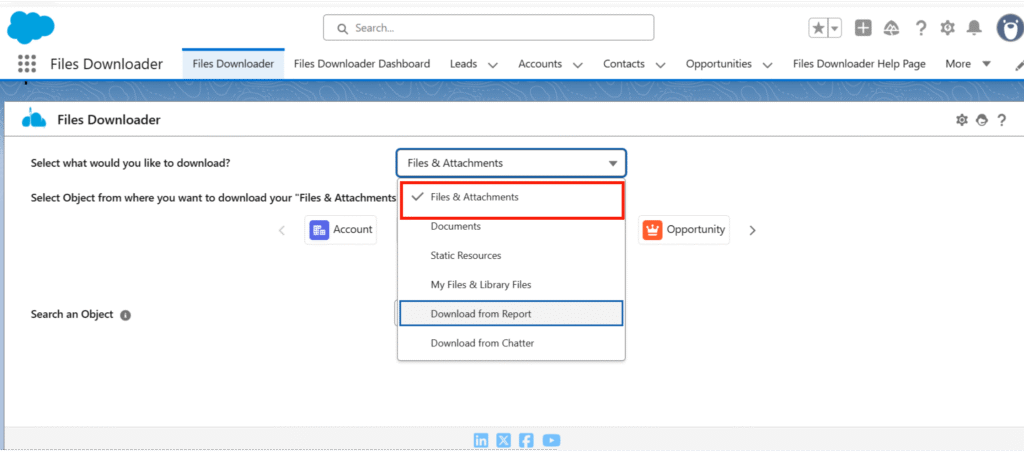
Step 2: Select Salesforce Object #
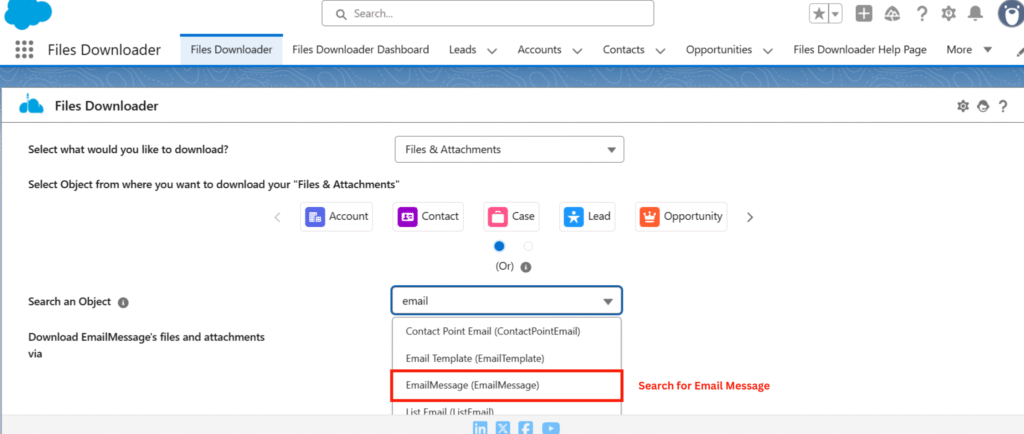
Search for and select EmailMessage.
EmailMessage stores all emails related to cases, including customer emails and agent replies.
Step 3: Choose Download Source #
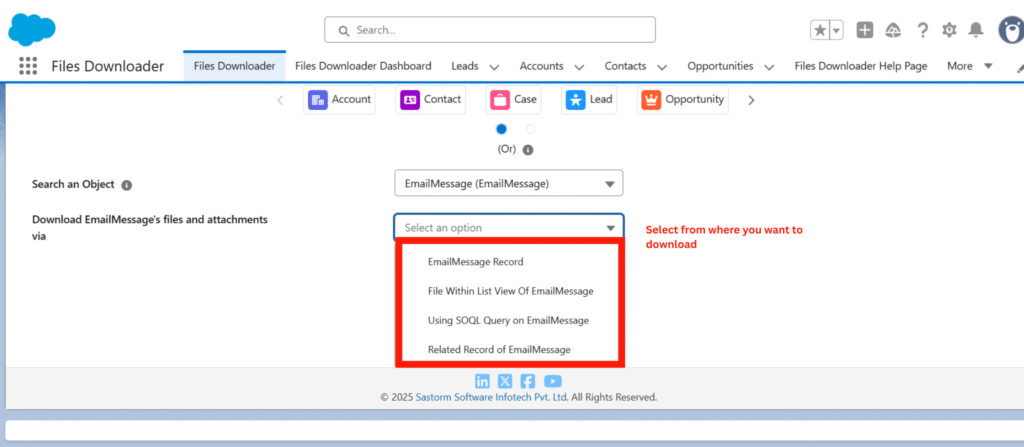
Select where you want to download attachments from:
- EmailMessage records
- SOQL query
- Salesforce List Views
Step 4: Search Email Attachments #
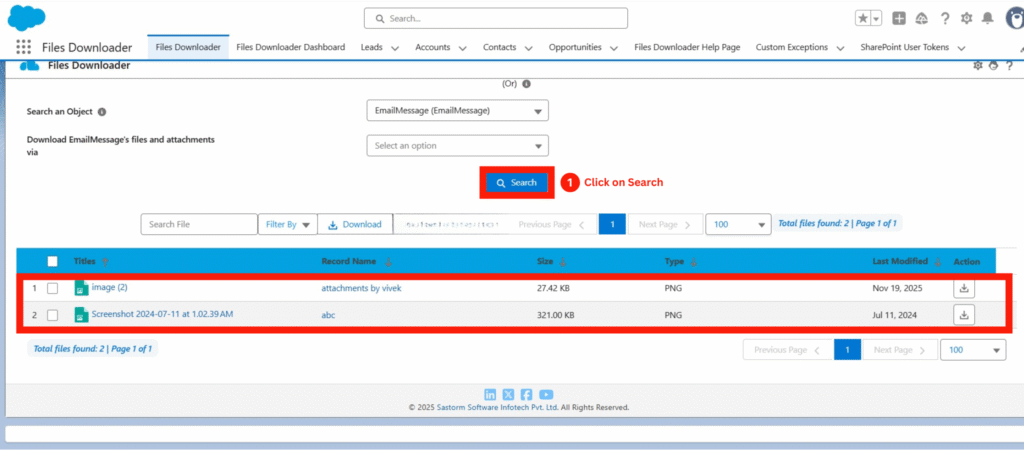
- Click Search.
- All email attachments linked to cases are automatically listed, including:
- Customer email attachments
- Agent reply attachments
- Inline images
- Customer email attachments
Step 5: Apply Filters (Optional) #
You can filter attachments by:
- Date range
- Email sender
This helps narrow down large volumes of Email-to-Case attachments.
Step 6: Bulk Download Attachments #
- Select multiple attachments or choose all results.
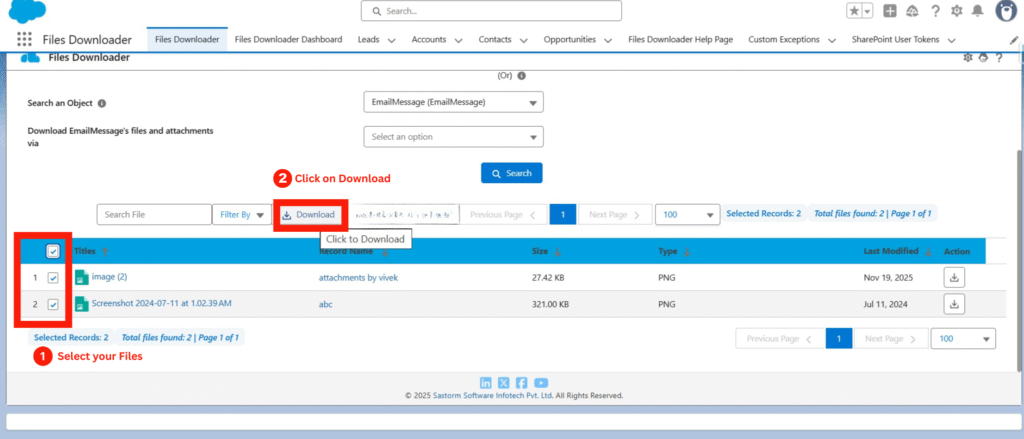
Step 7: Download Files #
- Click Download.
- A ZIP file is generated containing:
- All email attachments and inline images
- A CSV mapping file with metadata such as:
- Case Number
- Email Subject
- Sender
- File Name
- Case Number
- All email attachments and inline images
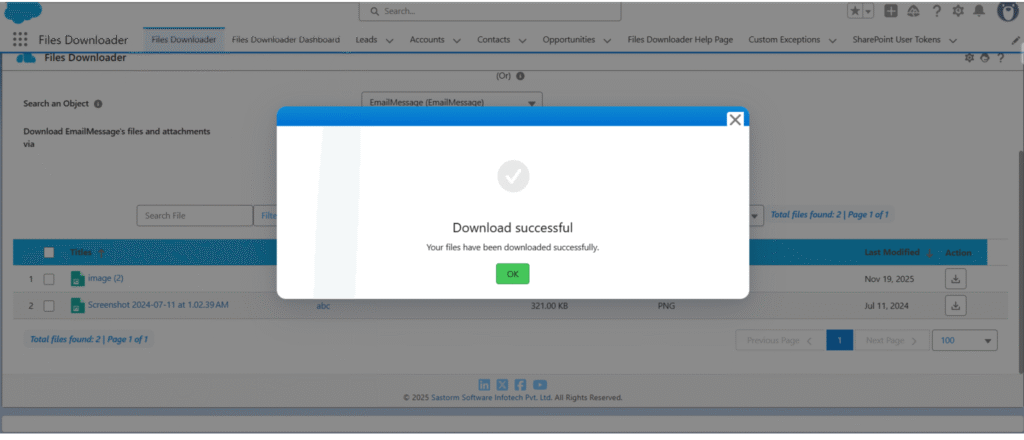
After download, you will receive:
- A ZIP folder with all selected attachments
- Preserved file names and formats
- CSV file mapping attachments to case numbers and email details



