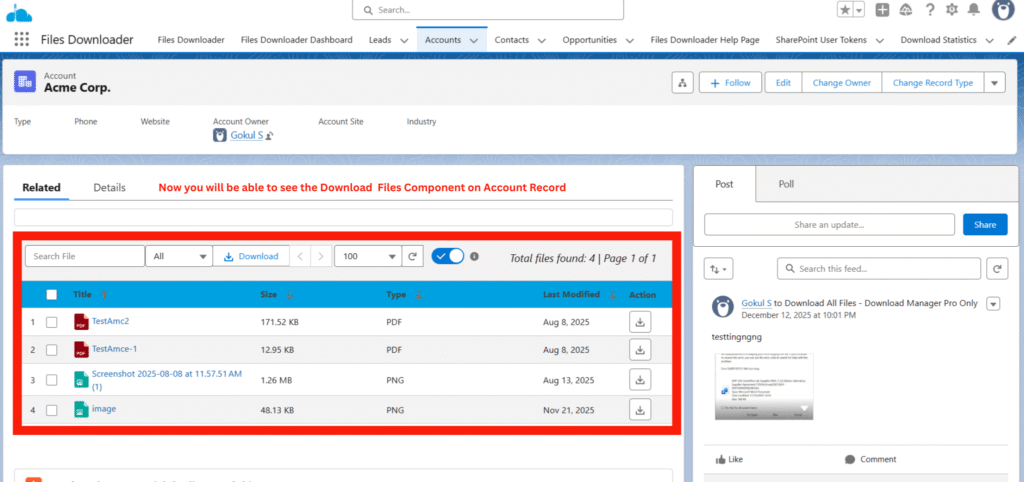
This guide explains how to add the Files Downloader (DownloadFiles) component to a Salesforce Lightning record page so users can download Salesforce files and attachments directly from record pages such as Accounts, Cases, or custom objects.
Thank you for reading this post, don't forget to subscribe!1. Open Lightning App Builder #
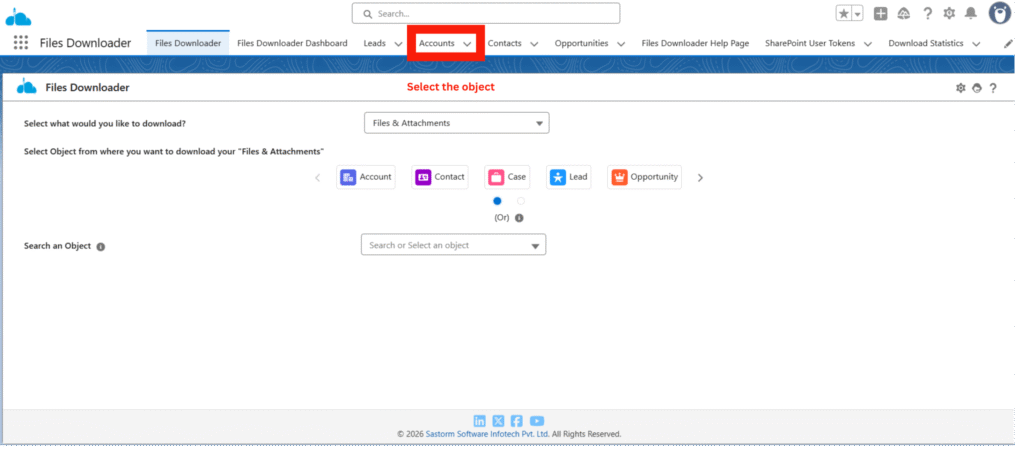
- Select the object (Case, Account, Account, or Custom Object)
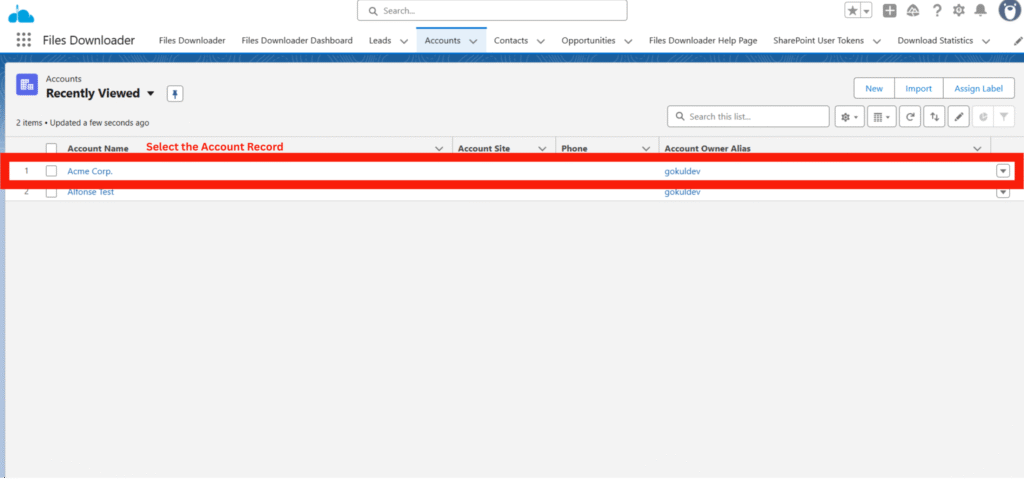
- Select any Record
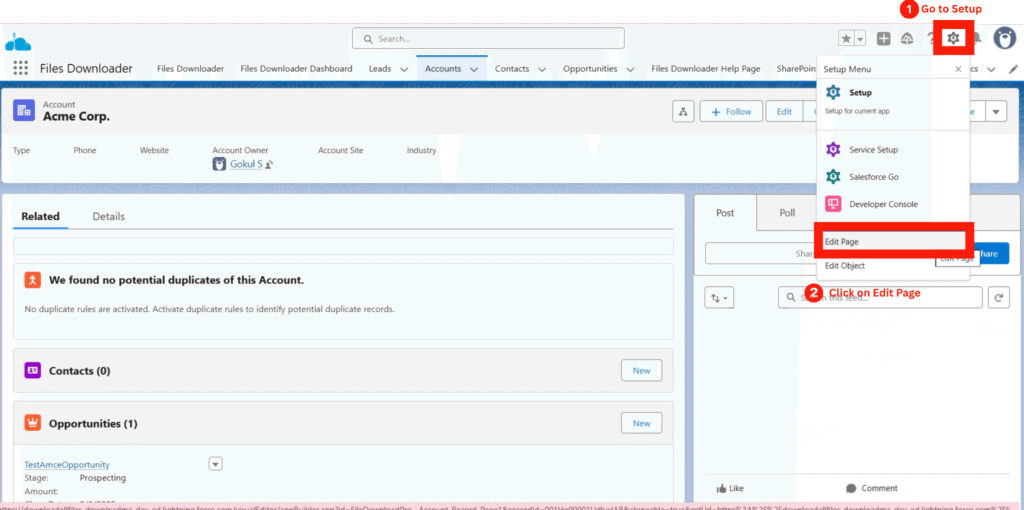
- Go to Setup
- Click on Edit Page
2. Add the Files Downloader Component #
- From the left panel, search for DownloadFiles component
- Drag and drop the DownloadFiles component onto the page layout This component enables bulk download of Salesforce files and attachments from the record page.

3. Configure Component Settings #
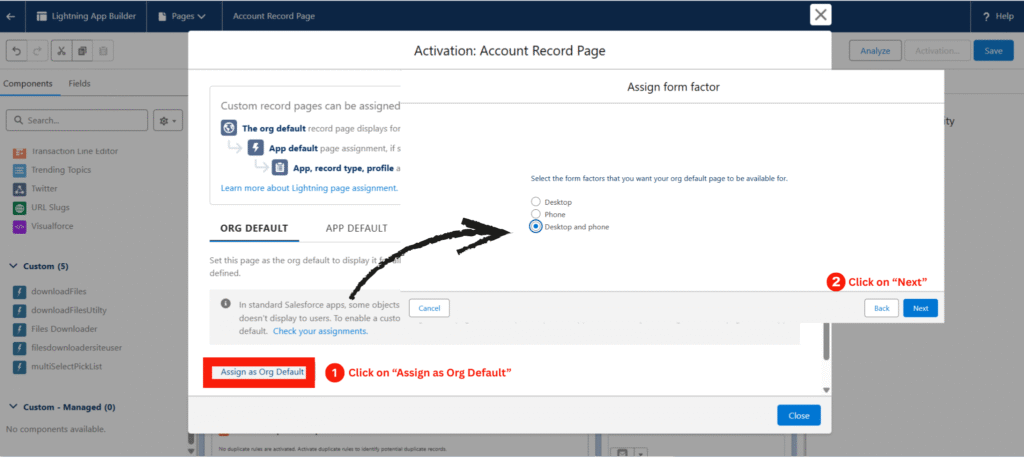
- Click on Activation
- Click on “Assign as Org Default”
- Choose where the page should be available:
- Desktop
- Phone
- Click on “Next”
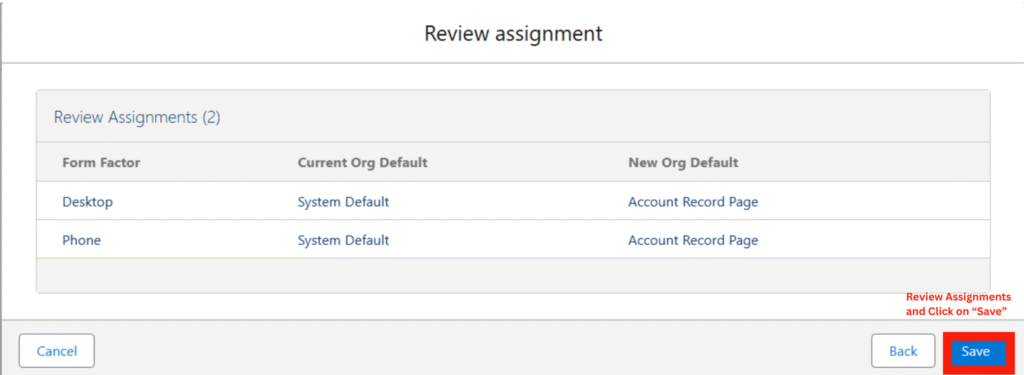
- Review Assignments settings and Click on “Save”
4. Save and Activate #
- Click Save
Download Salesforce files & Attachments #
- Open an Account record (or the selected object)
- You will now see the Download Files component available on the record page
- Users can download Salesforce files and attachments directly from the Lightning page