Talk to Expert


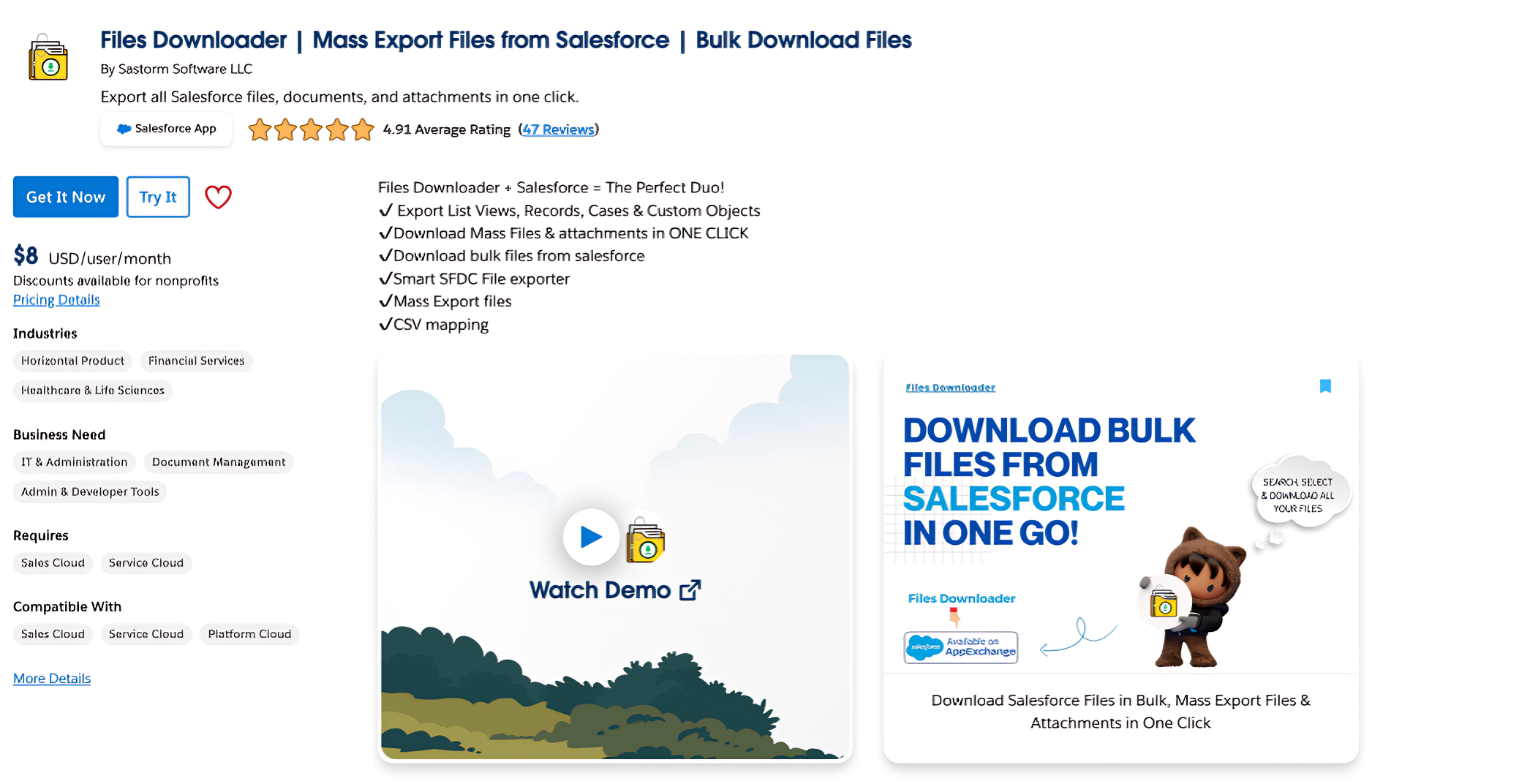
- How to Install Files Downloader for Salesforce?
Step-by-Step Installation Guide
Easily set up File Downloader in your Salesforce environment with our simple, step-by-step instructions. Follow the guide to ensure a quick, hassle-free installation and start mass exporting files from Salesforce in no time!
Thank you for reading this post, don't forget to subscribe!-
Access Salesforce AppExchange
Visit the Salesforce AppExchange and search for Files Downloader.
-
Initiate Installation
Click the “Get It Now” button on the AppExchange listing page.
-
Choose Your Trail Type
Share Your Contact Information and click on continue to installation
-
Login to your sandbox
Click on LogIn & Install to your Saleforce
-
Log in to Salesforce
Enter your credentials to access the salesforce environment for installation
-
Select User Access
Choose whether to install for admins, all users or specific profiles
-
Complete installation
Upon completion, you'll recieve a confirmation email
-
Start using the App
Open Salesforce, go to the App Launcher, and select “Files Downloader.”
-
Start Exporting Salesforce Files
Now you can Download Mass Salesforce files & attachments using Files Downloader.