

Published 2026/01/13
Thank you for reading this post, don't forget to subscribe!Issue #
Files Downloader app is not appearing in the Salesforce App Launcher after installation.
Recommended Troubleshooting Steps #
If the Files Downloader app is not visible in the App Launcher, follow the steps below:
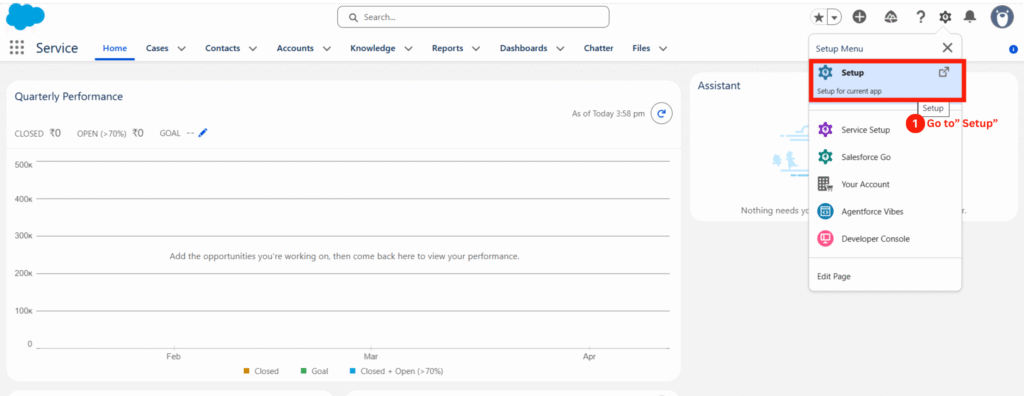
1. Go to Setup in Salesforce. #
2. Navigate to Installed Packages. #
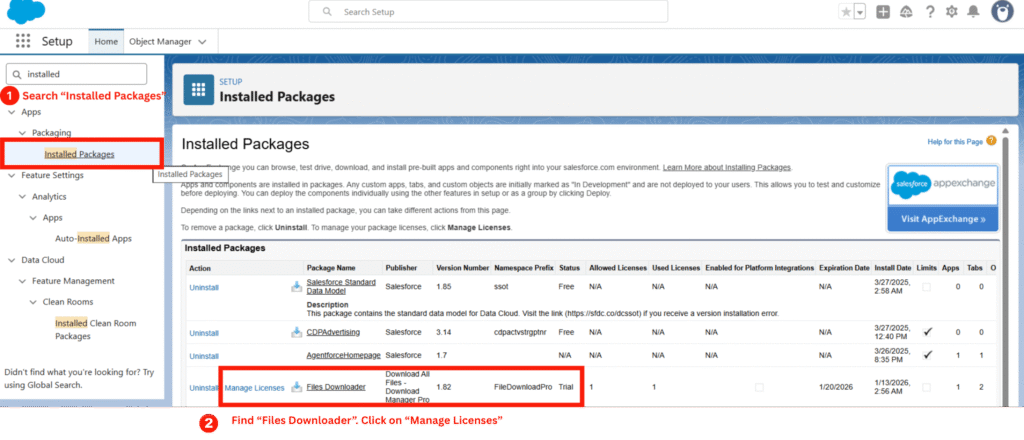
3. Locate Download All Files #
4. Click Manage Licenses (Package name: Download Manager Pro) #
5. Click Manage Licenses next to the package #
6. Ensure that: #
- You have access to the package
- At least one license is available
7. Assign the license to: #
- Yourself, or
- Other users who need access
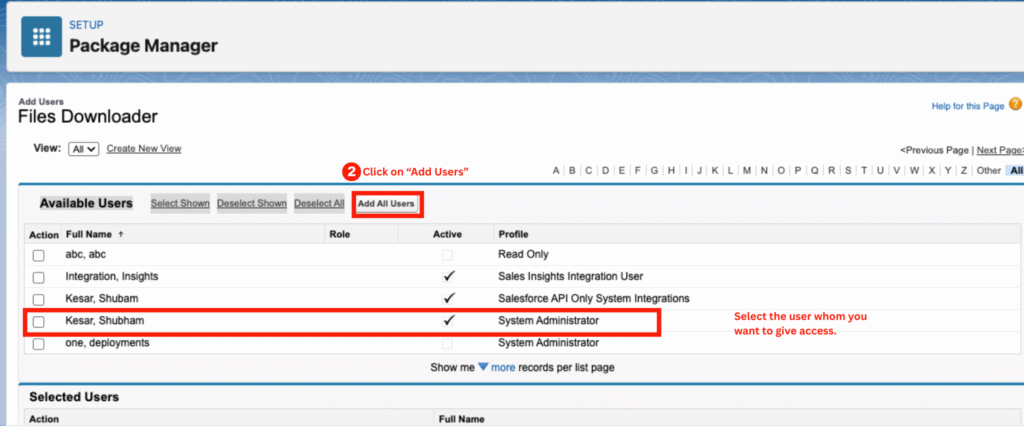
8. To assign licenses to yourself or other users, click Add Users #
9. Open the App Launcher and search for Files Downloader #
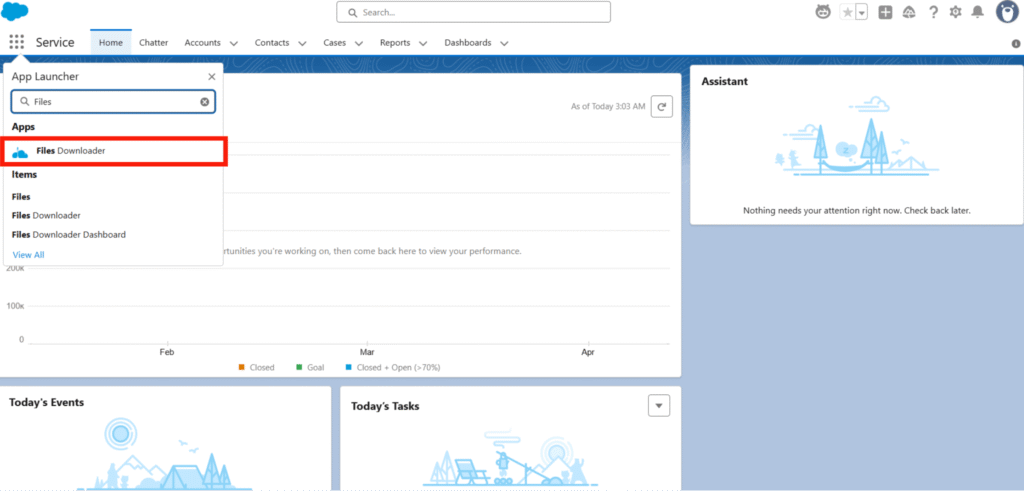
✅ The app should now be visible and accessible.


