

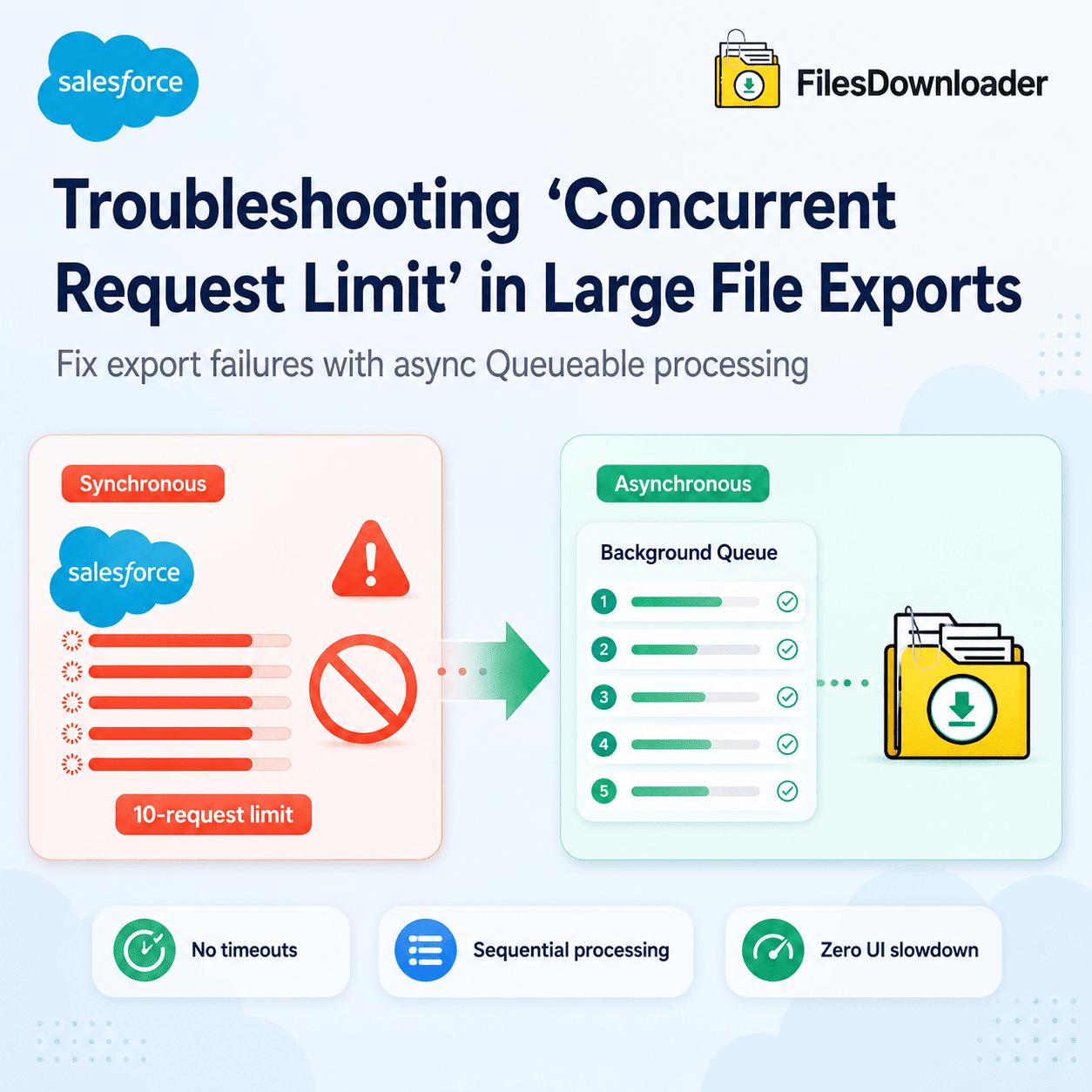


The Salesforce concurrent request limit error occurs when your file export initiates too many long-running synchronous requests simultaneously. To fix this, move from synchronous UI downloads to Asynchronous Apex Batching. In 2026, the most effective solution is using Files Downloader, which uses a “Queueable” framework to process files sequentially in the background, ensuring you never hit the 10-request synchronous ceiling.
Thank you for reading this post, don't forget to subscribe!
Understanding the Salesforce Concurrent Request Limit
Salesforce is a multi-tenant architecture. which means multiple organizations share the same infrastructure. To prevent one organization from consuming too many resources,
Salesforce enforces a Salesforce concurrent request limit to prevent one org from consuming excessive shared resources.
- The Rule: For most Orgs, you are allowed a maximum of 10 concurrent requests that run for 5 seconds or longer.
- The File Problem: When you try to download 5GB of files through the standard UI, the browser opens multiple streams to “zip” the data. Because binary data takes a long time to process, these streams stay open for more than 5 seconds, instantly hitting the limit and blocking all other users in your Org from performing basic tasks.
Why the Spring ’26 Release Increased the Risk?
In the Spring ’26 Release, Salesforce shifted its focus toward Agentforce AI performance. To ensure AI agents have enough “compute juice,” Salesforce has tightened the monitoring of long-running synchronous processes. If your file export isn’t optimized for Bulk API 2.0, it is more likely than ever to be killed mid-process.
How to Optimize Your Batch Size & Concurrency?
If you are struggling with export failures, follow these three optimization strategies:
Strategy A: Reduce Batch Size for File Exports
If you are using an ETL tool or the Data Loader, do not attempt to pull 200 records at once.
- Optimization: Set your batch size to 1 for binary data (ContentVersion). While this sounds slow, it prevents the server from trying to pull 200 PDFs into memory simultaneously, which is the primary cause of the concurrent request error.
Strategy B: Shift to Asynchronous Processing
Never use the “Download” button on a List View for more than 50MB. Instead, use a tool that leverages Batch Apex.
- The Advantage: Batch Apex runs in the background. It doesn’t count toward the 10-request synchronous limit. Tools like Files Downloader automatically move your export into the “Flex Queue,” allowing Salesforce to process the files whenever server capacity is available without interrupting your users.
Strategy C: Filter by Date or Size
Often, Admins hit the limit because they are trying to export everything at once. Use a SOQL filter to break your 50GB migration into smaller, manageable “waves”:
WHERE ContentSize > 10000000(Export only files >10MB first)WHERE CreatedDate = LAST_N_DAYS:30(Export by month)
Comparison: Native UI vs. Optimized Async Export
| Metric | Standard Salesforce UI | Files Downloader (Async) |
| Max Concurrent Requests | 10 (Synchronous) | Unlimited (Queued) |
| Timeout Risk | High (after 60 seconds) | Low (Background processing) |
| Org Performance | Slows down all users | Zero impact on UI users |
| File Organization | Flat ZIP | 4-Level Folder Hierarchy |
Post-Export Checklist: Reclaiming Storage
Once you successfully bypass the concurrent request limit and secure your files, the next step is often cleanup. High concurrency errors are usually a symptom of a bloated Org.
- Verify the integrity of your SharePoint archive.
- Use a safe-deletion flow to remove the original files from Salesforce.
- Monitor your storage reports to ensure you are back within limits for Agentforce grounding.
Simplify Large Salesforce File Exports
If you frequently encounter Concurrent Request Limit errors when exporting Salesforce files, switching to asynchronous processing can make a huge difference.
Files Downloader allows Salesforce admins to export large volumes of files using background processing, avoiding concurrency limits while keeping your org responsive.
Instead of struggling with failed downloads and timeouts, you can export files safely and organize them automatically.
Start using Files Downloader to manage Salesforce file exports more efficiently.
[Book a Free Demo] | [View Pricing] | [Install on AppExchange]