

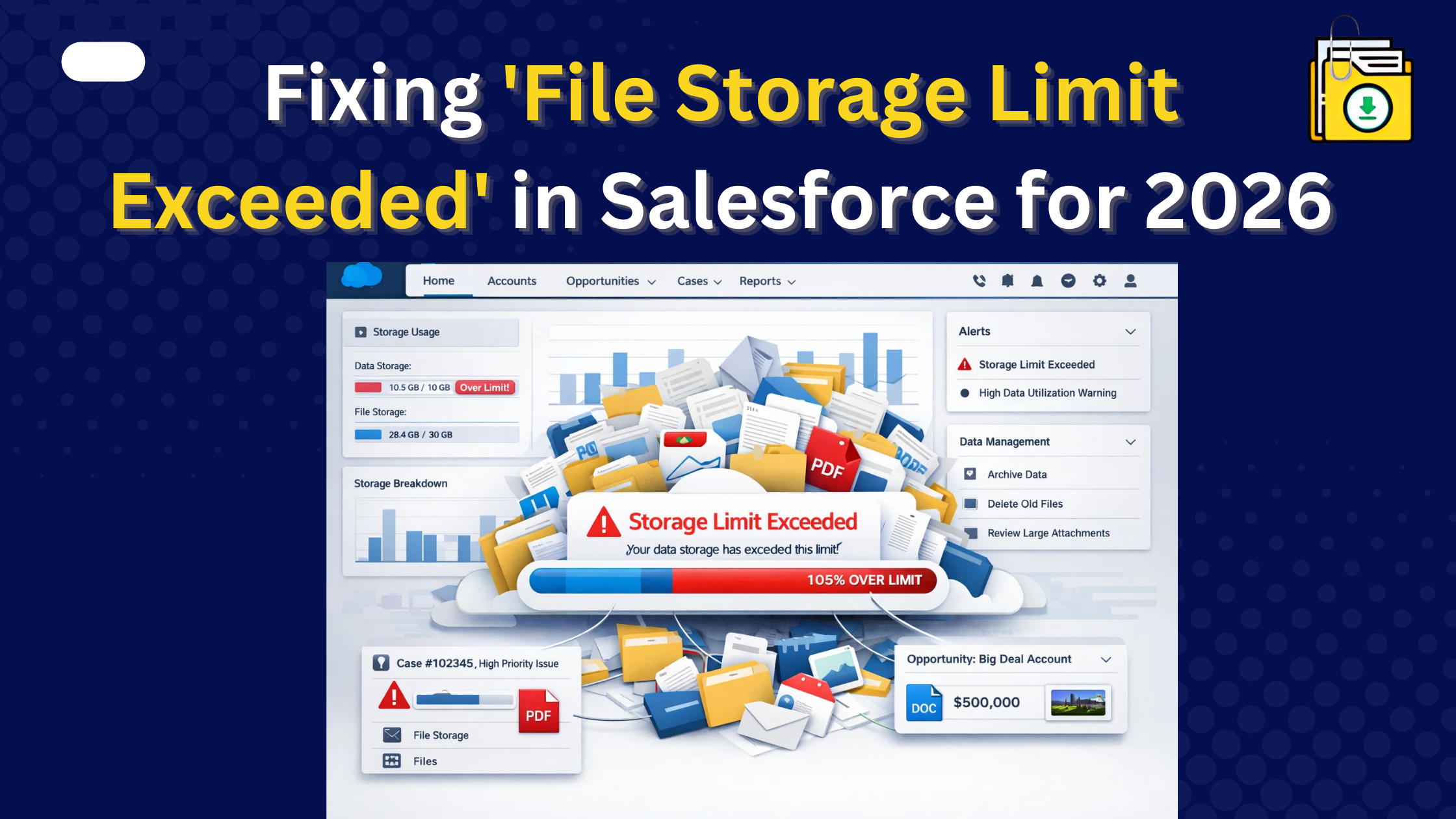


To fix the “SALESFORCE STORAGE LIMIT EXCEEDED” error in 2026, you must identify high-consumption objects (like Cases or Opportunities) and perform a Mass Export and Delete strategy. Because Salesforce now enforces a strict 60-second timeout on manual downloads, the only safe way to reclaim space without data loss is using a native tool like Files Downloader to archive files externally before deleting them from your Org.
Thank you for reading this post, don't forget to subscribe!
It’s the notification every Salesforce Admin dreads: “Your organization has exceeded its file storage limit.” In 2026, this isn’t just a minor warning. When you hit 110% capacity, automations fail, users can’t upload contracts, and Agentforce AI loses its ability to process new documents. Worse, buying more storage from Salesforce remains one of the most expensive ways to solve the problem.
If you’re stuck at 110%, here is the 2026 blueprint for safely mass exporting and deleting files to avoid overage fees.
1. Find What Is Using the Most Storage
Before you delete anything, you need to know where your storage is being used.. Go to Setup > Storage Usage in Salesforce. This page shows which files and records are taking the most space.
In most organizations, the biggest storage problems usually come from:
- Case Attachments: Support teams often upload screenshots, videos, and screen recordings when resolving customer issues. These files can be very large.
- Email-to-Case Attachments: Email signatures often contain logos and images. When emails are stored in Salesforce, these images get saved again and again, sometimes thousands of times.
- Old Sandboxes: Remember that Full Sandbox storage limits are now strictly enforced if production is over, your sandbox refresh will fail.
Knowing where the problem is coming from helps you clean up the right files.
2. The Danger of “Delete-First” Strategies
Many Admins try to quickly mass delete files using Data Loader. This is a high-risk move in 2026 for two reasons:
- Compliance: If your industry requires a 7-year retention policy, “deleting to save space” could lead to massive legal fines.
- The “068” Problem: As we discussed in our guide on Why Data Loader Fails at Preserving Filenames, if you export with Data Loader first, you’ll end up with a folder of unrecognizable IDs. If you ever need to restore that data, you’re in trouble.
Because of these risks, it’s always better to export and archive files first before deleting them.
3. Step-by-Step: Mass Export and Delete Files Safely
To lower your storage to 80% without losing a single important document, follow this Archive-then-Purge workflow.
Step 1: Bulk Export with Context
Use Files Downloader to export mass Salesforce files using a SOQL query. Filter for files older than 2 years or files attached to “Closed” records.
- Why this works: It bypasses the Winter ’26 download limits and keeps your original filenames intact.
Step 2: Secure the External Archive
Move your ZIP files to a low-cost “Cold Storage” solution like SharePoint, AWS, or a local server. This satisfies your Data Security Model requirements while costing 90% less than Salesforce storage.
Step 3: The Safe Mass Delete
Once you have verified the archive, use the IDs from your export to run a mass delete via Data Loader.
- Tip: Start with a small batch of 200 records to ensure no Master-Detail relationships are accidentally breaking critical child records.
4. Preventing the “Next” Storage Crisis
Once you are back under 100%, implement these 2026 best practices:
- Automate File Archiving : Schedule a monthly bulk download of SNotes and Attachments to keep storage lean.
- Block “Signature Image” Bloat: Use a Flow to automatically delete files under 5KB that are identified as “image001.png” or “logo.jpg.”
- Check Release Updates: Monitor the Spring ’26 “Delete Files” permission to ensure users can help clean up their own clutter safely.
Conclusion
Hitting 110% storage doesn’t have to mean a massive invoice from Salesforce. By choosing to export your files with original filenames before you delete them, you protect your company’s history while reclaiming your Org’s performance.
Is your Org blocked right now? Don’t wait for a system failure. Start your Free Trial of Files Downloader today and clear your storage backlog in minutes.