

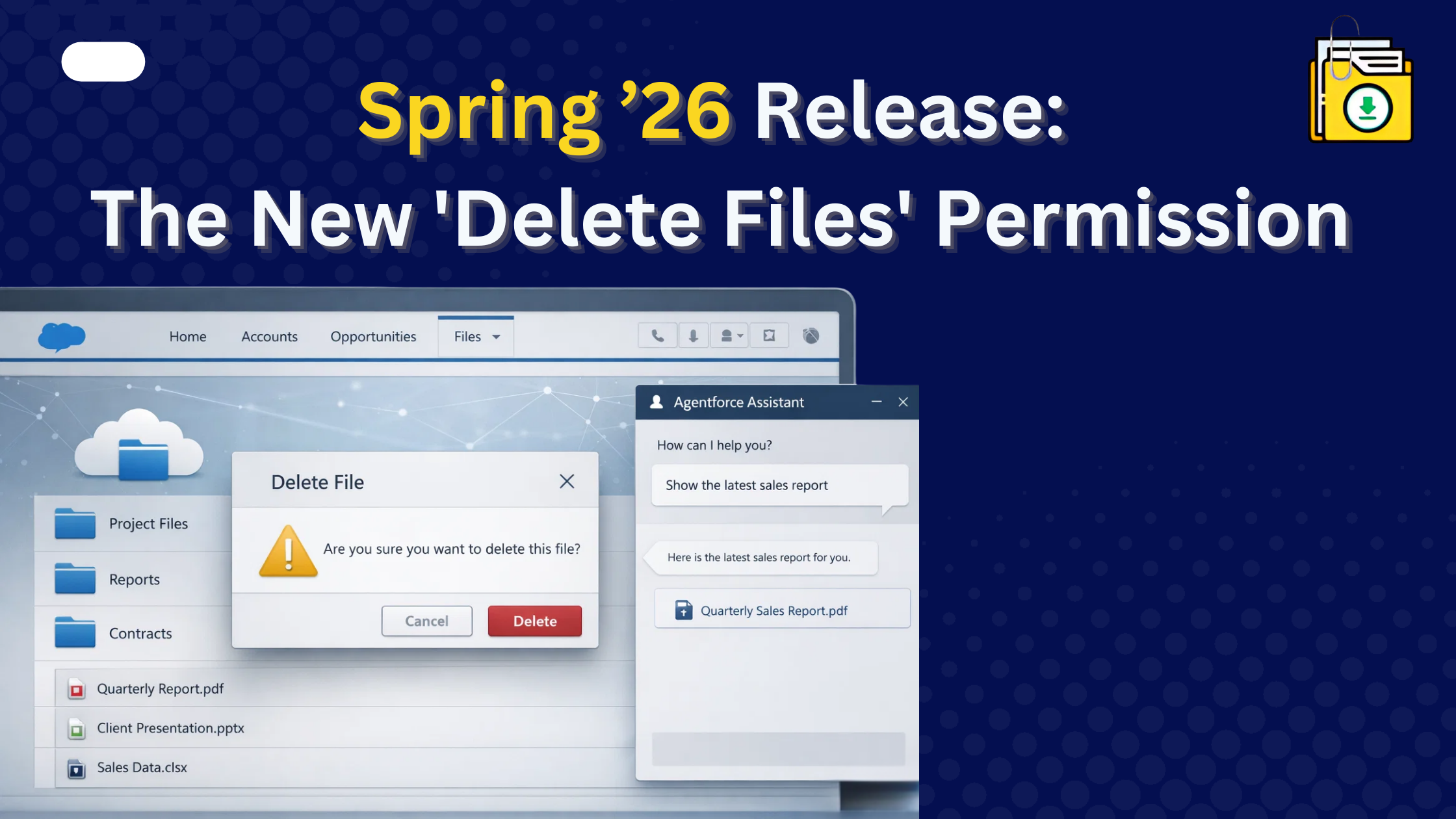


The Salesforce Spring 26 file deletion update introduces a major change in how Salesforce Files are managed across orgs. With the new “Delete Salesforce Files” permission, users can now delete any file they have access to, creating both operational flexibility and serious risks for data integrity and Agentforce AI grounding. Historically, only file owners or System Admins could delete documents. Now, any user granted this permission can delete any file they have view access to. While this solves admin bottlenecks, it creates a massive risk for Agentforce (AI) grounding and data integrity. Before enabling this, a full bulk export of all 10,000+ Salesforce files is essential to prevent permanent, accidental data loss.
Thank you for reading this post, don't forget to subscribe!
The Spring ’26 release is officially live, and while most of the buzz is centered on Agentforce, the most significant change for Salesforce Admins is hidden in the File Management updates.
Salesforce has finally listened to the IdeaExchange and decoupled “Deletion” from “Ownership.” But before you start assigning this new permission, you need to understand the architectural risks it creates for your 2026 data strategy.
1. What is Salesforce Spring 26 File Deletion Permission?
Prior to this release, file deletion followed the “Owner-Only” rule. Even if a user could edit an Opportunity, they couldn’t delete an old, outdated PDF attached to it unless they were the person who uploaded it.
In Spring ’26, the new “Delete Salesforce Files” permission allows:
- Delegated Management: Users with this permission can delete any
ContentDocumentthey have access to view. - Granular Control: Admins can now assign deletion rights via Permission Sets without granting the dangerous “Modify All Data” permission.
- Simplified Workflows: No more “Admin Janitor” tickets to remove duplicate files or outdated drafts.
2. The 10GB Upgrade: More Space, More Risk
Another massive (literally) update in Spring ’26 is that Salesforce has increased the maximum file size from 2GB to 10GB. While this is great for video files and large CAD designs, it makes your Salesforce file storage management critical. Users with the “Delete” permission can now wipe out 10GB of data in a single click. If that file was a critical knowledge base document, your AI agents (Agentforce) will lose that context immediately.
3. Why Your AI Strategy Depends on “File Governance”?
In 2026, Salesforce is no longer just a database; it’s a “Knowledge Library.”
- Agentforce Grounding: Your AI agents use Retrieval Augmented Generation (RAG) to scan your files and answer customer questions.
- The “Lobotimization” Risk: If a user deletes a file to “clear clutter,” they might be deleting the very source document your AI needs to function.
- The Solution: You must maintain a secure backup of all Salesforce files and attachments before opening up deletion permissions.
4. Admin Best Practices: How to Prepare for Spring ’26
If you are planning to roll out these changes this month, follow this 4-step checklist to avoid “Data Loss Disaster”:
Step 1: Perform a Baseline Audit
Use a SOQL query to find all files and see which objects are “file-heavy.” You don’t want to grant delete permissions on objects with high-sensitivity data (like Legal or Finance) without a strict audit trail.
Step 2: Create a Point-in-Time Backup
Before changing permissions, use Files Downloader to run a full org export. Standard tools like Data Loader will rename your files to IDs, making a restore impossible. Files Downloader preserves the original filenames and parent record links, ensuring you can put data back exactly where it belongs.
Step 3: Implement Permission Set Groups
Never enable “Delete Salesforce Files” on a Profile. Instead, create a Permission Set and add it to a Permission Set Group alongside your standard user rights. This allows you to manage profiles and permission sets with 100% precision.
Step 4: Automate Deletion Alerts
Use the new Spring ’26 Record-Triggered Flows on ContentDocument to send an alert to the Admin team whenever a file over a certain size (e.g., >100MB) is deleted.
Conclusion
The Spring ’26 release is a gift for productivity, but a nightmare for data integrity if you aren’t prepared. Whether you are exporting files for a migration or simply fixing storage limit errors, your priority must be Backup First.
Ready to secure your org against the Spring ’26 deletion risks? Protect your AI knowledge base and your historical records. Start your Free Trial of Files Downloader today and create a safe, searchable archive of your entire Salesforce file library in minutes. Salesforce Spring 26 file deletion introduces powerful capabilities, but only if paired with proper governance and backup strategies.