

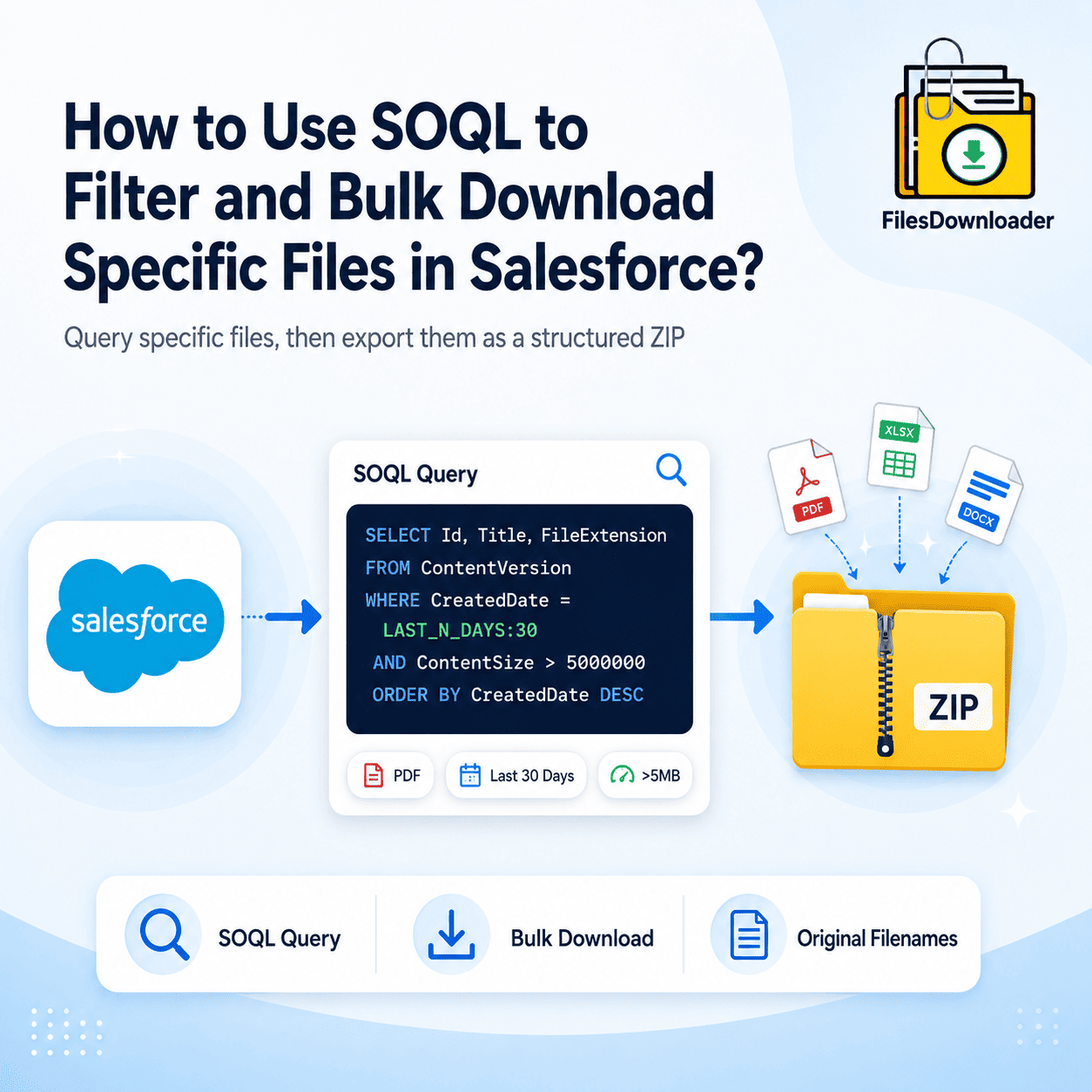


Thank you for reading this post, don't forget to subscribe!A SOQL bulk file download process allows Salesforce admins to query and export specific files efficiently using ContentVersion and native export tools. A standard query would be:
SELECT Id, Title, FileExtension FROM ContentVersion WHERE CreatedDate = LAST_N_DAYS:30. However, SOQL only returns metadata; it cannot “download” the binary file to your computer. In 2026, the only way to turn a SOQL result into a physical ZIP file with original filenames is using a native tool like Files Downloader.
As Salesforce Orgs grow in 2026, the “All or Nothing” approach to backups is dying. Admins no longer want to download 50GB of data just to find 10 specific PDFs.
Whether you are performing a audit, cleaning up files for Agentforce accuracy, or responding to a specific legal request, SOQL (Salesforce Object Query Language) is your best friend. But there’s a catch: SOQL finds the data, but it doesn’t “grab” the file.
Best Practices for SOQL Bulk File Download
The following SOQL bulk file download queries help admins retrieve files based on date, size, and file type. To target specific files, you need to query the ContentVersion object. Here are the three most common queries Admins use in 2026:
A. Download Files Created in the Last 30 Days
Perfect for monthly automated compliance archives.
SQL
SELECT Id, Title, FileExtension, ContentDocumentId
FROM ContentVersion
WHERE CreatedDate = LAST_N_DAYS:30 AND IsLatest = true
B. Download Only Large Files (>5MB)
Ideal for fixing ‘File Storage Limit Exceeded’ errors.
SQL
SELECT Id, Title, ContentSize
FROM ContentVersion
WHERE ContentSize > 5000000 AND IsLatest = true
C. Download Specific File Types (PDFs Only)
Commonly used for extracting Case email attachments.
SQL
SELECT Id, Title, FileType
FROM ContentVersion
WHERE FileExtension = 'pdf' AND IsLatest = true
Why You Can’t Download via Developer Console?
If you run these queries in the Developer Console or Workbench, you will see a beautiful list of filenames and IDs. But there is no “Download All” button.
If you try to use Data Loader with these queries, you’ll hit the dreaded filename ID issue. You will get the files, but they will be named 068..., making them useless for humans. Furthermore, trying to extract thousands of files this way often triggers the Spring ’26 synchronous timeout.
The Solution: Files Downloader + SOQL
Files Downloader bridges the gap between a technical query and a physical ZIP file. It allows you to paste your custom SOQL query directly into the app interface.
- Real-Time Mapping: It takes the
Titlefrom your SOQL result and applies it to the physical file.
- Real-Time Mapping: It takes the
- Bulk Processing: It bypasses the 250MB UI download limit, allowing you to download 10GB+ batches based on your query.
- Relationship Context: You can even use SOQL to maintain a 4-level folder hierarchy, organizing the queried files by Account or Opportunity name.
Workbench Vs Data Loader Vs Files Downloader
| Feature | Developer Console / Workbench | Data Loader | Files Downloader |
| Filter by Date/Size | Yes | Yes | Yes |
| Download Physical File | No (Metadata only) | Yes (Base64) | Yes (Direct to ZIP) |
| Keep Original Names | N/A | No | Yes |
| Automatic Folders | No | No | Yes |
Step-by-Step: From Query to ZIP
- Copy your Query: Use one of the templates above.
- Open Files Downloader: Navigate to the “SOQL Export” tab.
- Paste & Run: The tool will calculate the total size and number of files.
- Download: Hit “Process” to receive a structured ZIP file, or export the files directly to SharePoint.
Conclusion
In the era of Spring ’26 data risks, being able to surgically extract only what you need is a superpower. Don’t waste time with “All or Nothing” exports that break your browser. A scalable SOQL bulk file download strategy helps organizations export files efficiently while preserving filenames, metadata, and folder hierarchy.
Tired of looking at IDs? Start looking at Files.
Don’t let your SOQL queries stay stuck in the Developer Console. Start your Free Trial of Files Downloader and turn any SOQL result into a perfectly named, organized ZIP file today.