

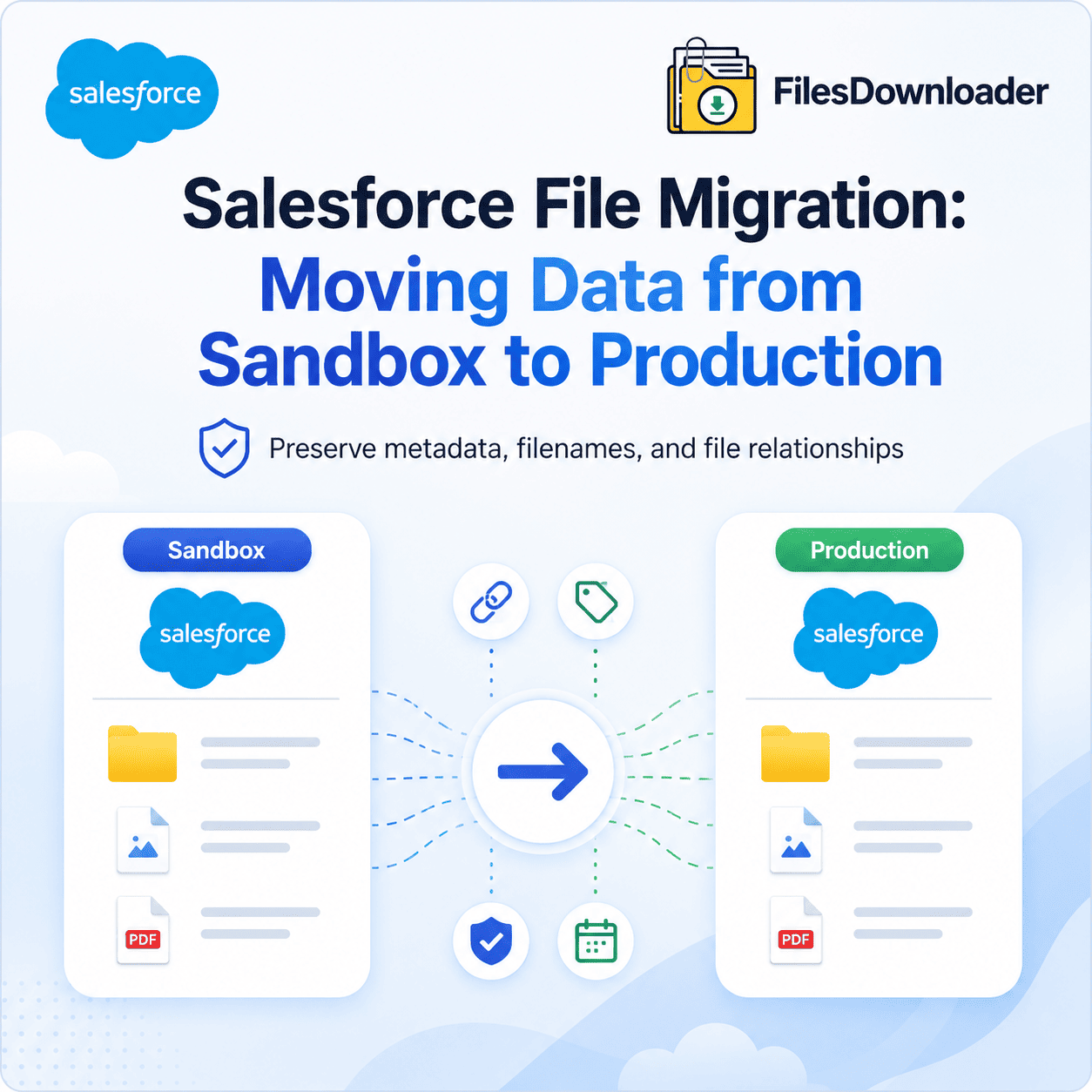


A successful Salesforce file migration sandbox to production strategy requires preserving metadata, file relationships, and ContentDocumentLink mappings during deployment. To migrate 50GB of files without losing metadata (like Original Filenames, Created Dates, and Parent Record Links), you must use an “Export-Map-Import” strategy. In 2026, the most reliable method is using Files Downloader to bulk export the files with original names, followed by a mapped import using a tool that preserves the ContentDocumentLink relationships.
In the world of Salesforce Release Management, there is a recurring nightmare for Admins: the “Go-Live” that leaves the data behind. You have spent months in a Full Sandbox perfecting a new document automation system, a legal intake process, or a customer service portal. You deploy your Change Sets, verify your Apex classes, and refresh your Page Layouts.
Then comes the realization: None of the files moved.
Unlike fields, layouts, or code, Salesforce Files are not metadata. They are binary data. They do not ride along with Change Sets, and they are notoriously difficult to migrate using standard tools. As we move into 2026, where file sizes are reaching 10GB per document and Agentforce AI depends on this data for grounding, a “good enough” migration strategy is no longer enough.
This guide provides a comprehensive, 1,500-word technical blueprint for migrating 50GB or more of files from Sandbox to Production without losing a single byte of metadata.
Best Practices for Salesforce File Migration Sandbox to Production
To move files successfully, you first have to understand why the platform makes it so hard. In a standard SQL database, a file might be a simple “blob” column in a table. In Salesforce, a “File” is actually a complex web of three distinct objects:
- ContentDocument: This is the “container” or the “wrapper.” It represents the concept of the document. If you have “Contract_v1” and “Contract_v2,” they both live inside the same
ContentDocument.
- ContentDocument: This is the “container” or the “wrapper.” It represents the concept of the document. If you have “Contract_v1” and “Contract_v2,” they both live inside the same
- ContentVersion: This is the actual binary data. Each upload creates a new version. When migrating, you must migrate the
ContentVersionto create the document in the new environment.
- ContentVersion: This is the actual binary data. Each upload creates a new version. When migrating, you must migrate the
- ContentDocumentLink: This is the “Junction Object.” It is the invisible string that connects the
ContentDocumentto a record (like an Account, Case, or Opportunity).
- ContentDocumentLink: This is the “Junction Object.” It is the invisible string that connects the
The “ID Mismatch” Problem
When you move from a Sandbox to Production, every record gets a new ID. The Account “Acme Corp” might have the ID 0015...aaa in Sandbox, but it will be 0015...bbb in Production. If you simply export your files and import them, the links will break. The files will exist in Production, but they will be “orphaned” attached to nothing.
The “2026 Barriers” New Challenges for Admins
In 2026, the stakes for file migration have been raised by two major platform changes:
1. The Spring ’26 “Hammer” (Synchronous Timeouts)
Salesforce has implemented a strict 60-second execution limit on synchronous data processes. If you attempt to use the standard UI to download or upload large batches of files, the connection will be severed the moment it hits the 60-second mark. For a 50GB migration, where individual files might be larger than 250MB, the standard UI is no longer a viable option.
2. Agentforce Grounding Requirements
In 2026, your files aren’t just for human eyes; they are for AI. Agentforce uses Retrieval Augmented Generation (RAG) to scan your files and provide answers to users. If your migration is messy—if you lose the “Created Date” or the “Original Filename”—your AI agent will lose its context. A file named 068... means nothing to an AI, but a file named 2026_Q1_Tax_Strategy.pdf is gold.
Step-by-Step Blueprint for a 50GB Migration
If you are facing a 50GB migration, follow this high-integrity workflow to ensure a successful go-live.
Step 1: The Surgical Sandbox Audit
Don’t migrate “junk” data. Every GB you migrate costs money in Salesforce storage fees. Before you start:
- Use a SOQL query to identify files that haven’t been accessed in 2 years.
- Filter for
IsLatest = true. You likely only need the final version of documents for the Production launch.
- Filter for
- Check for duplicates. Moving 10 copies of the same company logo is a waste of resources.
Step 2: Bulk Export with Filename Integrity
This is where most migrations fail. If you use the standard Salesforce Data Loader, your 50GB of files will be renamed to their Record IDs (e.g., 0680...).
The Solution: Use Files Downloader. It is designed to export thousands of files while preserving the original human-readable names. This allows you to verify the data on your local machine or in your staging folder before the final push.
Step 3: Building the “External ID” Bridge
To solve the “ID Mismatch” problem mentioned earlier, you need a common thread between Sandbox and Production.
- In your Sandbox, create a CSV of all records that have files (Accounts, Opportunities, etc.). Include their Sandbox IDs.
- In Production, ensure these records exist and that you have a custom field (e.g.,
Sandbox_Source_ID__c) marked as an External ID that contains the old Sandbox ID.
- In Production, ensure these records exist and that you have a custom field (e.g.,
- This bridge allows your migration tool to say: “This file was attached to Sandbox ID ‘XXX’. Find the record in Production that has ‘XXX’ in the External ID field and link it there.”
Step 4: ContentVersion Upload (The Heavy Lifting)
Now, you upload the binary data. You will use the ContentVersion object. In 2026, you should use the Bulk API 2.0 to handle the 50GB volume.
- Mapping: Map your local file path to the
VersionDatafield.
- Mapping: Map your local file path to the
- Metadata: Ensure you map
Title,Description, andPathOnClient.
- Metadata: Ensure you map
Step 5: ContentDocumentLink (The Final Connection)
Once the files are in Production, Salesforce will generate new ContentDocumentIds. You must now run a second import to the ContentDocumentLink object. This is the step that actually “pins” the files to the records so they appear in the “Files” related list for your users.
Why “Native” is Non-Negotiable in 2026
When moving 50GB of sensitive corporate data, security is paramount. Many third-party “middleware” tools (like Zapier or generic ETL tools) require your data to leave the Salesforce cloud, travel to their servers, and then come back.
This creates a “Security Gap.”
In 2026, most regulated industries (FinTech, HealthCloud, GovCloud) require Native Processing. Using a tool like Files Downloader—which is 100% Native AppExchange certified—ensures that the zipping, renaming, and processing happen entirely within your Salesforce Trust Boundary. Your data never touches a middle-man server, keeping your Data Security Model perfectly intact.
Part 5: Common Migration Pitfalls to Avoid
- Ignoring File Size Limits: While Spring ’26 allows 10GB files, many network configurations still struggle with anything over 2GB. Break your 50GB migration into 5GB “batches” to ensure stability.
- Losing the “CreatedBy” ID: If you want your migrated files to show the original user who uploaded them, you must enable the “Set Audit Fields upon Record Creation” permission in Production. Otherwise, every file will look like it was created by the Admin on the day of migration.
- Storage Overages: 50GB is a lot of space. Before you migrate, check your Production storage usage. If you are already at 90%, this migration will block your users from working.
Part 6: Post-Migration “Cleanup” for AI Accuracy
Once your 50GB is safely in Production, you have a unique opportunity to optimize for the future. In 2026, successful companies are cleaning their files specifically for Agentforce.
Use your migration as a catalyst to:
- Tag Files: Use the
CategoryorTagfields to tell the AI which files are “Internal Only” and which are “Client Facing.”
- Tag Files: Use the
- Set Expiration Dates: For temporary files like shipping labels or receipts, set an automated deletion flow to keep your storage limits in check.
Conclusion
Migrating 50GB of files from Sandbox to Production is one of the most complex tasks a Salesforce professional can undertake. It requires a deep understanding of object relationships, a respect for API governor limits, and a commitment to data integrity.
By choosing to export with context and using tools that bypass native UI limitations, you transform a high-risk project into a routine success. A properly planned Salesforce file migration sandbox to production strategy helps organizations preserve metadata, maintain security, and avoid broken file relationships.
Ready to start your 50GB migration with total confidence? Don’t gamble with your data integrity. Start your Free Trial of Files Downloader today and discover how the world’s most advanced Salesforce teams manage their files.