

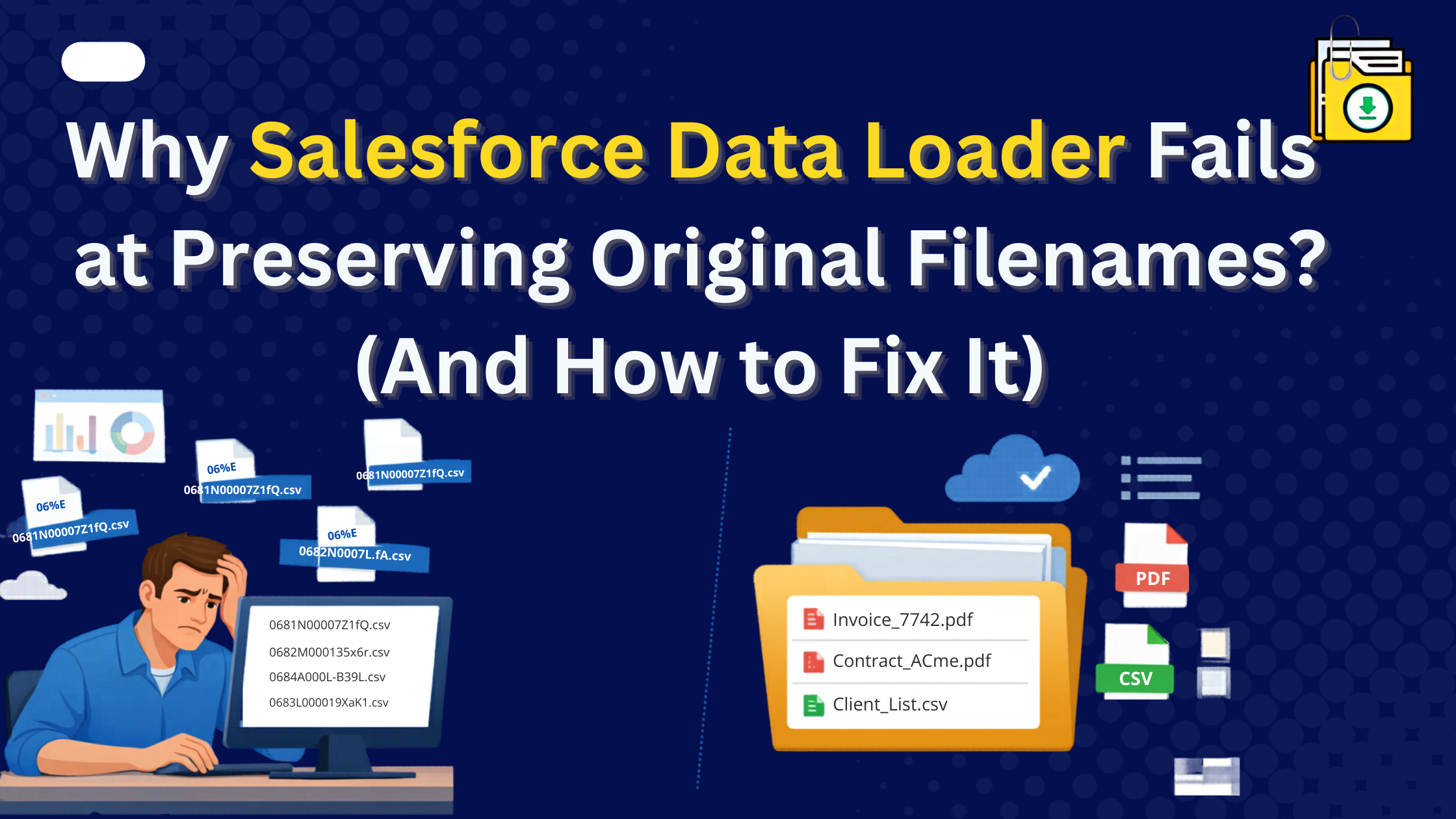


Salesforce Data Loader filenames often fail to preserve original file names during bulk exports because Data Loader treats files as binary data linked to the Content Version object By default, Data Loader uses the unique Version ID (e.g., 068...) as the filename to prevent overwriting files during bulk exports. To keep names like Invoice_7742.pdf, you must manually map the Title field to the ID using native salesforce files export tool like Files Downloader that automates this mapping in real-time.
If you have ever run a bulk export using Data Loader, you know the “068 Nightmare.” You spend an hour configuring your export, only to open your local folder and find 5,000 files named 0681N000007Z1fQ.csv, 0681N000007Z2gR.csv, and so on.
The question every Admin asks is: “Why does Data Loader change my filenames to IDs, and how do I get the original names back?”
Why Salesforce Data Loader Filenames Are Converted Into IDs
To understand the failure, you have to understand how Salesforce stores files. A file in Salesforce isn’t just a “file”; it is an entry in the ContentVersion object.
When you use Data Loader for a mass export of Salesforce files, the tool is simply querying a database table. It sees the “Body” of the file and the “ID” of the record. Because Data Loader is a generic data tool, it uses the Unique ID as the filename to ensure no two files overwrite each other during the download (since many files in Salesforce might share the same title, like “Contract.pdf”).
The result? You have the data, but it is completely unrecognizable and useless for a human user or for a migration to a system like SharePoint or Google Drive.
The “Manual Fix”: The Batch Scripting Headache
There is a “workaround” to get your filenames back using Data Loader, but it requires advanced Excel skills and Windows Command Line (CMD) knowledge.
- Export the Mapping: You must first export ContentVersion files to a CSV, ensuring you include the
Title,FileExtension, andVersionData(ID) fields.
- Export the Mapping: You must first export ContentVersion files to a CSV, ensuring you include the
- The Excel Formula: In a new column, you have to write a formula to generate a “Rename” command for every single row:
="RENAME " & A2 & " """ & B2 & "." & C2 & """"
- The Excel Formula: In a new column, you have to write a formula to generate a “Rename” command for every single row:
- The .bat Execution: You save this list as a
.batfile in your download folder and run it.
- The .bat Execution: You save this list as a
Why this fails in 2026:
- Characters: If a filename contains a comma, slash, or emoji, the script will break.
- Duplicates: If two files are named “Meeting Notes,” the script will fail on the second one, and you’ll lose data.
- Timeout: As we saw in the Winter ’26 Data Export changes, manual processes are now subject to stricter rate limits.
The Spring ’26 Problem: 10GB Files & Agentforce
In the Spring ’26 release, Salesforce increased the maximum file size to 10GB. If you try to use Data Loader to export these massive files, your local machine will likely crash or time out long before your batch script can even start.
Furthermore, if you are cleaning up files for Agentforce accuracy, you cannot afford to have 10,000 files named “068…”. Your AI agents need the metadata and filenames to “ground” their answers effectively.
The Solution: Automatic Naming with Files Downloader
To export Salesforce files with original filenames without the “068” headache, you need a tool that maps metadata during the download, not after.
Files Downloader is a 100% Native AppExchange app that handles the naming logic automatically:
- Dynamic Naming: It pulls the
TitleandExtensionfields and names the file correctly before it hits your ZIP.
- Dynamic Naming: It pulls the
- Relationship Mapping: It can even name files based on the Parent Record (e.g.,
Acme_Corp_Contract.pdf).
- Relationship Mapping: It can even name files based on the Parent Record (e.g.,
- Safety Sync: It automatically handles special characters and duplicate names by adding a timestamp or counter (e.g.,
Contract_1.pdf).
- Safety Sync: It automatically handles special characters and duplicate names by adding a timestamp or counter (e.g.,
| Feature | Data Loader + Scripting | Files Downloader |
| Naming Logic | Manual (Post-Export) | Automatic (Real-Time) |
| Effort Required | 3+ Hours of admin work | 1 Click |
| Special Characters | Causes script errors | Sanitized automatically |
| Record Linkage | Lost (Needs VLOOKUP) | Preserved via Folders |
Conclusion
Salesforce Data Loader Filesnames is an excellent tool for updating checkboxes or changing owners, but it was never built for mass exporting Salesforce Case files or binary data.
Ready to see your files with their real names? Don’t let the Data Loader limitations slow your migration. Start your Free Trial of Files Downloader today and get your data organized, named, and ready for use in seconds.