

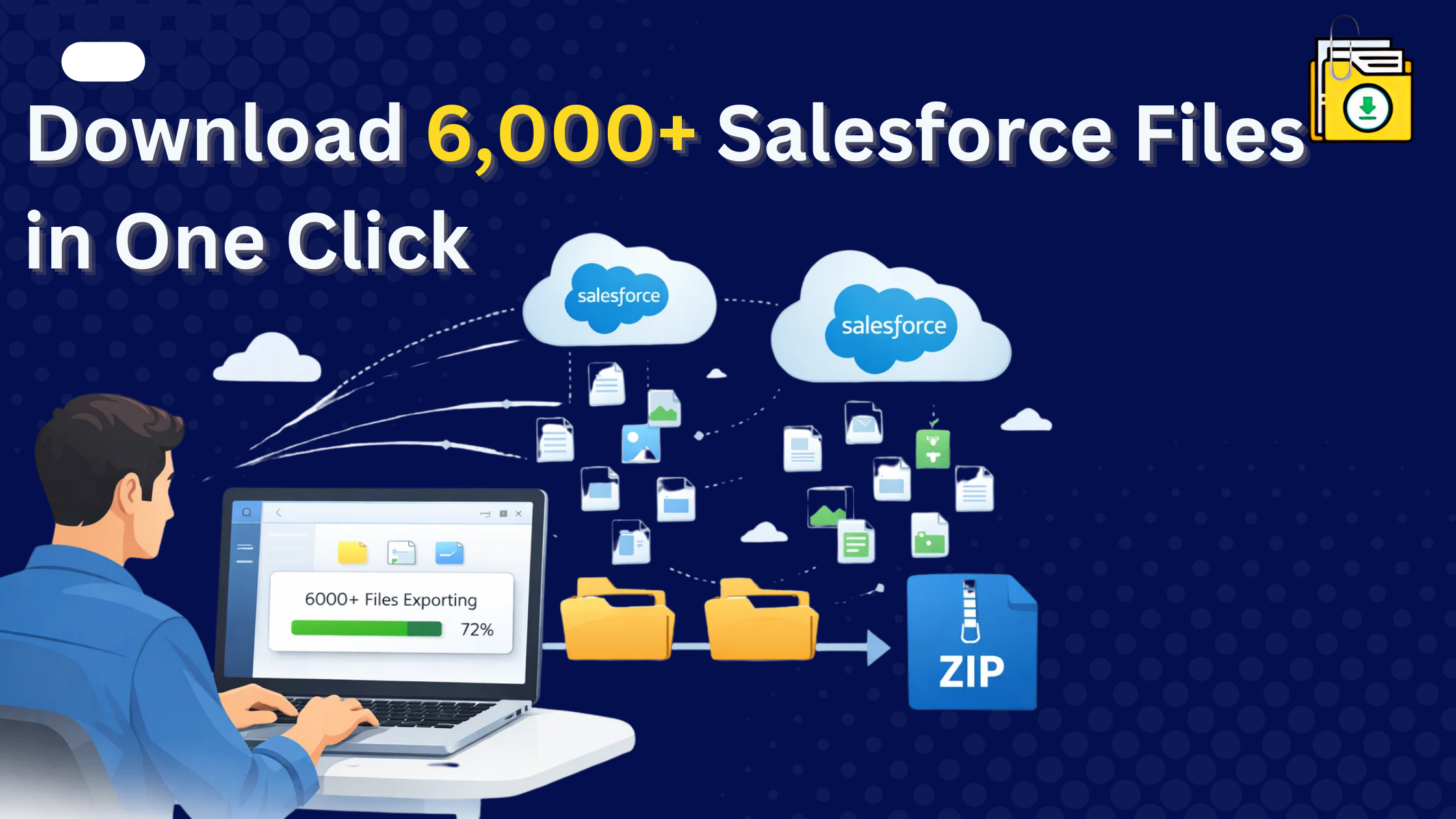


Salesforce bulk file download is the process of exporting large volumes of files and attachments from Salesforce in a single operation. To download 6,000+ Salesforce files or attachments in a single click, you must bypass the standard 250MB UI limit and the newly implemented 60-second API rate limit. The only reliable method in 2026 is using a 100% native AppExchange tool like Files Downloader. This allows for bulk export of thousands of files directly into a structured ZIP without session time-outs, preserving original filenames and record associations.
Thank you for reading this post, don't forget to subscribe!We have all been there. It is Friday afternoon, and a critical audit request comes in: “We need an offline archive of all 6,000 attachments from the ‘Closed-Won’ Opportunities for the last fiscal year.”
You log into Salesforce, select your list view, and click download. The result? A 60-second spinning wheel followed by the dreaded “Operation Timed Out” or “Network Error” message. The native Salesforce UI simply isn’t built to handle bulk file downloads.
If you are struggling to mass download files from Salesforce, you are likely facing one of three major limitations that standard tools like Data Loader and the browser UI cannot fix.
Why Salesforce Bulk File Download Fails for Large File Sets
Salesforce wasn’t originally designed for bulk binary file exports. As of the March 2026 Spring Release, Salesforce has tightened governor limits to manage the massive data loads generated by AI agents (Agentforce). If you try to download 6,000 files at once, you hit three walls:
- The 250MB UI Limit: If you select multiple files in a list view and click “Download,” Salesforce attempts to zip them on the fly. If the total size exceeds 250MB, the request will fail. With 6,000 files, you will hit this limit instantly.
- API “Time-Out” Governor Limits: Tools like Data Loader use the REST or BULK API which is optimised for structured row data not binary file content. When you export ContentVersion records, you’re exporting Base64-encoded text, not actual files. Every file then has to be decoded and renamed manually, which is hours of scripting work for a large data set.
- The New 60-Second “Hammer” Rule: To manage the increasing load from Agentforce (Salesforce’s AI agent platform), Salesforce introduced a stricter 60-second timeout on manual file download requests in the Spring 2026 release. If the ZIP isn’t assembled within 60 seconds, the connection is cut. With 6,000 files, that’s essentially a guaranteed failure.
The Problem with the “Standard” Data Loader Method
Many admins try to use Data Loader to export the ContentVersion object. When you export ContentVersion files using Salesforce Data Loader, you aren’t getting a ZIP file; you’re getting Base64 text.
Even worse, Data Loader renames every file to its Salesforce ID (e.g., 068...csv). You then have to spend hours understanding the Attachment Body Field just to make sense of the data.
To see a full breakdown of these technical roadblocks, read our analysis of The Limitation of Trying to Export Files via Data Loader.
The 3 Most Common Approaches (And Their Tradeoffs)
Option 1: Native Salesforce UI
Best for: Small, one-off downloads under 250MB.
- Works fine for grabbing a handful of files
- Fails reliably above 250MB total or ~200 files
- No workaround available within the UI itself
Option 2: Data Loader + ContentVersion Export
Best for: Admins who need the metadata (file names, record associations) in a CSV and are comfortable writing post-export scripts.
- Exports ContentVersion as a CSV with Base64-encoded file content
- Every file is renamed to its Salesforce ID (e.g. 068000…csv) — you lose original filenames
- Requires custom scripting to decode Base64, rename files, and rebuild folder structure
- Can time out on large orgs with high concurrent API usage
If you go this route, plan for several hours of scripting and testing. It works, but it’s not a quick solution.
Option 3: Native AppExchange App (Async Processing)
Best for: Bulk exports of 1,000+ files, recurring archive jobs, or migration projects where filename and record association need to be preserved.
- Runs asynchronously within Salesforce bypasses the 60-second limit
- Preserves original filenames and folder structure
- No data ever leaves the Salesforce trust boundary
- Requires a one-time AppExchange install and setup
Tools like Files Downloader fall into this category. Because they run entirely inside your org using Apex batch jobs, they sidestep the synchronous timeout problem entirely.
The Solution: How to Bulk Download 6,000 Files in “One Click”
To generate a reliable export of 6,000+ files, you need a solution that works inside the Salesforce trust boundary but outside the synchronous limits.
Files Downloader is a 100% Native AppExchange app designed specifically to solve this problem. It bypasses the 250MB UI cap and works around API time-outs by using parallel processing entirely within your Salesforce org.
Here is how it works:
- Select Your Files: Use a standard List View (like “All Case Files”) or a SOQL Query to filter specific files.
- Click “Download All”: Our native button is added directly to your standard Salesforce interface.
- Get Your ZIP: Files Downloader aggregates the files, preserves the original filenames, and generates a structured ZIP file. You can even choose to have it emailed to you once the process is complete, meaning you don’t have to stay logged in.
Security note: Because Files Downloader is 100% native, your files never leave the Salesforce environment. All processing happens inside your org, within your existing data security model and sharing rules.
| Feature | Native Salesforce UI | Data Loader | Files Downloader |
| Download Limit | 250MB Total | Session Time-out | Unlimited |
| Original Filenames | Yes (if small batch) | No (Renames to ID) | Yes (Preserved) |
| Folder Hierarchy | No | No | Yes (By Account/Object) |
| Risk of Time-Out | Very High | High | Low (Async Processing) |
| Lead Time | Minutes (if it works) | Hours (Scripting needed) | Seconds |
Conclusion
Whether you are trying to mass export Case files or migrate files during a major org merge, security is paramount. Since Files Downloader is native, your data never leaves the Salesforce environment, adhering strictly to your Data Security Model.
Ready to solve your file export problem?
Don’t spend your weekend writing Base64 scripts. Install Files Downloader from the AppExchange and get your 6,000 files in minutes, not days. Salesforce bulk file download requires a native asynchronous approach to handle large datasets without timeouts or data loss.