

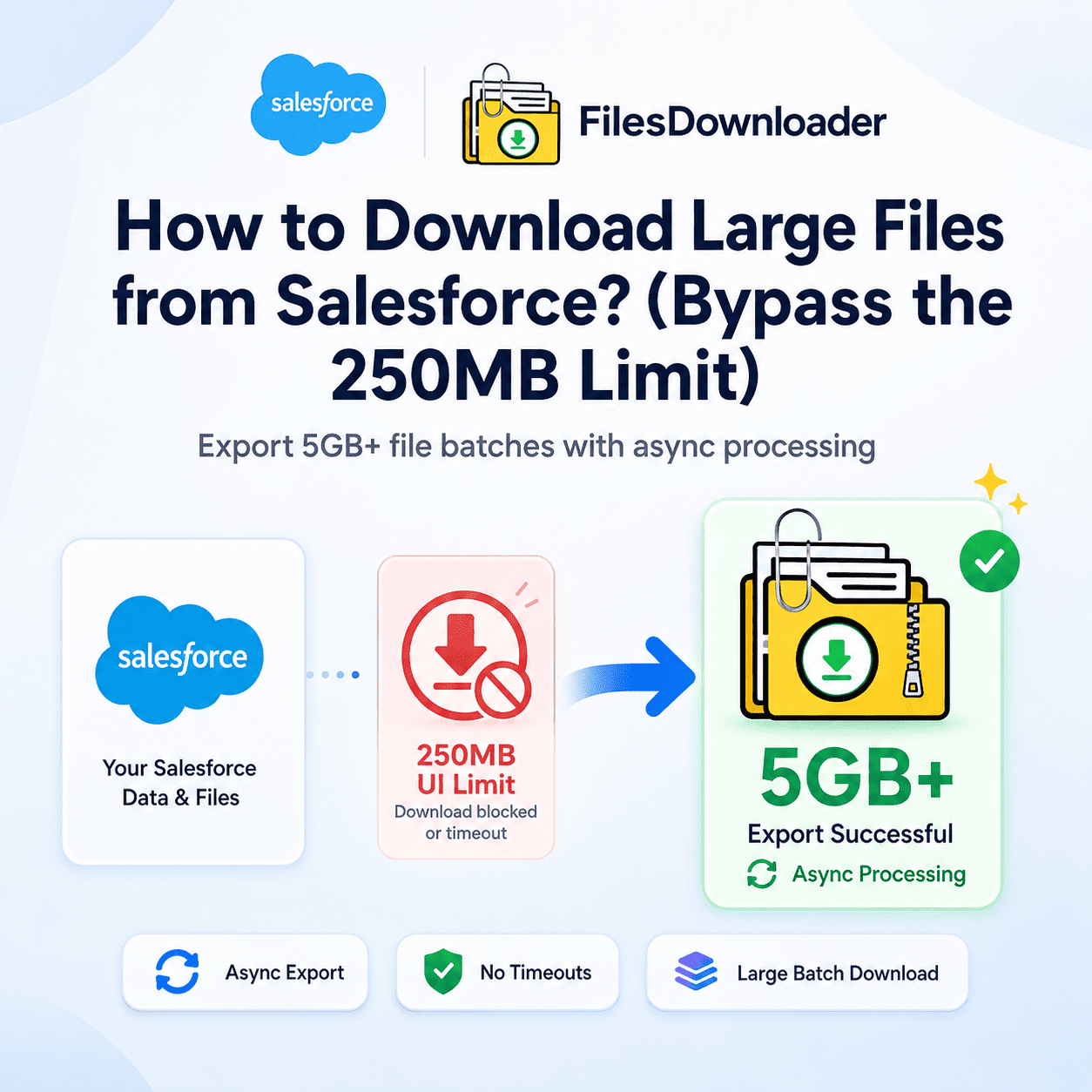


http://filesdownloader.usThe Salesforce 250MB download limit restricts users from exporting large file batches through the standard UI, making it difficult to download multi-gigabyte file sets. If your selection exceeds this size, the request will either fail instantly or time out. To download a 5GB file batch or larger, you must bypass the synchronous UI processor. In 2026, the most reliable method is using a native asynchronous tool like Files Downloader, which processes multi-gigabyte ZIP files in the background and emails you the link when ready.
It’s a classic Salesforce frustration. You select a few hundred files from a List View, click the “Download” button, and wait. Instead of a ZIP file, you get a spinning wheel, a network error, or a message stating the file size is too large.
Google is right: Salesforce has a hard 250MB cap on UI-based ZIP downloads. If you are trying to export a 5GB batch for an audit, migration, or backup, the “Standard” button is not your friend.
Understanding the Salesforce 250MB Download Limit
When you click “Download” in the UI, Salesforce attempts to “Zip on the Fly” using your browser’s synchronous session.
- The Memory Problem: Compressing 5GB of data in a live web session consumes massive server resources.
- The 60-Second “Hammer”: As of the Spring ’26 Release, Salesforce kills any synchronous process that takes longer than 60 seconds. Zipping 5GB takes much longer than a minute, leading to an automatic “Operation Timed Out” error.
- The API Cap: Even if you use the Data Loader for ContentVersion, you are limited by session stability and the limitation of renaming files from IDs.
How to Download a 5GB File Batch in Salesforce?
If you need to move gigabytes of data, you have three options. Here is how they stack up:
Option A: The “Weekly Data Export” (The Slow Way)
You can schedule a Weekly Data Export.
- The Pros: It’s native and free.
- The Cons: You can’t choose specific files (it’s all or nothing), it takes up to 48 hours to run, and your files will be named by their Record IDs, not their original titles.
Option B: Third-Party ETL Tools (The Expensive Way)
Tools like OwnBackup or Mulesoft can handle large volumes.
- The Pros: Extremely powerful for enterprise-wide backups.
- The Cons: Very high cost and complex setup. Not ideal if you just need a bulk download of Case files for a one-time project.
Option C: Files Downloader (The Native “One-Click” Way)
Files Downloader was designed specifically to bypass the 250MB limit using Asynchronous Batch Processing.
- Select Your Batch: Use a List View or a SOQL Query to select your 5GB of files.
- Run Async: Instead of zipping in the browser, Files Downloader moves the task to a background Apex job.
- Original Filenames: Unlike the native export, your files keep their original names and extensions.
- No Timeouts: Because it’s asynchronous, the Spring ’26 60-second rule doesn’t apply. You can download 5GB, 10GB, or even 50GB without a single error.
Comparison: Native UI vs. Files Downloader
| Constraint | Native Salesforce UI | Files Downloader |
| Download Cap | 250MB | Unlimited (GB/TB) |
| Processing Type | Synchronous (Browser) | Asynchronous (Background) |
| Timeout Risk | Extremely High | Zero (Native Batch) |
| Filenames | Preserved (if it works) | Preserved Automatically |
| Automation | No | Yes (Email link when done) |
Pro Tip: Fix Salesforce File Storage Limits
Usually, when an Admin is trying to download 5GB of files, it’s because they are fixing a ‘File Storage Limit Exceeded’ error.
Once you’ve used an async tool to secure your 5GB ZIP, you can safely move those files to SharePoint using Files Downloader and delete them from Salesforce to reclaim your storage quota for Agentforce AI grounding.
Conclusion
Don’t let a 250MB cap stall your 2026 data strategy. Whether you are mastering your security model or performing a massive org migration, you need a tool that scales with your data. The Salesforce 250MB download limit should not block large-scale file operations in modern Salesforce orgs.
Stop watching the loading wheel. Download your 5GB batch the smart way. Start your Free Trial of Files Downloader today and bypass the 250MB limit for good.