

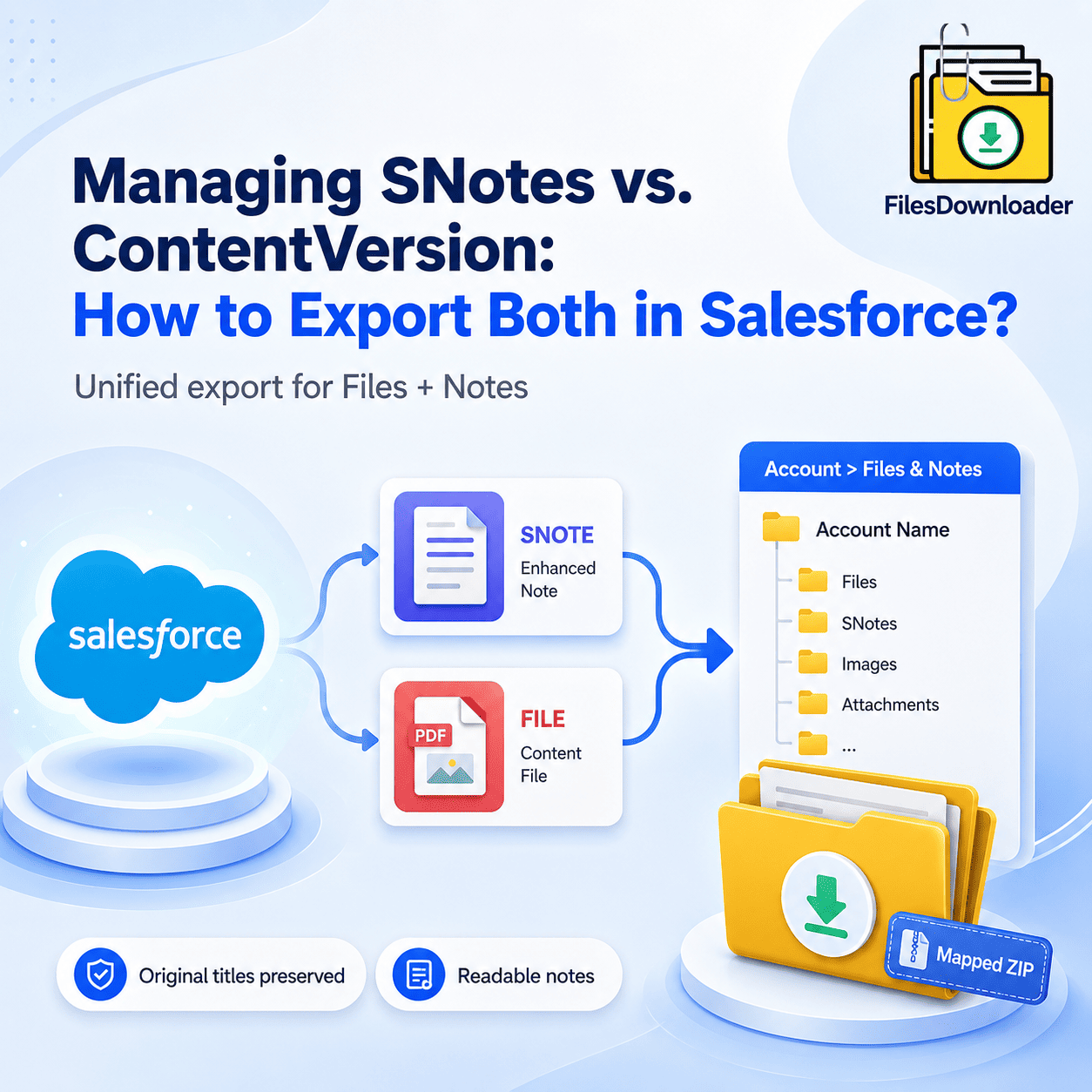


Learning how to Export Salesforce SNotes properly is essential for backups, compliance audits, and organized file management in Salesforce. Because they share the same underlying structure, they are often bundled together in standard exports but separated into unreadable ID-based folders. To export both into a single, mapped ZIP file (e.g., Account > Files & Notes), you must use a tool that can resolve the ContentDocumentLink relationship. In 2026, Files Downloader is the standard for mass exporting both SNotes and Files into a single, organized hierarchy with original filenames.
How to Export Salesforce SNotes and Files into Organized Folders
In the Salesforce interface, Files and Enhanced Notes appear as different content types, but technically they share the same backend structure. Both are stored using the ContentVersion object.
ContentVersion (Files)– Stores binary documents such as PDFs, images, Word files, and spreadsheets.
Enhanced Notes (SNotes)– Stores formatted text notes using HTML. These are technically ContentVersion records where the FileType field is set to “SNOTE”.
The Export Challenge: If you use the Data Loader for ContentVersion, you will get both. However, your SNotes will be exported as .snote files which most computers can’t open and your Files will be renamed to 15-digit IDs. This makes the export difficult to understand or use as a proper backup. This is one of the biggest challenges when teams try to export Salesforce SNotes manually using native tools.
Why “Weekly Data Export” Fails Your Audit?
Salesforce’s native Weekly Data Export provides a “Data Dump” rather than a “Backup.”
ID-Based Chaos: Files are stored in folders named after their IDs, not their Titles.
Relationship Blindness: There is no folder structure for Accounts or Opportunities. You receive a CSV of links and a pile of files.
Notes Difficulty: SNotes are often exported in a raw format that loses the rich text formatting (bolding, lists, etc.) unless converted during the export.
Blueprint: Exporting with Record Mapping
To get a single ZIP where Notes and Files live together under their parent records (e.g., Case #1024 > Customer_Note.html and Identity_Doc.pdf), follow this 2026 workflow:
Step A: Filter via SOQL
Use a SOQL query to target both types simultaneously:
SQL
SELECT Id, Title, FileType, ContentDocumentId
FROM ContentVersion
WHERE (FileType = 'SNOTE' OR FileType != 'SNOTE')
AND IsLatest = true
Step B: Resolve the Parent Relationship
Files and Notes are linked via the ContentDocumentLink object. To maintain mapping, your export tool must:
Identify the LinkedEntityId (The Account or Case ID).
Query the Parent Name (e.g., “Acme Corp”).
Create a folder named after that Parent.
Step C: Use a Native Multi-Export Tool
Files Downloader automates this entire process. It identifies legacy Notes & Attachments as well as modern Files and Enhanced Notes, bundling them into a 4-level folder hierarchy.
Comparison: Native Export vs. Files Downloader
| Feature | Salesforce Weekly Export | Files Downloader |
| Export Content | Files + SNotes (Separated) | Files + SNotes (Unified) |
| Filenames | Record IDs (e.g., 068…) | Original Titles preserved |
| Folder Structure | None (Flat) | 4-Level Record Hierarchy |
| SNote Format | .snote (Unreadable) | Readable PDF or HTML |
| Mapping CSV | Included (but hard to use) | Included & Mapped to Folders |
Compliance and Agentforce AI
In modern Salesforce environments, both Files and Notes are used as knowledge sources for Agentforce AI. Keeping these records organized is important for both compliance and AI accuracy. Exporting your files and notes into a structured archive allows you to:
review sensitive data
clean outdated content
prepare datasets for AI grounding
reduce Salesforce file storage usage
After exporting a properly mapped backup, administrators can safely delete old files or versions to stay within storage limits.
Simplify Salesforce File and Notes Exports
Exporting Salesforce Files and Enhanced Notes manually can quickly become complex because of record relationships and ID-based file structures.
Files Downloader simplifies this process by automatically resolving record mappings and exporting both files and notes into an organized folder hierarchy.
Instead of dealing with unreadable .snote files and record IDs, you get a clean archive ready for backup, compliance review, or storage optimization.
[Book a Free Demo] | [View Pricing] | [Install on AppExchange]