

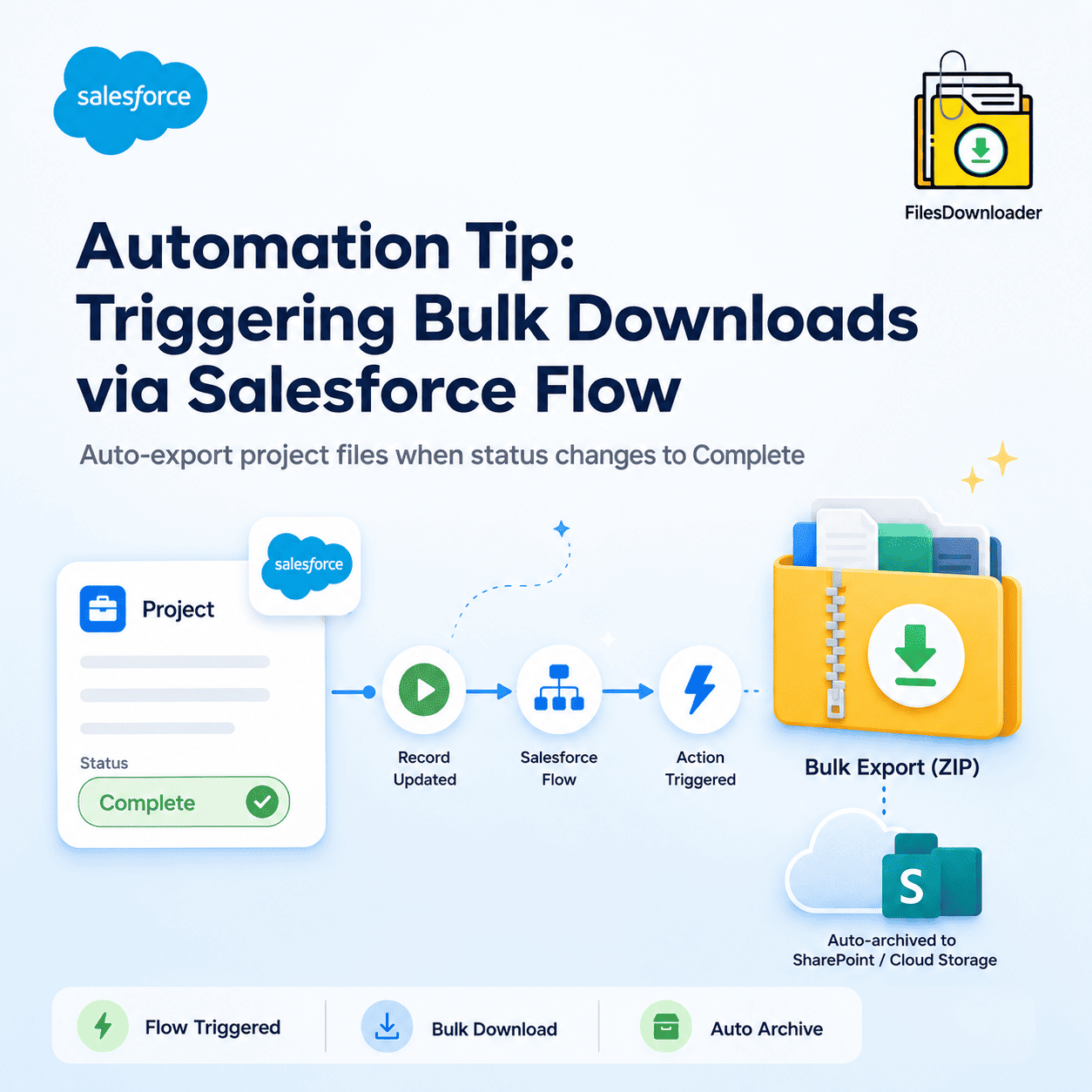


A Salesforce Flow file export process allows admins to automatically archive project files when a project status changes to “Complete.” While native Flows can now “see” file objects (thanks to the Spring ’26 Release), they cannot natively package multiple binary files into a ZIP. To achieve this, use a Record-Triggered Flow on the Project object that calls an Apex Action from Files Downloader. This automates the packaging and delivery of all project documents to a secure ZIP or SharePoint folder the moment the project is closed.
Thank you for reading this post, don't forget to subscribe!
In the fast-paced 2026 business environment, “Project Completion” shouldn’t just be a status update it should be a data lifecycle event. When a project is done, its documentation should be archived immediately to maintain a “Source of Truth” and keep your Salesforce file storage lean.
Until recently, this required complex Apex triggers. Today, you can do it with Clicks, not Code.
How Salesforce Flow File Export Works
The Spring ’26 Release significantly improves Salesforce Flow file export capabilities with native file object support. As of the Spring ’26 Release, you can now build Record-Triggered Flows directly on ContentDocument and ContentVersion objects.
This means your Flow can now:
- Validate: Block the “Complete” status if required project files are missing.
- Scan: Trigger the new native Malware Scan on all files before they are archived.
- Archive: Call an external service to move the files to cold storage.
Step-by-Step: Automating File Archiving with Salesforce Flow
Step A: Create the Record-Triggered Flow
Create a new Flow on the Project (or any custom) object. Set the configuration as follows:
- Trigger: Record is updated.
- Condition:
Status__cEqualsComplete. - Optimize for: Actions and Related Records.
This ensures the Flow runs only when a project moves into the completed stage.
Step B: Retrieve the Project Files
Files in Salesforce are not stored directly on records. Instead, they are connected using the ContentDocumentLink object.
- Use a Get Records element to find all
ContentDocumentLinkrecords where theLinkedEntityIdmatches your Project ID. - This creates a collection of file IDs that are ready for export.
Step C: Export the Files with Files Downloader
A native Flow can identify files, but it cannot “ZIP” them. This is where Files Downloader comes in.
- Drag an Action element into your Flow.
- Search for the Files Downloader Bulk Export action.
- Pass the collection of file IDs from Step B into the action.
- Set the destination: Choose between a structured ZIP file or a direct upload to SharePoint.
Why Automate Your Project Offboarding?
- Compliance & Legal: Ensure every “Complete” project has a timestamped legal archive that can’t be accidentally deleted by users.
- Storage Governance: Automatically fixing ‘File Storage Limit Exceeded’ errors by moving files to cold storage the moment they are no longer needed for daily work.
- Accuracy for AI: Preventing Agentforce AI hallucinations by removing “Closed” documentation from the live search index.
Comparison: Manual vs. Flow-Triggered Export
| Feature | Manual Offboarding | Flow-Triggered (Files Downloader) |
| Effort | 15-30 mins per project | 0 mins (Automated) |
| Consistency | Human Error (Missing files) | 100% Guaranteed Export |
| Storage Impact | Stays in Salesforce | Auto-moves to SharePoint/Archive |
| Spring ’26 Ready | No | Yes (Native Flow Integration) |
Conclusion
The days of manual file cleanup are over. By leveraging the Spring ’26 Flow enhancements and the power of Files Downloader, you can ensure your data is always organized, archived, and accessible without lifting a finger.
Ready to automate your first project archive?
Turn your ‘Complete’ button into a productivity powerhouse. Start your Free Trial of Files Downloader today and experience the magic of Flow-triggered exports.