

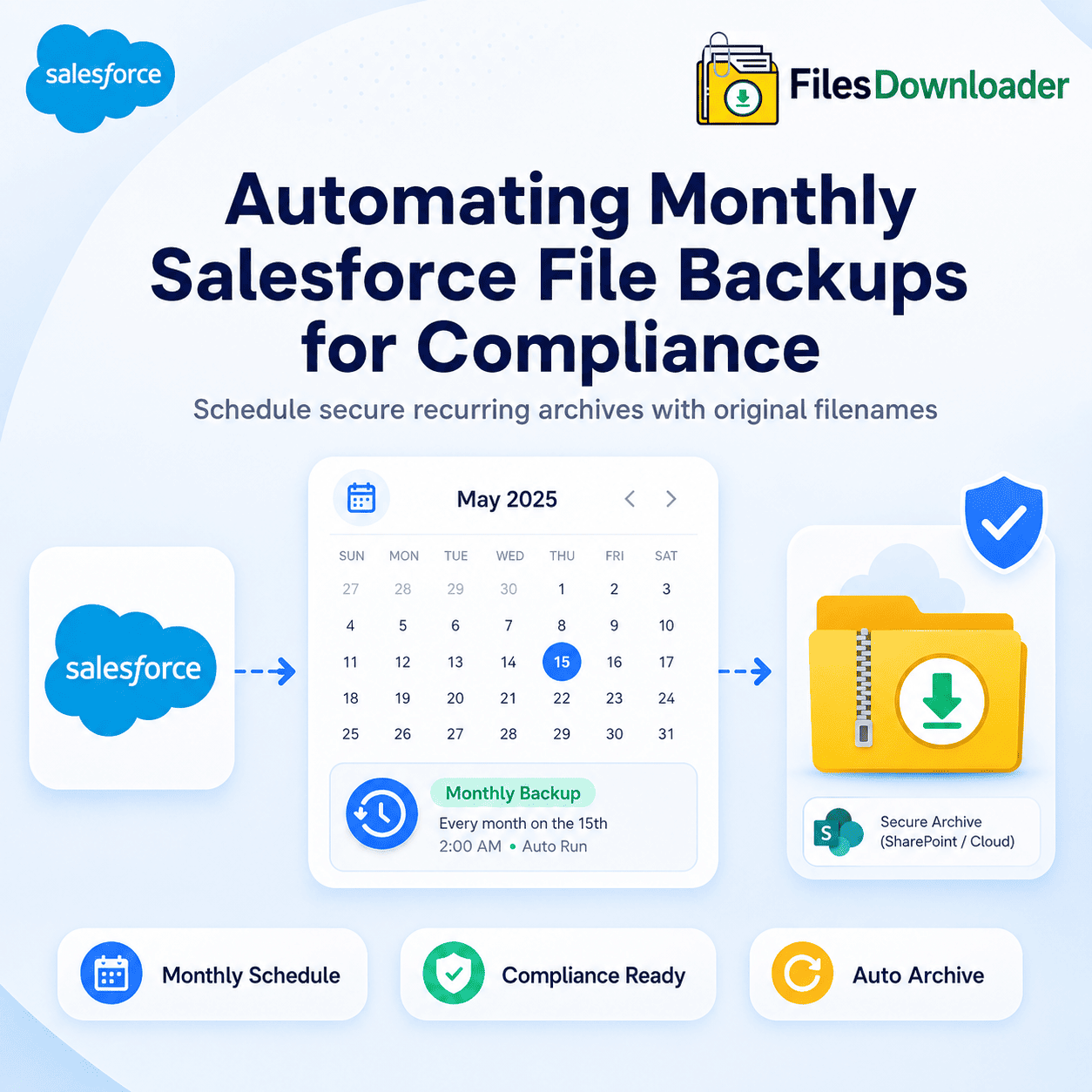


An Automated Salesforce file backup process helps organizations securely archive files, maintain compliance, and avoid manual export workflows; the “Weekly Data Export” requires manual retrieval of ZIP files within 48 hours. To automate a monthly download for a legal archive, you must use a native scheduling engine. In 2026, Files Downloader provides an Automation Scheduler that can automatically package and export Salesforce files directly to SharePoint or a secure ZIP on a recurring monthly basis.
Thank you for reading this post, don't forget to subscribe!Why Automated Salesforce File Backup Matters
Salesforce provides a “Scheduled Data Export” service, but for a legal archive, it has three fatal flaws:
- Manual Retrieval: Salesforce generates the ZIP, but a human must log in and manually download it within 48 hours, or it is deleted.
- Format Chaos: The files are renamed to Record IDs, making them nearly impossible to navigate during a legal discovery.
- No Filtering: You can’t schedule a “Monthly Case Files Only” backup; it’s usually an all-or-nothing export that creates massive, unmanageable files.
The “Point-in-Time” Audit Trail: Why Automation Wins?
In a courtroom or a regulatory audit, “I think we have that file somewhere” is a losing statement. Compliance requires a Point-in-Time Audit Trail.
When you automate your backups, you create a chronological history of your data. If a contract was modified or accidentally deleted due to the new Spring ’26 permissions, your monthly automated archive acts as a time machine. You can prove exactly what a document looked like on the first of every month, providing the chain of custody that legal teams demand.
Cost-Benefit: Salesforce Storage vs. Automated Archiving
One of the fastest ways to generate ROI for your Salesforce Org is to move “Cold Data” (files you need to keep but don’t need to see daily) out of the system.
- The High Cost: Buying additional Salesforce file storage is a recurring, expensive line item.
- The Automated Solution: By automating monthly downloads, you can move files to low-cost storage (SharePoint, Azure, or AWS) and purge them from Salesforce.
Admins using this strategy typically save their companies thousands of dollars in annual storage overages, making the tool pay for itself in the first 3 months.
Disaster Recovery: Beyond Simple “Ba`ckups”
A backup simply creates a copy of data. Disaster recovery focuses on restoring operations quickly when something goes wrong.
If files are exported as a flat ZIP with thousands of ID-based filenames, recovering data after a major issue becomes extremely difficult. Teams may spend days trying to determine which file belongs to which account or record.
By using an automated hierarchy (e.g., Account > Year > Month), your disaster recovery is near-instant. Your team can browse the 4-level folder hierarchy on a local drive and continue serving customers while the Salesforce Org is being restored.
Setting Up an Automated Backup Process
To satisfy a 2026 compliance audit, your backup process should be automatic, organized, and verifiable.
- Define Your Retention Filter: Use a SOQL-based filter to target specific high-value objects like Contracts or Case Email Attachments.
- Schedule the Recurring Job: Set the frequency (Monthly) and the destination.
- Maintain the “Context”: Ensure the “Original Filenames” toggle is on to avoid the Data Loader ID nightmare.
Comparison: Manual vs. Automated Backups
| Feature | Salesforce Weekly Export | Files Downloader Automation |
| Automation Level | Partial (Manual Download) | Full (Set & Forget) |
| Filename Integrity | Lost (IDs Only) | Preserved (Original Names) |
| Storage Destination | Salesforce (Temporary) | SharePoint / Local / Cloud |
| Legal Searchability | Very Low | Very High (Hierarchy) |
| Spring ’26 Timeout | High Risk | Zero (Async Batch) |
Conclusion
Legal archives are about peace of mind. By automating your monthly Salesforce file backups, you protect your company from Spring ’26 data risks and ensure you are always audit-ready. A reliable Automated Salesforce file backup strategy helps organizations improve compliance, reduce manual work, and protect critical business files.
Stop the manual Friday afternoon exports. Automate your compliance archive today. Start your Free Trial of Files Downloader and put your Salesforce backups on autopilot.