

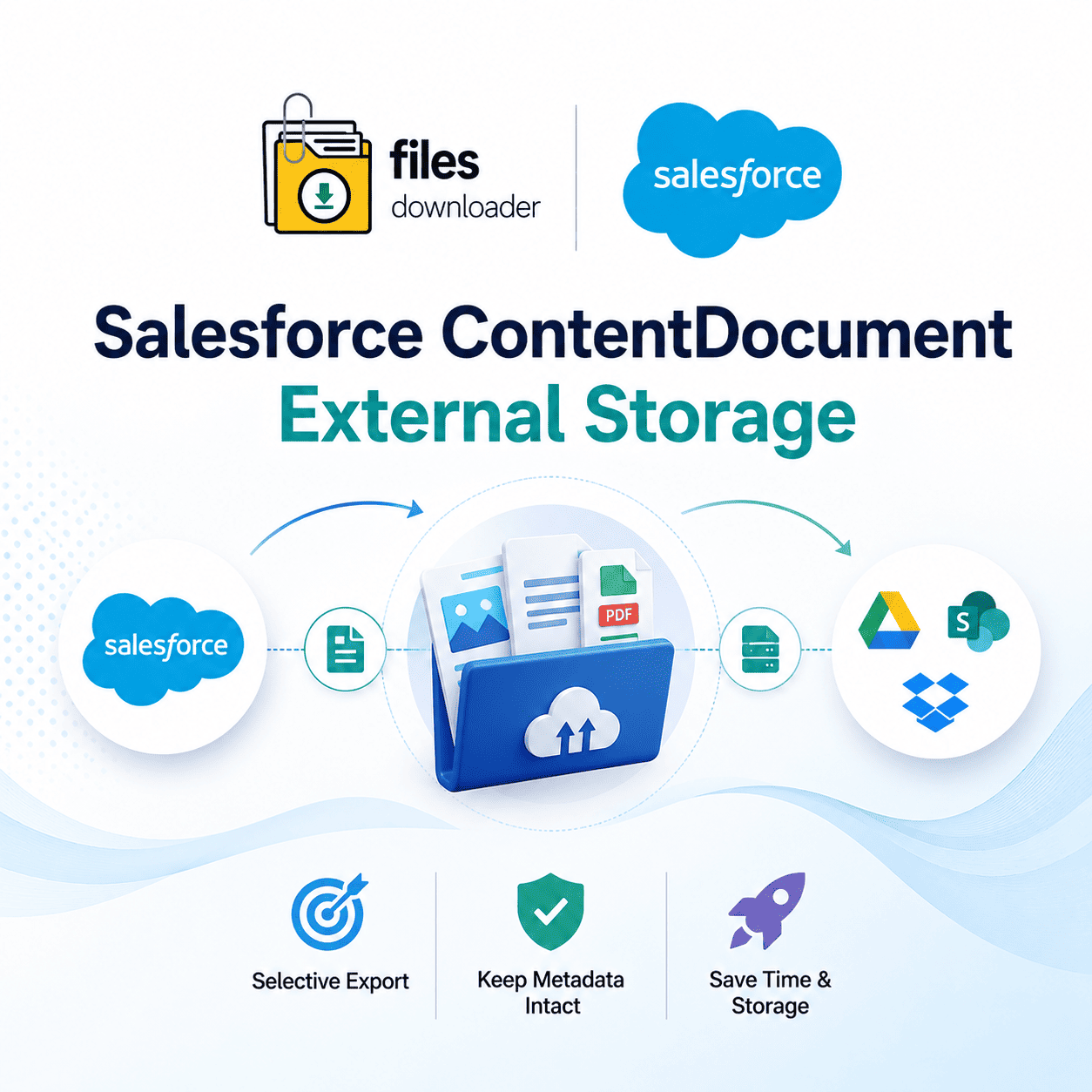


The Complete Guide to Salesforce Content Document External Storage
If you have tried to export files from Salesforce content document external storage platform using native export tools, you already know the drill. You click export, Salesforce gives you one enormous zip file, and now you are digging through hundreds of randomly named folders to find that one record you actually need.
Thank you for reading this post, don't forget to subscribe!This is the “Zip File Scavenger Hunt,” and it’s the biggest time-suck for admins working with Salesforce ContentDocument external storage architectures. Files Downloader was created to solve this precise problem, giving you a faster, more selective way to pull files from Salesforce into your external environments in the exact format you need.
What Is ContentDocument and Why Does External Storage Matter?
Every file that is uploaded to Salesforce (PDFs, images, docs, etc.) is stored as a ContentDocument record, while the actual file data and versions reside in related ContentVersion records. As your organizational file volume increases, the argument for establishing a dedicated Salesforce ContentDocument external storage workflow becomes more compelling: transferring files to Google Drive, OneDrive, SharePoint, or Dropbox frees up space without losing the link back to the original record.
However, executing this strategy with standard Salesforce tools presents major bottlenecks:
Lack of Selective Filtering
Standard data export tools only provide all-or-nothing options. You can’t easily pull only signed contracts from closed-won opportunities in Q1. Instead, you get every single salesforce ContentDocument external storage and every attachment, whether your external storage project needs it or not.
The “File Storage Limit Exceeded” Alert
As your ContentVersion records grow, so does your risk of encountering that dreaded “File Storage Limit Exceeded” warning. A planned salesforce content document external storage strategy alleviates system pressure before limits become a production-stopping problem.
Manual Sorting Takes Up Your Week
Even when a native export successfully completes, someone still has to rename files, match them back to records, and rebuild folder structures by hand. This turns a simple file management task into days of cleanup nobody budgeted for.
Files Downloader: Designed for Salesforce ContentDocument External Storage
This is where Files Downloader earns its place in your tech stack. It is purpose-built for teams managing Salesforce Content Document External Storage file archives — fast, filtered, and fully intact.
One-Click Bulk Export From Any List View
Files Downloader supports standard and custom list views so you can mass download files and attachments right from the object lists you use on a daily basis. Select your records and go. Preparing your files for external storage requires no setup and no remapping.
Run Your Own Custom SOQL Query Export
Are you looking for something more precise? Run your own SOQL Query Export to filter and extract only the files that are relevant to your exact criteria in one step. Customize it to target specific file extensions, creation dates, or record owners. Download the latest data immediately — with no waiting for IT — then move files to your external storage at your convenience.
Preserve Formats, Metadata, and Folder Structure
Download files and attachments from Salesforce in the exact format they were uploaded — PDFs, images (.jpg, .png), Word documents, and spreadsheets. While offloading files, Files Downloader preserves original file names and folder structures, and keeps metadata such as owner, object type, and record association tied to each file.
A Must-Have File Exporter for Salesforce Admins and Data Teams
Whether you are managing a single department or an entire org, Files Downloader simplifies complex data downloads by zeroing in on particular objects and fields. Built for large-scale management of Salesforce ContentDocument external storage workflows, it also provides:
Cross-Object Support: Bulk export files from both standard and custom objects.
Universal File Support: Full compatibility for all file types (PDFs, images, docs, etc.).
Downstream Flexibility: Enables easier import of Salesforce data to SQL Server or Excel after export.
Operational Efficiency: Massive time savings by eliminating manual data sorting.
Workflow Friendly: Seamlessly integrates with your wider Salesforce data export & file management processes.
Use Cases: Migrations, Audits, and Backups
Most teams look to move files out of Salesforce content document external storage for one of three reasons:
Clean Migrations: Standardizing document storage across the company? Before migrating platforms, move your files cleanly to your Salesforce Content Document external storage destination to prevent losing historical file context or records.
Compliance Audits: Auditors want organized, traceable files, not a scavenger hunt through a zip archive. Files Downloader exports files with metadata intact, keeping your external copies permanently audit-ready.
System Backups: Never hit the “File Storage Limit Exceeded” wall again. With Files Downloader, you can regularly offload older files to external repositories to free up premium CRM space without losing a single historical record.
[Book a Free Demo] | [View Pricing] | [Install on AppExchange]