

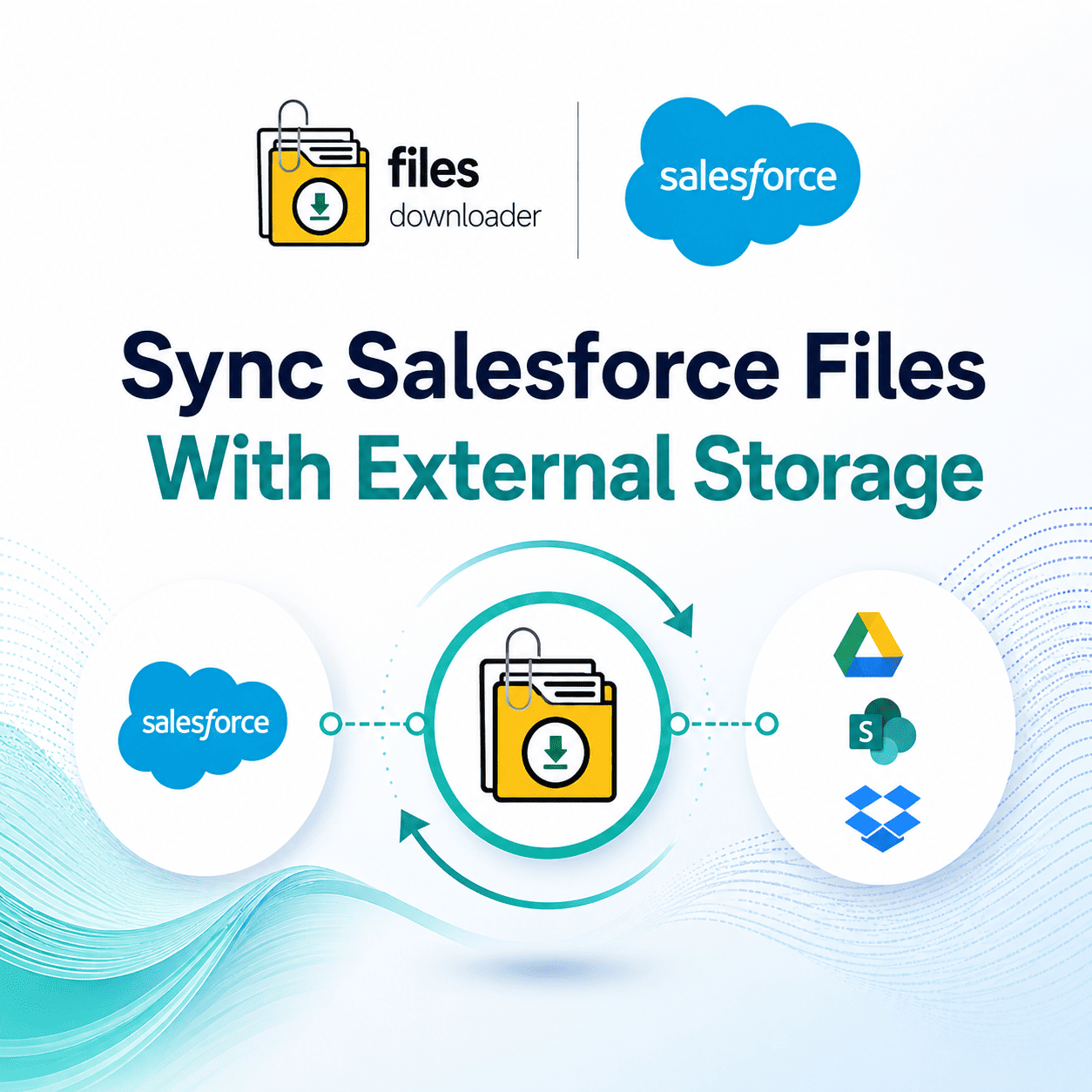


Automatically Sync Salesforce Files with External Storage Every Time
Files Downloader simplifies syncing Salesforce files to external storage no manual exports, no zip files, and no IT tickets. Connect once, define your criteria, and have every new ContentVersion record stream to the destination of your choice.
This is not a one-time export tool. It’s a repeatable system that allows you to continuously sync Salesforce files with external storage, ensuring your records stay up to date across all the platforms your team counts on without anyone lifting a finger after setup. Once configured, the system works quietly in the background, syncing Salesforce files to external storage whenever a new record fits your criteria.
Why Teams Sync Salesforce Files with External Storage Using Files Downloader
Manual exports break down the moment your file volume grows. Files Downloader is designed to run on autopilot, so your team never has to touch a zip file again.
One-Click Bulk Action: Export mass files and attachments from any list view (standard or custom) and sync Salesforce files with external storage in one go.
No Reorganization Required: Files remain in their original format, name, and folder structure, so there’s nothing to rearrange after the sync.
Built-In Precision: Run a custom SOQL Query Export to filter exactly which records sync — no more all-or-nothing data dumps.
Metadata Remains: Critical context like owner, object type, and record association travels with every file, keeping your external records fully traceable.
Storage Relief on Demand: No more hitting the “File Storage Limit Exceeded” wall — sync older files out to external storage before they become a production issue.
All File Types Supported: Your PDFs, images (
.jpg,.png), Word docs, spreadsheets, and more all go through the same clean workflow, with zero conversion or loss of quality.
How It Functions
1. Link Your Source
Select any standard or custom list view, or create a custom SOQL Query Export to target specific objects and fields. No Apex code, no custom development, and no IT tickets are required to get started.
2. Select Your Destination
Sync Salesforce files to the external storage provider of your choice: Google Drive, OneDrive, SharePoint, or Dropbox. Files are delivered to each destination in their original format, with folder structures perfectly maintained.
3. Run It Once or Set It to Autopilot
Let Files Downloader handle the transfer automatically whenever new files match your criteria, or run it as a targeted, one-time export. No matter which path you take, you can sync Salesforce files with external storage without duplicating manual efforts.
Where to Sync Your Files
Files Downloader isn’t tied to a single platform. Whether your organization standardizes on Microsoft, Google, or a dedicated file-sharing tool, you can sync Salesforce files with external storage to the system your team already uses.
Google Drive: Ideal for teams already operating within Google Workspace, utilizing shared drives to keep departments aligned in real time.
OneDrive & SharePoint: A natural fit for Microsoft 365 organizations looking to consolidate document storage, compliance, and team collaboration into a single ecosystem.
Dropbox: The simple, reliable choice for teams that need fast file sharing and external access without deployment hassle.
No matter which platform you choose, the rule remains the same: connect and configure your sync criteria once, and Files Downloader ensures it stays consistent every time after.
Designed for Real Workflows
Files Downloader is the go-to tool admins use to sync Salesforce files with external storage for migrations, audits, and recurring backups alike. It supports all file types, making it much easier to feed exported data into SQL Server or Excel later without manual sorting slowing your team down.
For data teams, this is especially useful when consolidating files across departments; a single rule set can keep multiple external destinations up to date without separate manual processes for each one. It also eliminates the version-control guesswork that happens when users download and re-upload files manually.
System administrators use this same workflow to maintain clean backups, ensuring a sudden storage limit warning never turns into an infrastructure scramble. Compliance teams use it to keep an external, audit-ready copy of every file, associated tightly with its original Salesforce record and metadata.
Why Files Downloader Is Better Than Manual Exports
Native Salesforce export tools were never designed to continuously sync Salesforce files with external storage — they provide you with one massive zip file, and that’s it. Files Downloader replaces that rigid process with a repeatable, filtered workflow.
No more digging through untagged zip folders for a single file.
No more manually rebuilding folder structures after every export.
No more losing historical metadata like owner and object type along the way.
No more managing separate, fragmented workflows for different target platforms.
All of those operational headaches disappear the moment you bypass native exports and sync your Salesforce files directly with external storage using Files Downloader.
Security and Command
Files Downloader authenticates directly with Salesforce’s secure APIs. When you sync Salesforce files with external storage, files move from one trusted system to another without passing through any unverified third-party servers.
You remain in complete charge of what syncs at each step. Filters, list views, and SOQL Query Export criteria ensure nothing leaves Salesforce unless you’ve explicitly defined it as part of your sync rules. This granular control is essential for IT teams needing to sync files without granting wider data access than necessary.
Furthermore, permissions strictly follow standard Salesforce access rules. Admins don’t need to grant special privileges to enable the sync; if a user has the permissions to see a file inside Salesforce, they have the access required to move it outside of Salesforce. Nothing more, nothing less.
Quit Exporting Manually. Start Synchronizing.
Once configured, you can automatically sync Salesforce files with external storage and stop worrying about data limits.
Whether your team is migrating platforms, auditing records, or just tired of dealing with messy zip files, the fastest path forward is exactly the same: sync your Salesforce files with external storage and let Files Downloader handle the heavy lifting. The process runs quietly in the background while your team gets back to doing actual work.
[Book a Free Demo] | [View Pricing] | [Install on AppExchange]