

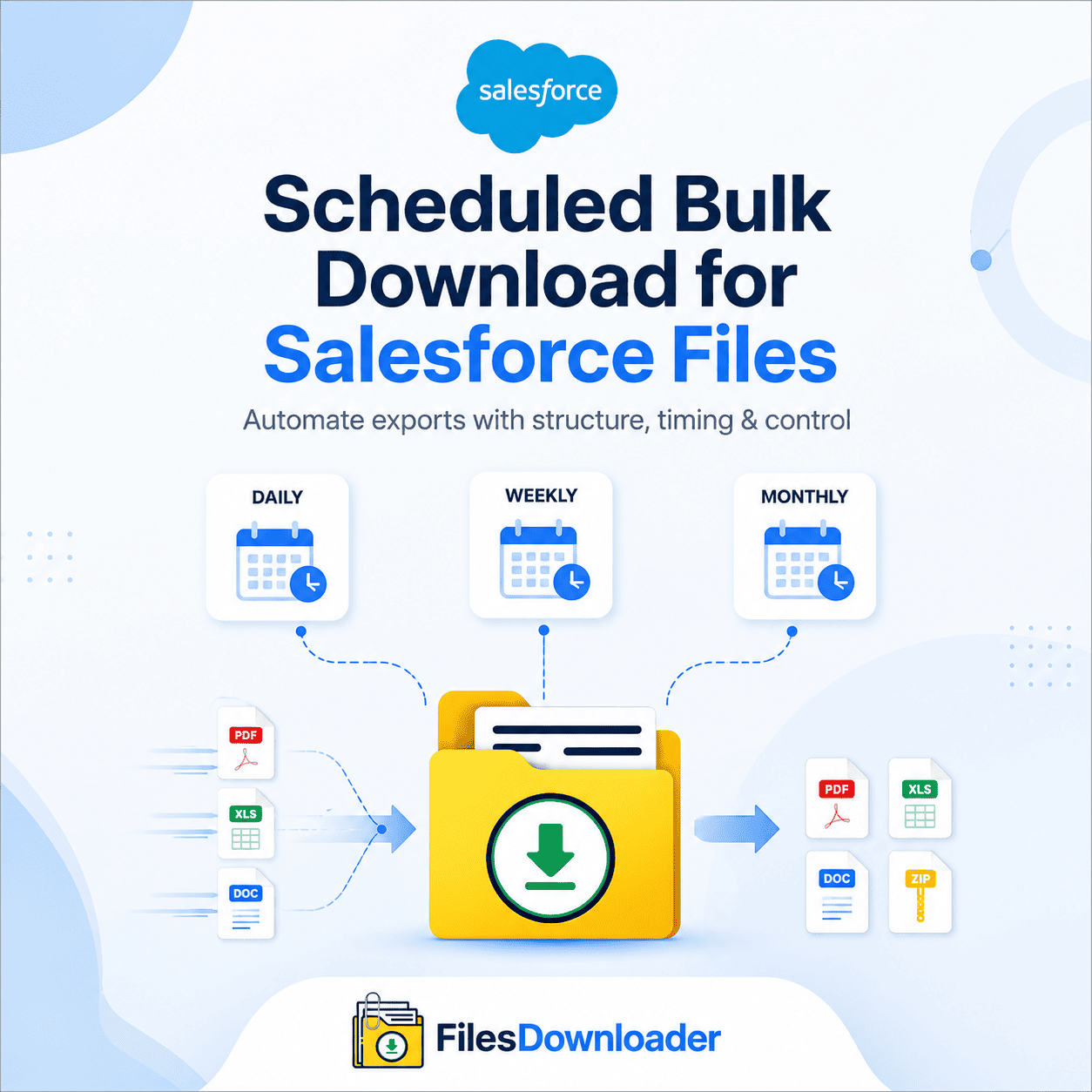


How to Schedule Bulk Download Salesforce Files
To schedule bulk download Salesforce files, you need an export process that runs automatically on a recurring basis—daily, weekly, or monthly—without someone having to manually trigger it each time. Native Salesforce export tools are terrible at this. They are all-or-nothing, they lose file context, and they have to be manually triggered each time. Proper bulk download scheduling means solving both problems at once—filtering to exactly the files you need and having that filtered export run on autopilot going forward.
Thank you for reading this post, don't forget to subscribe!Native Salesforce Exports Not Running on a Schedule
Salesforce’s native data export tools are a real pain point for any team trying to schedule bulk downloads on a regular basis:
No granular filtering. You can’t specify files, objects, or date ranges. Every run pulls everything, whether you want one Opportunity’s attachments or the whole org’s file library.
Cryptic structure and naming. Standard exports strip out the original file names and record context, leaving you with disorganized folders that take hours to manually sort — a cost that is incurred every single time a scheduled run completes.
No metadata. The file owner, creation date, and parent-object associations are often not attached to the file itself, so even an automated export still requires manual reconciliation afterward.
No real-time scheduling. Salesforce’s native Weekly Export Service is limited to weekly or monthly cadences at best, with no customization of frequency, timing, or scope—it’s automation in name only.
This is an even bigger problem as orgs grow—manually downloading files or working around a rigid native schedule is a drain on engineering time and increases the risk of missed backups during migrations or audits.
How to Schedule Bulk Download Salesforce Files with files downloader
Here’s how to set up a bulk download workflow that’s properly scheduled:
- Specify the object and filtering parameters. Specify the criteria that you want to run automatically, such as all closed won opportunity attachments or all files created in the last 30 days, using standard or custom list views or a saved SOQL query against ContentVersion.
- Refine with SOQL for accuracy. If you need more specific conditions than a list view offers, you can build a custom SOQL query export to target specific record types, date ranges, or object relationships so that your scheduled export pulls the exact same precise file set every time it runs.
- Plan your schedule. Select how often you want the export to run—daily, weekly, or monthly—and let Files Downloader do the rest automatically, without having to trigger anything manually.
- Export with full context intact. All original file names, folder structure, owner, object type, and record association are preserved for each scheduled run, so there’s no need to manually clean up after each automated export.
Schedule Bulk Download Salesforce: Files Downloader vs. Native Export
| Capability | Native Salesforce Export | files downloader |
|---|---|---|
| Scheduling | Fixed weekly/monthly only | Custom daily, weekly, or monthly |
| Filtering | All-or-nothing | List view or SOQL-based |
| File Naming & Structure | Stripped, generic | Original names and folders kept |
| Metadata | Often lost on file | Owner, object type, record ID preserved |
| Manual Intervention | Required for filtering/sorting | Fully automated after scheduling |
Scheduling bulk downloads does not add a separate compliance risk to your automated workflow, as the export is native to Salesforce and respects existing permission sets and sharing rules.
Why Schedule Bulk Downloads for Audits, Migrations, and Backups?
Whether it’s getting ready for a move to a clean CRM, staying on top of compliance, or running periodic system backups, a scheduled bulk download will keep your org’s file archive automatically up-to-date, without someone needing to remember to run it manually.