

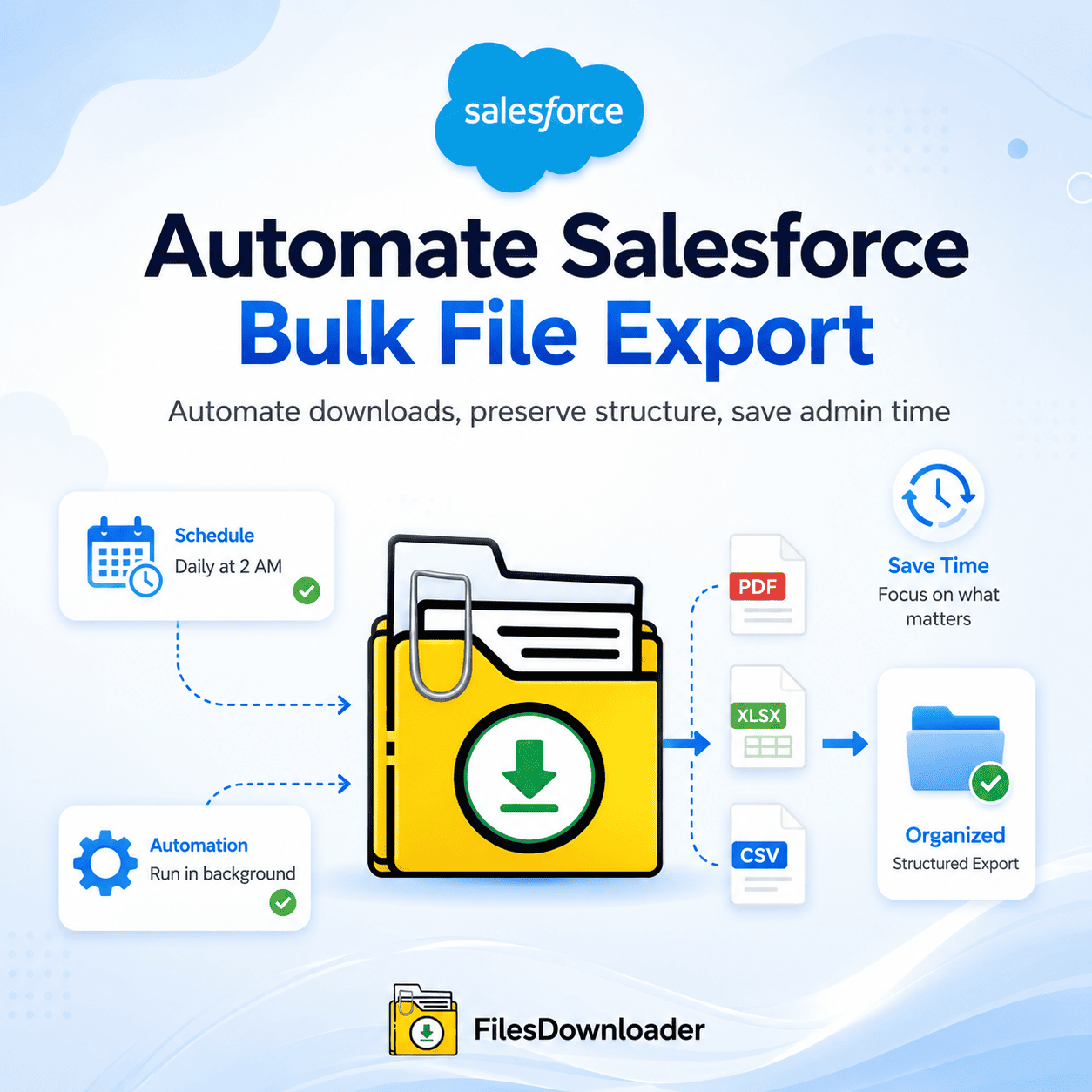


How to Automate Salesforce Bulk File Export
To automate Salesforce bulk file export means you need to create a recurring, filtered export process to pull files and attachments from your org instead of having an admin manually run a native export process, waiting hours for a zip file, and filtering through cryptically renamed attachments. This is especially critical for enterprise teams managing storage limits, migrations, and compliance retention, where manual file management won’t scale as the org grows.
Thank you for reading this post, don't forget to subscribe!Why Native File Extracts Can’t Support Automate Salesforce Bulk File Export
Salesforce is designed for customer relationship management, not for high-volume file architecture, and the native export tools quickly hit functional walls as data grows:
Storage and cost constraints. The warning that you have exceeded the file storage limit is usually a sign that you should purchase additional storage from Salesforce. This can put a strain on IT budgets when all that is really needed is to offload invoices, signed contracts, or customer images to external storage without breaking links or losing historical context.
Obscure file naming and data loss. Standard weekly or monthly data exports give files in massive zip folders, named by record ID rather than anything meaningful. Unzipping creates thousands of random hashes, so admins need to manually cross-check the ContentVersion object with parent records one by one.
Limitations of other native tools. Weekly Data Export is a large dump that takes days to process and does not support granular filtering. Data Loader can export data records, but getting raw file binaries requires complex API setup and knowledge of SOQL. It simply isn’t practical for large teams to download manual list views, one file at a time.
Automate Salesforce Bulk File Export in 3 Steps
Here is how to automate the zero-mapping workflow with a files downloader instead of manually managing files:
- Pick your target objects and filters. Download only the files you need, not your entire database—Files Downloader works with standard and custom list views, filtering by object type, creation date, or custom record fields in one step.
- Fine-tune with a custom SOQL query (optional). If you have more sophisticated requirements, you can query the ContentDocumentLink and ContentVersion objects directly to isolate very niche categories of files, such as signed PDF contracts linked only to Closed Won Opportunities, all without leaving the interface.
- Set up an automatic export. Export on demand with one click, or schedule it to run automatically daily, weekly, or monthly, so bulk file export happens in the background without locking your browser session or requiring manual triggering every time.
Automated Bulk File Export: Metadata and Structure Remain Intact
Automated export doesn’t mean you lose record relationships. The files downloader keeps original file names (not a cryptic ID) organized into sub-folders directly mapped to your Salesforce records and preserves the file owner, parent object ID, and timestamp on each export.
files downloader vs. Native Export
| Operational Challenge | Native Salesforce Export | files downloader |
|---|---|---|
| File Naming | Renamed to obscure record IDs | Original file names & extensions maintained |
| Folder Structure | Flat folder dump only | Rebuilt structure by object/record |
| Metadata Retention | Owner and parent relationship lost | Owner, object type, record references maintained |
| Setup Complexity | High — API/Data Loader mapping required | Low — zero mapping, native interface |
| Automation | Weekly/monthly only | On-demand or custom schedule |
Common Scenarios for Automated Bulk File Export
Migrations and clean-ups. One of the trickiest parts of moving to a new CRM or merging orgs is handling files. Automated bulk file export lets data teams extract legacy files, clean up storage, and stage documents for a smooth transition.
Compliance, auditing, and archiving. Financial institutions and healthcare providers have strict requirements for record retention. Scheduling exports to local drives or cold storage helps satisfy audit requirements while keeping active Salesforce storage lean.
Offloading large attachments. Filter cases by close date, mass-pull associated attachments, and safely archive or delete the original ContentVersion records to save storage.
The export is native to Salesforce, respecting existing permission sets and sharing rules, so automating bulk file export does not add a separate compliance risk to your data pipeline.