

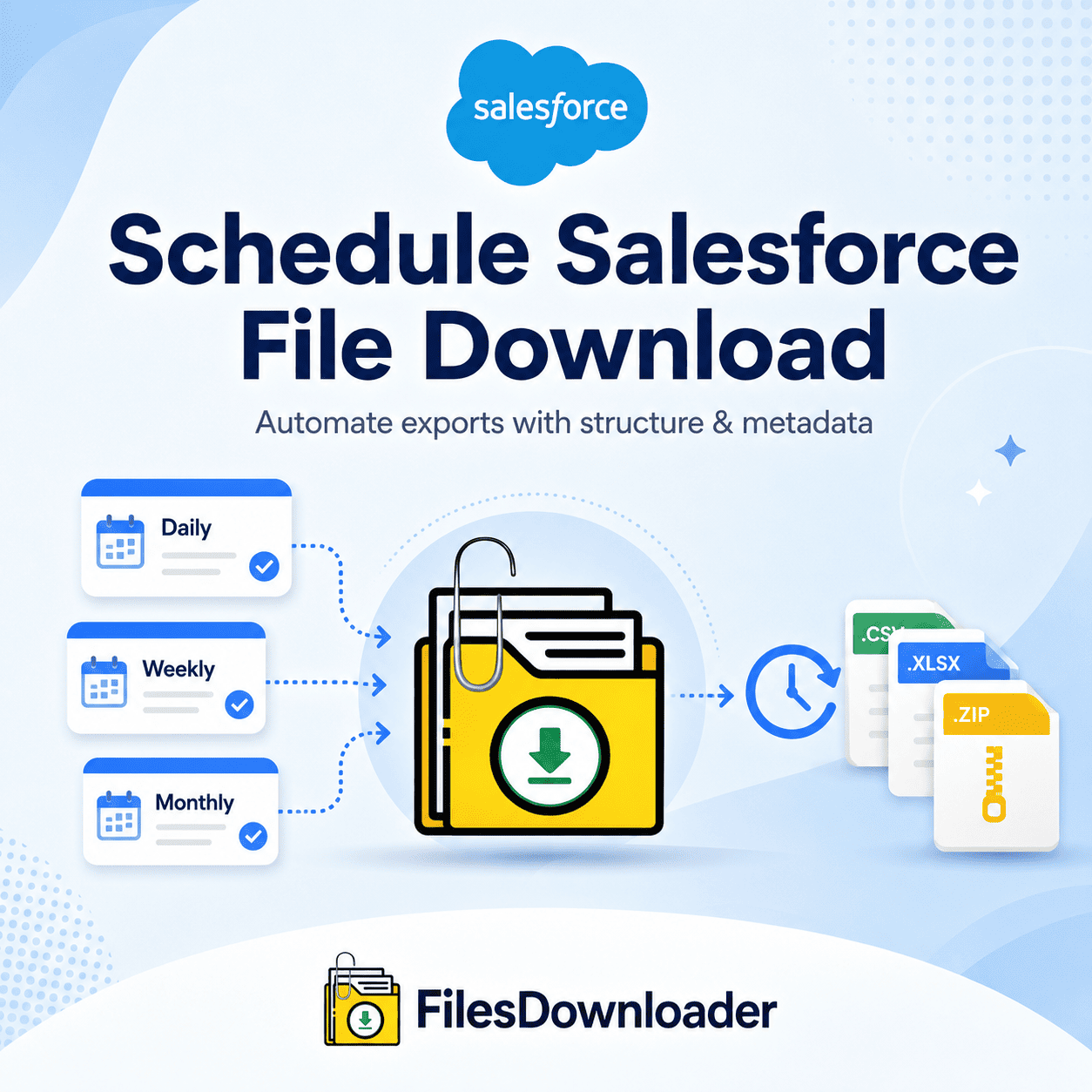


How to Schedule Salesforce File Download
To schedule Salesforce file download, you need an export process that runs automatically on a defined cadence—daily, weekly, or monthly—pulling exactly the files you need without an admin manually triggering a native export each time. Native Salesforce tools weren’t built for this: the standard Weekly Export service creates large, unformatted zip archives with unmapped files, forcing admins to spend hours re-associating attachments with their parent records by hand.
Thank you for reading this post, don't forget to subscribe!Why Native Tools Fail When You Need to Schedule Salesforce File Download
Salesforce has native ways to export data, but they fall short for any team trying to schedule reliable, ongoing file downloads:
- The “zip file scavenger hunt.” Standard exports package files into large, split archives with cryptic naming. Finding a single PDF contract or image attachment means downloading dozens of gigabytes and manually extracting folders — and doing it repeatedly on every scheduled run compounds the cost.
- Lost context. Native exports return raw file payloads disconnected from their Account, Opportunity, or custom object relationships, so even a successful export needs manual reconciliation afterward.
- SOQL and governor limit constraints. Pulling ContentVersion records via custom SOQL queries requires developer resources to build and maintain, and large or complex queries can run into Salesforce’s governor limits — a real risk for any process meant to run unattended on a schedule.
- Storage limits compound the problem. As unmanaged files pile up, orgs hit “File Storage Limit Exceeded” warnings, and storage cleanup typically requires exporting historical files off the platform first—another manual task without a scheduling tool.
How to Schedule Salesforce File Download in 3 Steps
Here’s how to set up an automated export pipeline with a files downloader:
1. Choose your target objects. Select standard or custom objects, or run a custom SOQL query to focus on specific fields and criteria.
2. Set your filtering rules. Filter and extract only the files that meet your criteria — by date, record owner, or file type — in a single step.
3. Define your schedule. Set the frequency to schedule Salesforce file downloads to your local drive or cloud repository—daily, weekly, or monthly—and let it run automatically from there.
Granular Filtering with List Views
You don’t need to write code to target specific files. Files downloader works across your entire org with standard and custom list views—choose the list view your sales or ops team already uses, apply your parameters, and schedule Salesforce file download to run from there automatically.
Native Export vs. files downloader
| Feature | Native Export | files downloader |
|---|---|---|
| List View Integration | Unsupported | Standard & custom list views |
| Metadata Retention | Stripped or partial | Fully retained (owner, object type, record ID) |
| Folder Organization | Random, cryptic zip | Structured by object/record |
| File Format Support | Generic archives | Native extensions kept (.pdf, .png, .docx) |
| Scheduling | Fixed weekly/monthly only | Custom daily, weekly, or monthly |
Metadata Retention and Folder Structure on Every Scheduled Run
An audit trail isn’t optional when you’re extracting attachments on a recurring basis. The files downloader preserves metadata—owner, object type, and record association—for every file on every scheduled run, and file names and folder structures stay unchanged. Files download into Account, Contact, or custom object folders instead of a flat list of random file hashes.
Migrations, Audits, and External Analytics
Scheduling Salesforce file download pays off across a few common scenarios:
- Clean system migrations — best for preserving legacy attachment structures during a migration, audit, or system backup.
- Database integration — organized file paths and clear record IDs make exporting into SQL Server or Excel straightforward.
- Time savings — no more manually sorting through data or downloading files from individual record pages.
Because the export runs natively within Salesforce and respects existing permission sets and sharing rules, scheduling Salesforce file download doesn’t introduce a separate compliance risk into your workflow.