

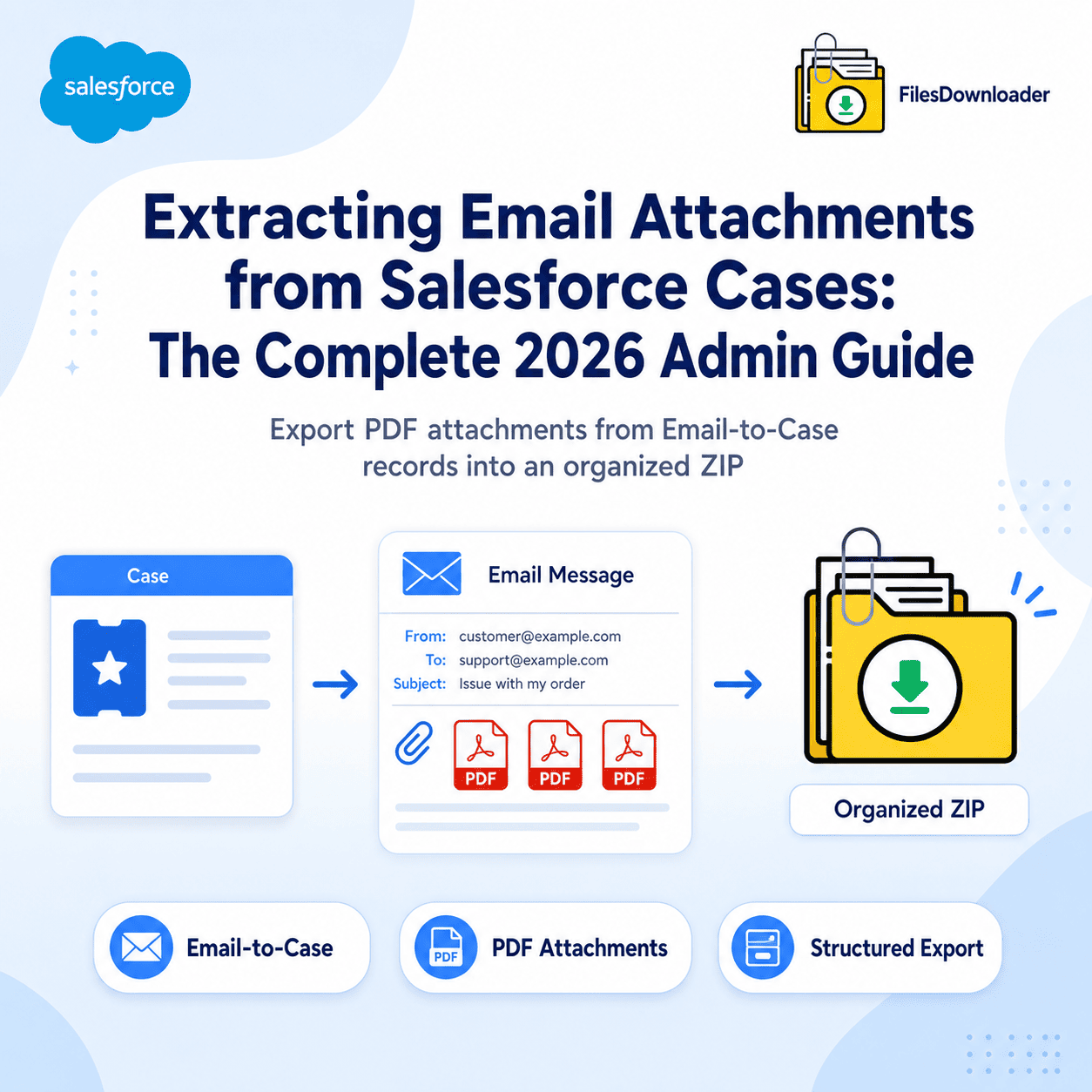


To Export Salesforce Email Attachments from Cases linked via Email Message, you must understand how file relationships work in Service Cloud. Because these files are not linked directly to the Case record, standard exports often miss them. In 2026, the most efficient “one-click” solution is using Files Downloader, which traverse the Case-to-Email relationship automatically to pull PDF attachments into an organized ZIP file.
Thank you for reading this post, don't forget to subscribe!If you are an admin in a high-volume Service Cloud environment, you know the frustration. A legal, compliance, or audit request comes in: “We need every PDF attachment from every closed case in the ‘Commercial’ queue from the last quarter.”
You look at the 500+ cases and realize a painful truth: The files aren’t on the Case record. They are buried inside the Email Message records within the Case feed.
How to Export Salesforce Email Attachments from Email Message Records
Most admins assume that if they see a file in the “Files” related list on a Case, a simple Data Loader export of ContentVersion will work.
However, Email-to-Case architecture is different:
- When a customer emails your support address with an attachment, Salesforce creates an
EmailMessagerecord under the case. - The attachment is stored as a
ContentDocument, but it is linked to theEmailMessagerecord, not the Case. - Salesforce “rolls up” these files so you see them on the Case record, but the database relationship is indirect.
If you use standard mass export methods from List Views, you will likely miss every file that arrived via an email.
Why Standard Methods Fail for Email Attachments (The “2026 Barriers”)
As of the Spring ’26 Release, Salesforce has implemented stricter “Hammer” rules on data extraction to protect the performance of Agentforce AI agents.
- The Synchronous Timeout: If you try to manually select 50 files and click “Download,” and the process takes more than 60 seconds to bundle the ZIP, the browser will kill the connection. For 500 cases, you could have 2,000+ attachments a guaranteed failure.
- The Metadata Loss: If you use the standard Salesforce Weekly Export, you get a folder full of files named by their ID (e.g.,
068...). You will have no way of knowing which “Invoice.pdf” belongs to which Case number without hours of VLOOKUPs in Excel. - The Signature Bloat: Email-to-Case is notorious for “Signature Image” bloat. A single export could contain 5,000 “linkedin-icon.png” files alongside your 500 actual PDFs.
Step-by-Step: The “Manual” SOQL Approach
If you have a developer and 6 hours of free time, you can attempt this:
- Query Email IDs:
SELECT Id FROM EmailMessage WHERE ParentId IN (SELECT Id FROM Case WHERE Status = 'Closed') - Query Content Links:
SELECT ContentDocumentId FROM ContentDocumentLink WHERE LinkedEntityId IN [List_of_Email_IDs] - Download & Rename: Use a custom Python or Java script to export mass files from Salesforce via SOQL, mapping the
ContentDocument.Titleto the file so you don’t end up with ID-named files.
The Risk: Scripting binary data often leads to corrupted ZIP files or “Heap Limit” errors in the Salesforce execution context.
The 2026 Solution: Automated “Email-to-Case” Export
To truly extract Salesforce email attachments in minutes, you need a tool that understands the “Indirect Relationship” between Cases and Emails.
Files Downloader was built to solve exactly this. It features a specific “Service Cloud Mode” that automates the entire process:
- Relationship Intelligence: It automatically traverses the
Case -> EmailMessage -> ContentDocumentpath so you don’t have to write a single line of code. - File Type Filtering: You can specifically bulk export only PDFs, automatically ignoring the thousands of small JPG/PNG icons from email signatures.
- Organized Output: Instead of one giant mess of files, it creates a folder hierarchy: Case Number > Subject > Original_Filename.pdf.
- Storage Relief: Once you have your secure archive, you can fix your “File Storage Limit Exceeded” error by safely deleting those old Case attachments from Salesforce.
- AI Readiness: By cleaning up this data, you improve your Agentforce grounding accuracy by removing redundant junk files.
Comparison: Manual vs. Automated Extraction
| Feature | Manual / Data Loader | Files Downloader |
| Email-to-Case Support | Requires 2-3 complex joins | Native Toggle |
| Original Filenames | Lost (Renames to ID) | Preserved Automatically |
| Folder Organization | None (Flat list) | By Case Number / Date |
| Signature Filtering | Impossible | Yes (By Extension/Size) |
| Spring ’26 Timeout | High Risk of Failure | None (Async Processing) |
Conclusion
The easiest way to Export Salesforce Email Attachments is through automated Service Cloud-aware tools that preserve structure and metadata. Extracting 500+ Case PDFs shouldn’t be a weekend project. Whether you are migrating files to SharePoint for long-term archiving or performing a compliance audit, you need a tool that handles the limitations of Salesforce Data Loader for you.
Ready to extract your Case attachments in one click?
Stop the manual grind and protect your data integrity. Start your Free Trial of Files Downloader today and see why it is the #1 rated file tool on the AppExchange.