



Salesforce Storage Usage Report: How to Read It and Take Action with Files Downloader
Every Salesforce admin should know how to run a Salesforce Storage Usage Report. This is the first step to understanding what is eating up your org’s file storage allocation and where the biggest cost drivers are hiding. But hearing the report is only half the job. Files Downloader provides you with the action layer: when your Salesforce Storage Usage Report identifies the objects and files that take up the most space, Files Downloader lets you export and clear them out in a single step. In this guide, we’ll go over how to find and read those numbers, and how Files Downloader translates those insights into actual savings on your storage.
Thank you for reading this post, don't forget to subscribe!What is a Salesforce Storage Usage Report?
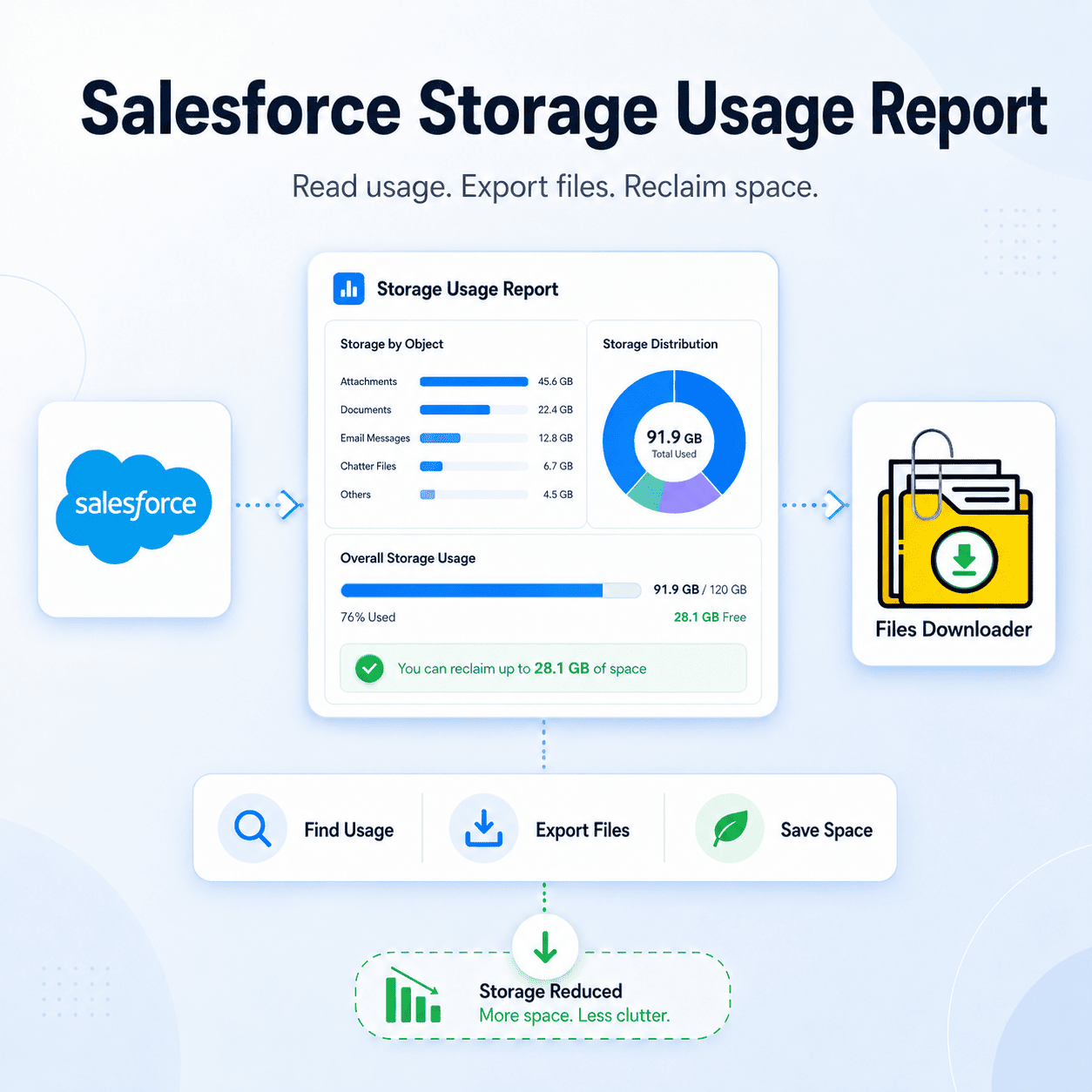
Salesforce Storage Usage Report is a prebuilt admin tool that provides a breakdown of the usage of your org’s overall file storage allocation, by object type, file size and record count. It allows admins to clearly identify which ContentVersion records, legacy Attachments, Documents, and Chatter files are consuming the most.
Where to Find It
You can find the Salesforce Storage Usage Report in Setup under Storage Usage. It compares data storage and file storage consumption side by side, with a breakdown by object. Regularly checking it gives admins much better opportunities to act before the File Storage Limit Exceeded warning pops up.
The Meaning of the Numbers
Salesforce Storage Usage Report. Shows total allocated storage, current usage and usage by object. Separate tracking of file storage from data storage. The object-level breakdown is the most actionable part — that tells you if it’s ContentVersion records, legacy Attachments or something else driving the bill up.
Why You Can’t Just Rely on the Salesforce Storage Usage Report
The report tells you where the problem lies. It doesn’t give you a tool to fix that. Native Salesforce export tools give you one big zip file, no selective filtering. So even when the report tells you that ContentVersion records on closed opportunities are the biggest storage driver, there’s no built-in way to export just those records.
No Filtering When Native Export
The report gives you storage consumption at object level but native export doesn’t let you act at that level. You export all or nothing, making it difficult to act on the report’s insights without a third-party tool.
Manual cleanup is not scalable
Some admins take a manual approach to the findings, deleting files one by one from each record. This approach works for small orgs, but quickly breaks down at any serious file volume and runs the risk of losing metadata and file context along the way.
How Files Downloader Transforms Your Salesforce Storage Usage Report Into Action
Files Downloader is meant to act on exactly what the report shows. Once the report has identified the objects and records that are using the most storage, Files Downloader enables you to focus on those particular records and export them all in one bulk step.
SOQL Query Export for Accurate Targeting: After reviewing the report, use Files Downloader’s custom SOQL Query Export to query ContentVersion, ContentDocumentLink, or Attachment objects by the exact criteria the Salesforce Storage Usage Report flagged — object type, date range, file size, or record status. Only export what the report told you to target. Nothing else.
Export Bulk from Any List View: Files Downloader supports both standard and custom list views. If your Salesforce Storage Usage Report points to a particular object—closed opportunities, resolved cases, or inactive accounts—you can create a list view for those records and export all related files in one batch.
Keeps Folder Structure and Metadata: Salesforce Storage Usage Report does not mean losing the context of files while working on them. Files Downloader preserves metadata such as owner, object type and record association during export. Original file names and folder structures are carried over to the destination exactly as they were in Salesforce.
Supports All File Types: PDFs, images (.jpg, .png), Word docs, spreadsheets and most standard attachment formats – Files Downloader handles every file type the Salesforce Storage Usage Report might surface, without conversion or loss of quality.
Works on Standard & Custom Objects: Custom objects are common offenders in the storage consumption. Files Downloader exports from standard and custom objects and from any standard or custom list view so all line items in the Salesforce Storage Usage Report can be acted upon.
Use Cases for Taking Action on a Salesforce Storage Usage Report
Quarterly Storage Reviews: Run the Salesforce Storage Usage Report at the beginning of each quarter, identify the top storage consumers, and use Files Downloader to export and archive before costs increase.
Pre-Renewal Cleanup: Before renewing Salesforce, pull the Salesforce Storage Usage Report to see how much storage your org is paying for. Use Files Downloader to export your heaviest files, delete them from Salesforce, and enter the renewal conversation with a smaller storage footprint.
Post-Migration Audits: After a migration is complete, run the Salesforce Storage Usage Report to confirm that storage consumption has decreased as anticipated and to locate any files that did not migrate correctly.
Compliance Archiving: Use the Salesforce Storage Usage Report to identify the objects with the highest number of compliance-sensitive files, then export those files to Google Drive, OneDrive, SharePoint, or Dropbox for long-term retention outside of Salesforce using Files Downloader.
Post the Export
Once Files Downloader has exported the files flagged by the Salesforce Storage Usage Report, they are delivered to the target destination with the original filename, folder structure and metadata intact. The only way to get the actual reduction in the numbers on the next report run, after a verified export, is to remove the original ContentVersion or Attachment records from Salesforce. Teams can also export data to SQL Server or Excel for auditing or reporting purposes.
Ready to Take Action on Your Report of Salesforce Storage Usage?
Step one is reading the report. Step two is Files Downloader. Together, they provide admins with a complete workflow: find storage waste using the Salesforce Storage Usage Report and then quickly clean it up with Files Downloader. Give Files Downloader a try today and let your next storage review be the final one with numbers that continue to increase.
[Book a Free Demo] | [View Pricing] | [Install on AppExchange]