

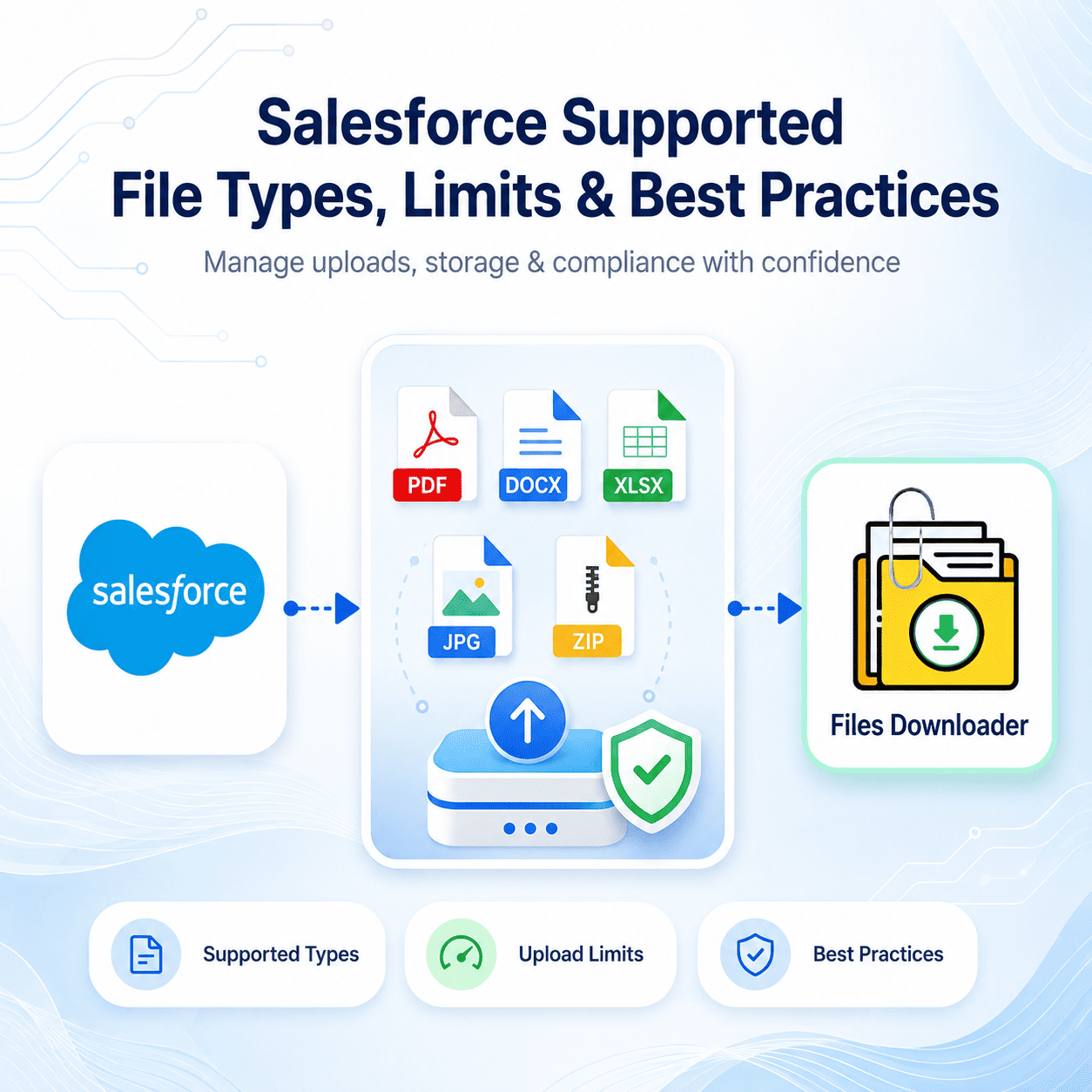


Salesforce File Storage Limits: A Complete Guide for Admins
Understanding Salesforce file storage limits is essential for avoiding upload errors, storage issues, and compliance problems in your org. However, every admin eventually encounters an unexpected upload error or a storage limit. Understanding Salesforce-supported file types, size limits, and best practices is crucial for maintaining a stable and compliant organization.
Thank you for reading this post, don't forget to subscribe!Salesforce File Storage Limits: Supported File Types and Storage Rules
Understanding exactly which file types Salesforce supports is crucial. Let’s look at the details.
Salesforce Files—built on ContentDocument and ContentVersion—accepts virtually every mainstream business format. This includes documents (.pdf, .docx, .xlsx, .pptx, .txt), images (.jpg, .png, .gif, .svg), audio and video (.mp3, .mp4, .mov), compressed files (.zip, .rar), and web formats (.html, .xml, .json). However, Salesforce permanently blocks executable and script-based formats for security reasons—including .exe, .bat, .vbs, .msi, .scr, and standalone .js files. This blocklist is enforced at the platform level and cannot be overridden by any admin, developer, or AppExchange app.
Salesforce File Upload Limits Explained
| File Type | Limit |
|---|---|
| Salesforce Files (Content Version)—UI & API | 2 GB per file |
| Classic Attachments (Attachment object) | 25 MB per file |
| Documents Object | 5 MB per file |
| Email Message Attachments | 25 MB total per email |
Org Storage Limits
Salesforce allocates file storage based on your edition. Enterprise Edition organizations receive a 10 GB base plus a 2 GB per-user license. When your org hits its storage ceiling, all uploads fail—including those triggered by Flows and Apex. Monitor usage under Setup → Company Information. When approaching Salesforce file upload limits, org storage monitoring becomes critical for avoiding system failures.
Best Practices for Salesforce File Management
Use validation rules on ContentVersion to restrict unwanted file types and reduce storage bloat. Run regular SOQL audits on ContentDocumentLink to identify and delete orphaned files that are not linked to any record. For orgs approaching storage limits, export and archive old files before deleting them to maintain a clean backup.
Bulk Export Any Salesforce File Type with Files Downloader
When exporting files from Salesforce, most native tools provide only file names or metadata rather than the files themselves. In these scenarios, Files Downloader offers an effective solution. Built entirely on the Salesforce platform, Files Downloader gives admins a point-and-click way to pull thousands of files off any standard or custom object—all in their native formats. Whether you need contracts saved as PDFs, customer photos stored as JPEGs, or financial data in Excel, every file arrives exactly as it was originally saved, packaged inside a structured ZIP folder alongside a CSV report that maps each file to its source record.
What makes it different from generic export tools is where the processing happens—inside your org, not on a third-party server. That means your security policies stay intact, your data never crosses an unfamiliar network boundary, and your compliance posture remains untouched throughout the entire export process. Understanding Salesforce file upload limits helps admins manage storage proactively and avoid unexpected upload failures.
[Book a Free Demo] | [View Pricing] | [Install on AppExchange]