

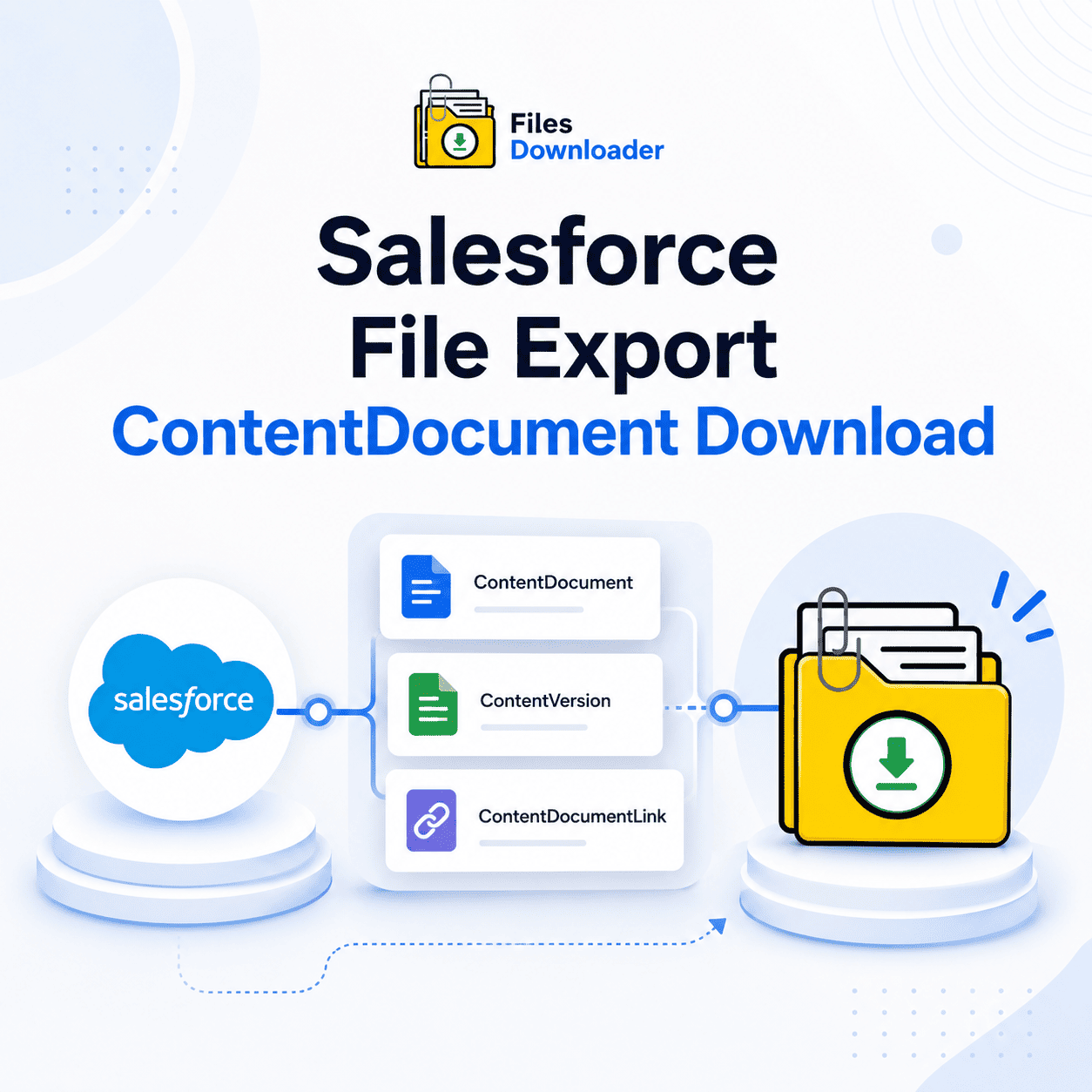


Salesforce File Export ContentDocument Download: The Complete Guide With Files Downloader
Any admin who has tried to do a Salesforce file export ContentDocument download using native tools knows the result: a zip file with no filtering, no metadata structure, and no reliable way to link exported files back to the records they came from. Files Downloader was created for this exact problem — a clean, filtered, and metadata-preserving export of Salesforce files ContentDocument downloads at any scale, without custom code or manual cleanup.
Thank you for reading this post, don't forget to subscribe!This guide explains how the ContentDocument data model functions, why native export is insufficient for a Salesforce file export ContentDocument download, and how Files Downloader makes the whole process speedier, cleaner, and more useful.
Understanding the ContentDocument Model Before Export
A good start to a reliable export is understanding how Salesforce Files stores data. The modern storage system relies on three separate objects working together:
ContentDocument: The parent object that represents the core file record itself.
ContentVersion: The child object that contains the actual file data, version history, and file-specific metadata such as title, file type, and size.
ContentDocumentLink: The junction object that connects each ContentDocument to one or more Salesforce records (such as an Account, Contact, or Custom Object).
The Importance of the Three-Object Model for Exports
Any Salesforce file export ContentDocument download that doesn’t consider all three objects will lead to incomplete results. Exporting ContentVersion provides file data, but not record association. When you bypass ContentDocumentLink, exported files arrive at the destination with no clue as to what account, opportunity, or case they were originally part of. A proper export reads all three objects, preserving file data and record context.
ContentDocument vs. Legacy Attachment
The ContentDocument model is specific to the modern Salesforce Files platform. Older orgs may still have legacy Attachment records with a simpler, direct parent-child model. A full-featured export workflow needs to deal with both, which is exactly what Files Downloader does.
Why Native Export Won’t Work for ContentDocument Downloads
Native Salesforce export tools were never designed for targeted ContentDocument download workflows. They create one big zip file with no filtering options or ability to export files from a specific list view, object type, or date range.
No ContentDocumentLink Filtering
The major downside to native export is that it doesn’t filter ContentDocumentLink, so you can’t filter files by their parent record. A correct export should let admins say “export only files attached to closed opportunities” — this is not possible with native tools.
No SOQL Control
To export selectively, you need SOQL access to ContentVersion, ContentDocument, and ContentDocumentLink. No native tools show you this; you get it all or not at all.
Lost Metadata In Zip
Native export generates files with random names in unlabeled folders. Owner, record association, object type, and creation date are stripped out, rendering the resulting archive almost useless for audits, migrations, or downstream data pipelines.
How Files Downloader Solves ContentDocument Exports
Files Downloader is built for this exact workflow — from single-object bulk exports to complex multi-object migrations. Every feature is created to make ContentDocument exports quicker, cleaner, and more complete.
Export via SOQL Query for All Three Objects: Files Downloader can execute a custom SOQL Query Export on ContentVersion, ContentDocument, and ContentDocumentLink. Write a query that filters by
LinkedEntityId, file size, creation date,ShareType, or object type to export records that match with precision.Bulk Export From Any List View: Files Downloader supports both standard and custom list views, so a Salesforce file export ContentDocument download can be scoped to just the records that need attention — closed opportunities, resolved cases, or inactive accounts — without pulling every file in the org. Select the list view and export in one shot.
Folder Structure and Metadata Preserved: When you export a Salesforce File and download the ContentDocument via Files Downloader, the file retains its owner, object type, associated record, and creation date. The original file names and folder structure are maintained exactly as they were in Salesforce, delivered straight to your target destination. Includes ContentDocument and Legacy Attachments: Salesforce file export ContentDocument download with Files Downloader are not restricted to modern ContentVersion records. Legacy Attachment records are part of the same workflow, so orgs with a mix of file models don’t need two separate export processes.
All File Types in Original Format: Files Downloader downloads every Salesforce file export ContentDocument, retaining files in their original format with no conversion or loss of quality. PDFs, images (.jpg, .png), Word docs, spreadsheets, and most standard attachment formats are all handled seamlessly.
Use Cases for ContentDocument Downloads
Storage Cleanup: Exporting a targeted Salesforce file ContentDocument download filtered for closed or inactive records frees up storage space immediately when the originals are deleted from Salesforce. This is exact and repeatable, thanks to Files Downloader’s SOQL filtering.
Data Migrations: Moving to a new Salesforce org or another CRM requires a Salesforce file export ContentDocument download that maintains record relationships. Files Downloader preserves ContentDocumentLink context, so no file is orphaned at the migration destination.
Archiving for Compliance: In regulated industries, exported files must contain complete audit trails. Files Downloader’s export keeps all the metadata auditors need: owner, record, date, and object type.
Recurring Exports: A quarterly or monthly download cadence of Salesforce file exports targeting files attached to closed records keeps storage consumption flat and stops “File Storage Limit Exceeded” warnings from returning.
Post-Export Workflow
Files are delivered with the original file names, folder structure, and metadata intact once the Salesforce file export ContentDocument download is complete. Then, the original ContentVersion, ContentDocument, and ContentDocumentLink records can be deleted from Salesforce to free up storage.
Auditing, reporting, or downstream pipelines can also leverage exported data by importing it into SQL Server or Excel.
How to Download a Clean Salesforce ContentDocument File Export?
Quit taking zip files that have no structure. Files Downloader offers the fastest, most filtered, and most complete Salesforce File Export ContentDocument Download to administrators and data teams — every time, at any volume. Try Files Downloader today and make your next ContentDocument export as neat as the data it originated from.
[Book a Free Demo] | [View Pricing] | [Install on AppExchange]