

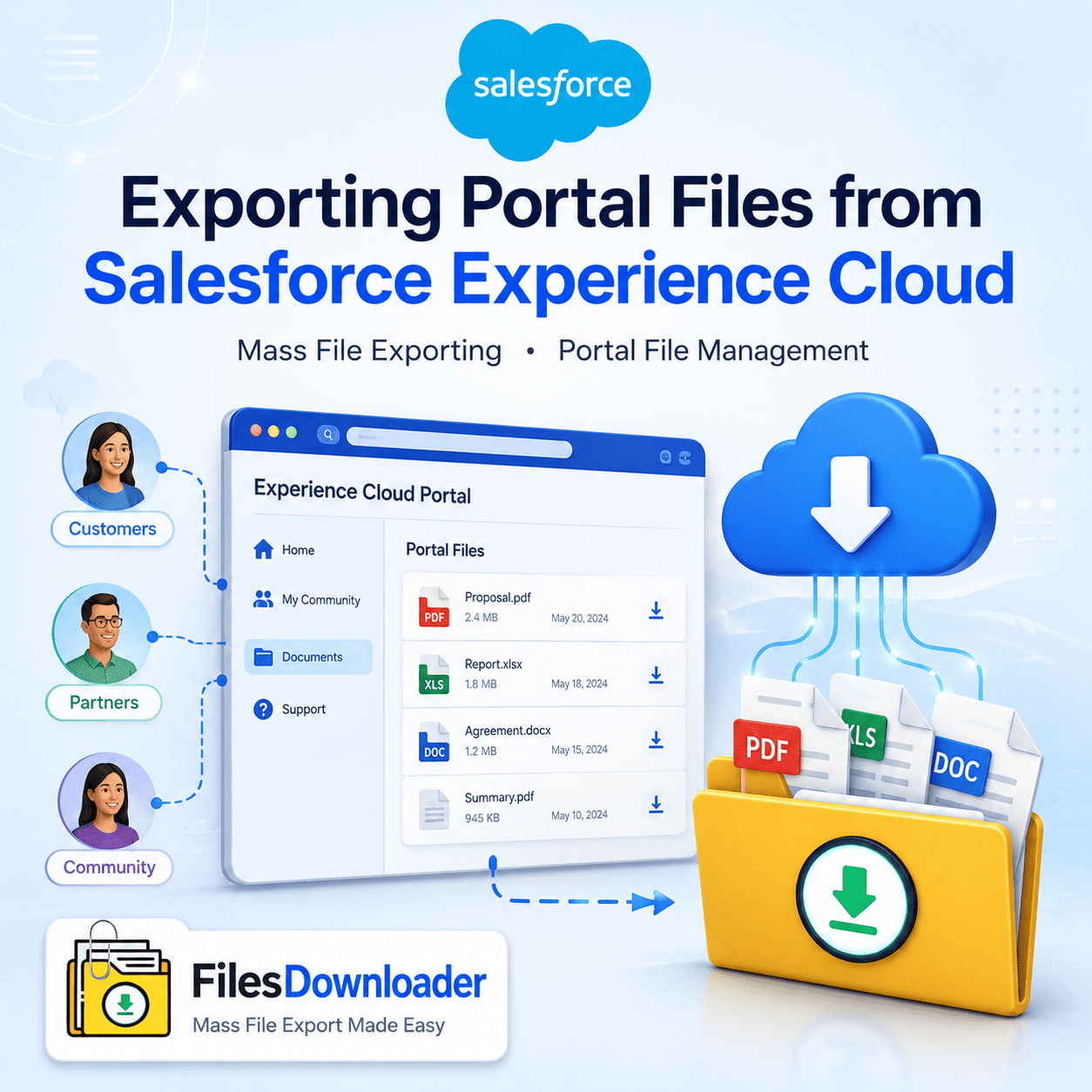


Salesforce Experience Cloud Mass File Exporting File Management Ultimate Guide
Your users are cranking out huge volumes of data every day if your company has a digital portal, partner portal or customer forum. Every contract a partner uploads, every receipt a customer uploads, every onboarding document a customer shares with your salesforce experience cloud site is business data of immense value. But getting those user files out of the platform in a structured, clean way is often an administrative nightmare. This breaks the process for data teams, where customer files are made separate from the context and are almost useless without an automated, reliable strategy.
Thank you for reading this post, don't forget to subscribe!Most organizations with portal environments reach the breaking point when they receive a compliance audit or when a high volume site throws a File Storage Limit Exceeded error. Native extraction methods don’t differentiate between internal files and external portal uploads and usually just dump everything into a chaotic “Zip File Scavenger Hunt.” Your business needs a real-world approach to filter, automate and extract data safely to keep your customer ecosystem healthy. This guide shows you how to extract files from your digital portals, without losing the metadata that adds business value.
File Management Issues Data Teams Portal
The salesforce experience cloud framework is great for user engagement but bulk file extraction from these sites is notoriously painful. Each document your customers or partners upload under the hood of CRM is decomposed into 3 different object layers:
ContentDocument
ContentDocumentLink
ContentVersion
External users can upload files via links to standard and custom objects through complex sharing rules. Native data export tools totally destroy this three object relationship on export . The native export process strips original file names and replaces them with random alphanumeric IDs. So there are thousands of unknown documents not attached to the accounts, cases, or custom objects that external portal users created.
Routine portal activities can be major operational challenges in the absence of selective filtering. Admins are forced to write complex apex code or spend days mapping IDs back to records on excel just to get a clean batch of customer documents. The real win is removing that friction, not adding more manual effort.”
Basic Principles of Portal Data and File Management
Once you get into intelligent, targeted extraction, rather than bulk dumping, you can manage your files across your digital experiences seamlessly. A modern file strategy for Salesforce Experience Cloud rests on three pillars:
1. Dumping in Bulk vs Filtering in Granular
You probably don’t want to export everything in your org at once. Real automation lets you filter and pull only the files you want in one step. You can filter portal files by record status, created date or custom object fields to have clean and on-target data pipelines.
2. Metadata Preservation in Absolute
An auditor or operations team has no way to understand a file without context. For an export to be operationally useful, it must preserve metadata such as owner, object type and record association intact. When you export the data, external teams can work with it directly, preserving file names and folder structures.
3. Repeatable Workflows for Admins
You don’t need a dedicated team of developers to update your portal data. Design your operations around tools that support standard and custom list views natively to build a durable strategy. That lets admins dump data or run backups without having to write complex code.
Meet Files Downloader – The Best Portal File Exporter
Files Downloader helps data teams close the gap between complex CRM architecture and simplified portal workflows. This native AppExchange app is a must-have file exporter for Salesforce admins and data teams, built from the ground up to solve the limitations of native file export.
Files Downloader makes your salesforce experience cloud deployments automated and makes complex data download easy for specific objects and fields. The easiest way to get Salesforce files without complex third-party tools or custom integration scripts.
Key Features and Benefits of Files Downloader
Bulk actions in list views with one click
Files Downloader is a must have in your daily work environment and fully compatible with your Salesforce data export and file management needs. You and your admins can bulk export files and attachments from any list view, both standard and custom, for your entire org.
Complete Form and Structural Stability
Whatever files you have in your portal, .pdf, images (.jpg, .png), Word documents, spreadsheets, the app has you covered. Files Downloader downloads Salesforce files and attachments in their original format. Most importantly, it exports with the original file and folder names intact, so no cleanup work is needed after export.
Enhanced Export SOQL Query Filtering
Or perhaps your digital experiences demand more sophisticated data and you want to dispense with out-of-the-box user interfaces altogether. Build your SOQL Query Export for today’s most recent data Deep relational queries allow to filter and pull data based on certain portal parameters. This is good for clean migrations, compliance audits and regular backups of systems.
Automated File Exports For Faster Downstream Systems
Benefits of optimizing file management for your Salesforce Experience Cloud sites extend far beyond the CRM itself. The exported files are clean and help you streamline your workflows across your data eco-system.
Simplified Database ingestion Securely store relational metadata and easily import Salesforce data to SQL Server or Excel after export.
Audit Readiness: Not a mad scramble during a compliance check. Teams can pull specific ContentVersion files, by object type and date range, when they need them.
Storage Cost Relief – Free up space within the organization by automatically offloading legacy files without costly storage upgrades.
These are automatable, which means your operations team can spend less time manually parsing data and more time on strategic growth.
Automated Export System Files: Step By Step Guide
Downloader makes managing Salesforce documents easier with automated data mappings:
Go to Your Object Open a list view in your Salesforce org for a standard or custom object that holds portal files.
Use Filters Use the list view filter to display only those specific records with the files you need.
Export & Select Export bulk Salesforce files with the Files Downloader button on both standard and custom objects.
Download Your Package: Make sure your files are well named, sorted into folders and have proper metadata.