

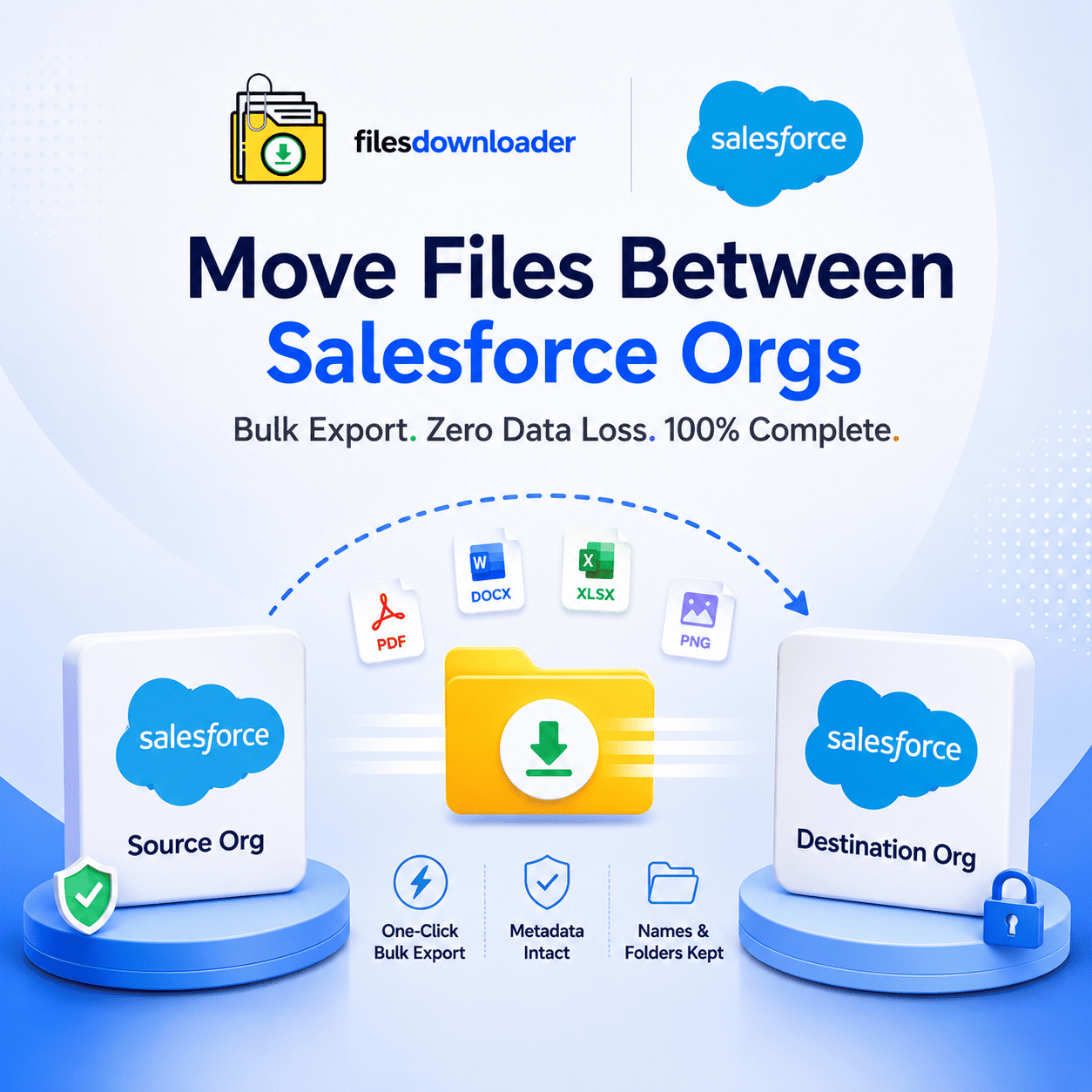


Salesforce Org File Transfer: Easiest Way to Migrate Attachments and Files Without Data Loss
If you’ve ever tried to Move files between Salesforce orgs to another, you know that Salesforce doesn’t make it easy. Records copy over with tools, but attachments don’t follow the same path admins call it the “Zip File Scavenger Hunt,” clicking into record after record just to download what should be transferred automatically.
Thank you for reading this post, don't forget to subscribe!This guide explains why native tools can’t Move files between Salesforce orgs, and how a purpose-built downloader can turn a multi-day project into a same-day task.
Why Records Slide Easily, But Files Don’t
Change Sets and metadata migration tools are all record-centric — focusing on fields, relationships, and object structure. None of them are designed for moving files between Salesforce orgs because attachments sit outside the standard data model as ContentVersion records.
That’s why sandbox refreshes, org consolidations, and full org migrations often “finish” on the record side while files remain stranded in the source org. Anyone who has had to manually Move files between Salesforce orgs knows this means opening records one at a time in both orgs – export from one, upload to the other, repeat.
The Move That’s Complicated by “File Storage Limit Exceeded” Errors
It’s all too common to hit storage limits just when you’re trying to Move files between Salesforce orgs. If the source org has a File Storage Limit Exceeded warning, you may be unable to upload any more files. If the destination org hits a storage limit and you don’t filter out unnecessary files first, it may stall midway through the copy process.
Without selective filtering, teams either delete files in a panic or stall the transfer until storage is sorted out. Export everything cleanly first, and avoid both problems — giving you a complete backup before storage becomes a blocker.
Bulk Export in One-Click, Re-Upload Ready
That is where a dedicated files downloader helps. Rather than opening records one-by-one, you work from any standard or custom list view and grab all you need to Move files between Salesforce orgs in one bulk action.
List View Flexibility: Supports both standard and custom list views — no rebuilding views just to export.
One-Click Bulk Download: Export attachments and mass files from any list view with one click.
Native Formats: Download files and attachments from Salesforce in the same format they were uploaded, with no conversion or loss of quality.
No Middleware Overhead: Easiest way to export Salesforce files without the headache of complex ETL tools or middleware.
Universal Format Support: Supports all file types — PDFs, images (.jpg, .png), docs, spreadsheets, and more.
If you have a sandbox refresh deadline or org consolidation date, this replaces days of manual clicking with a single export step.
Designed for ContentVersion Records, Not Just Surface Files
In Salesforce, each attachment is stored as a ContentVersion record on top of a ContentDocument. Move files between Salesforce orgs and losing that record association means the destination org receives files with no way to reconnect them to the right Account, Case, or Custom Object. A downloader built for that relational structure keeps that link intact when exporting.
SOQL Query Export for Precision Transfers
You don’t need to move everything at once. Org transfers are often phased — one department, one object, or one date range at a time. The SOQL Query Export engine helps streamline targeted transfers.
Live Query Execution: Run your own SOQL query to get the latest data immediately.
One-Step Filtering: Filter and pull out just the files that meet your criteria in one go.
Scoped Data Pulls: Target specific objects and fields to simplify complex data downloads.
This is especially useful when you need to Move files between Salesforce orgs in phases, making each transfer manageable rather than dumping an entire org’s attachments all at once.
Metadata, Names, and Folders Preserved
A file that comes into the destination org without context is pretty much useless. When Move files between Salesforce orgs without maintaining structure, the receiving team ends up with a disorganized heap of files rather than clean, reusable data.
Context Retention: Store metadata (owner, object type, record association) for each file.
Directory Hierarchy: Export files without renaming or flattening, keeping original file names and folder structures intact.
Audit Ready: Ideal for clean migrations, audits, and system backups where traceability is important.
That’s the difference between a true org-to-org transfer and a simple download that dumps files into one folder with no sorting.
Salesforce to SQL Server or Excel in Minutes
Sometimes the destination isn’t another Salesforce org at all – it’s a staging system before re-import. Having a well-structured export makes it easier to import Salesforce data into SQL Server or Excel after export, since file names, folders, and metadata already match your source records.
This saves time as data teams don’t need to manually sort data before files can be moved again. Instead of manually re-labeling files or re-mapping fields, your export is ready for the next step.Who Should Move Files Between Salesforce Organizations?
Although org transfers don’t happen every day, when they do, this becomes a must-have file exporter for Salesforce admins and data teams running the project. It works seamlessly with existing Salesforce data export and file management processes.
Common Use Cases
IT Teams: Merging several business entities following an acquisition.
Consultants: Refreshing sandboxes without losing attachment history.
Admins: Splitting a single org into several distinct business units.
Data Teams: Staging files prior to re-importing into a new destination org.
Check out the tool on the Salesforce AppExchange to review setup requirements and see recent reviews from other admins who have Move files between Salesforce orgs.
[Book a Free Demo] | [View Pricing] | [Install on AppExchange]