

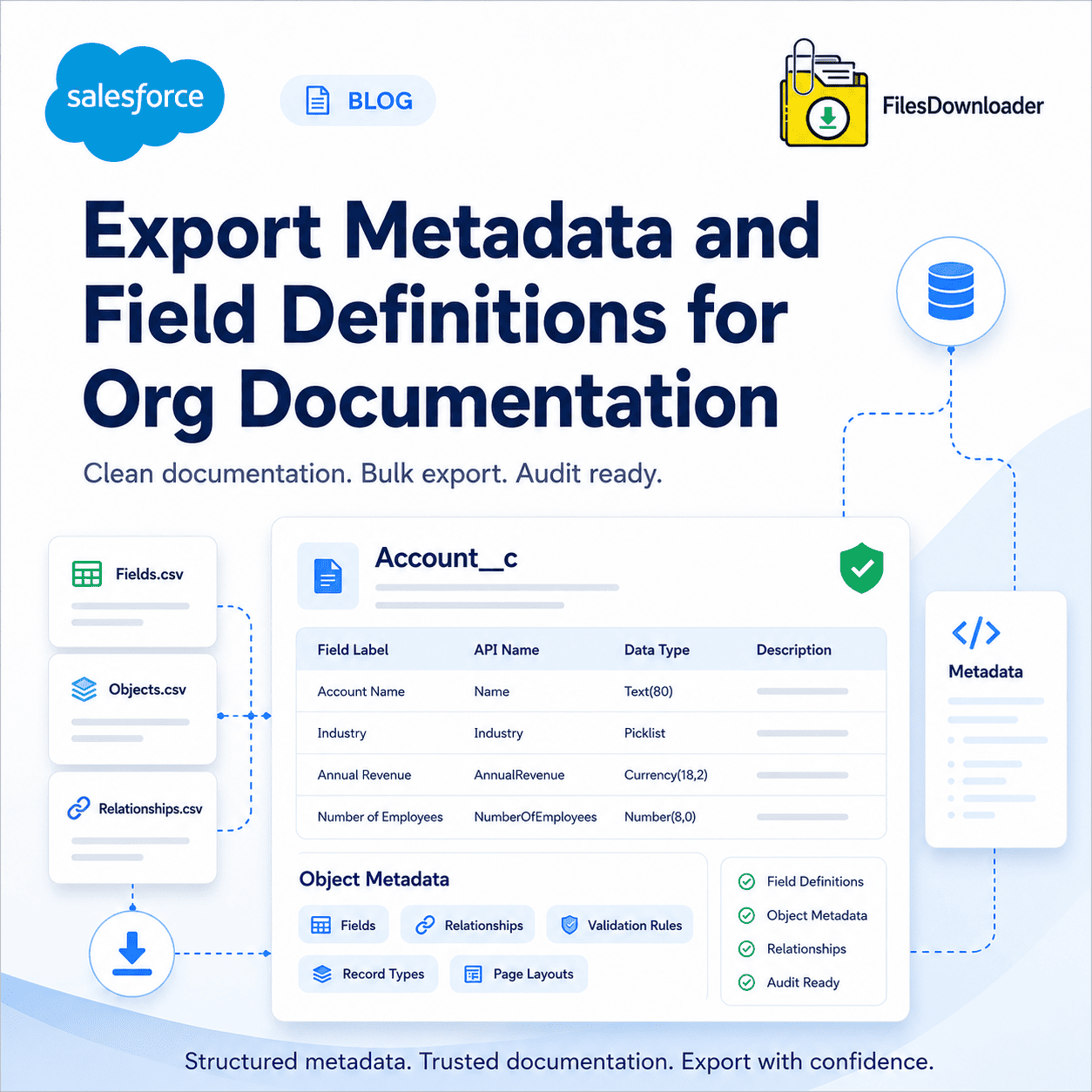


Export Metadata and Field Definitions for Org Documentation
For org documentation you usually want one of two things: either the schema-level info of your Salesforce fields (API names, data types, picklist values, help text, and formula logic) or the file-level metadata of your records (attachments, documents, owners, and parent-object relationships). These take different tools, and knowing which tool you need before you start will save you hours of wasted export time.
Thank you for reading this post, don't forget to subscribe!Export Schema Level Documentation (Field Definitions)
In Salesforce, field definitions are stored in the Object Manager and are best captured using:
Object Manager exports can be reviewed manually per object but are slow for large orgs with hundreds of custom fields.
Metadata API (sf/sfdx)—Bulk retrieve field-level XML definitions, great for version control and diffing changes over time.
Schema Builder – a visual map of objects and relationships between fields, useful for documentation that is to be presented, not parsed.
Third-party DevOps tools (Gearset, Copado, and Elements.cloud) are built specifically for org documentation at scale, with automated field-level change tracking.
If you need documentation to the level of a full data dictionary—every field, its type, and its purpose—this is the way to go. No file export tool (including ours!) is going to do it for you.
Exporting Org Docs with File-Level Metadata
The other half of “org documentation,” where an export tool built for that purpose really comes in handy, is the files, attachments, and documents associated with your records and the metadata that describes how they relate to your data model. This is where native Salesforce exports always break down.
By default, the Weekly Export Service compiles files into unstructured zip archives, strips original file names, and replaces them with unreadable record IDs—the “zip file scavenger hunt” every admin knows. There is no selective filtering, so a File Storage Limit Exceeded warning results in an all-or-nothing export, rather than a targeted one, and reconnecting a file to its parent record requires manual cross-referencing against a separate export file.
How Files Downloader Fixes the File-Metadata Side
Now that we have decoupled the file metadata from the field definitions, here is the practical workflow on the file side:
- Begin with the list view. Salesforce lets you filter any standard or custom list view you already have to the exact records you need—no separate query tool.
- SOQL for precision. For further filtering by date, owner, or custom field, run a direct SOQL query against the ContentVersion or Attachment objects to retrieve just the file set you care about.
- Export with complete context. Files keep original names, folder structure, owner, object type, and parent-record association—no manual matching later.
- Cleanly import downstream. The output is formatted and ready to be dropped into SQL Server, Excel, or an external data warehouse for further documentation work.
Files Downloader vs Native Exporter
| Ability | Native Salesforce Export | Files Downloader |
|---|---|---|
| Selective Filtering | All or nothing | Object-, list view-, or SOQL-based |
| File Naming | Replaced with record IDs | Original names maintained |
| Record Relationships | Manual matching needed | Auto-mapped to parent records |
| File Structure | Flat, randomized zip | Original folder structure maintained |
| Setup Time | Hours depend on the CLI. | One-click, instant |
The export is native to Salesforce and respects your existing permission sets and sharing rules, so it does not add a separate compliance risk to your documentation process.
[Talk to Expert] [Start Free Trial] [See How it Works]