

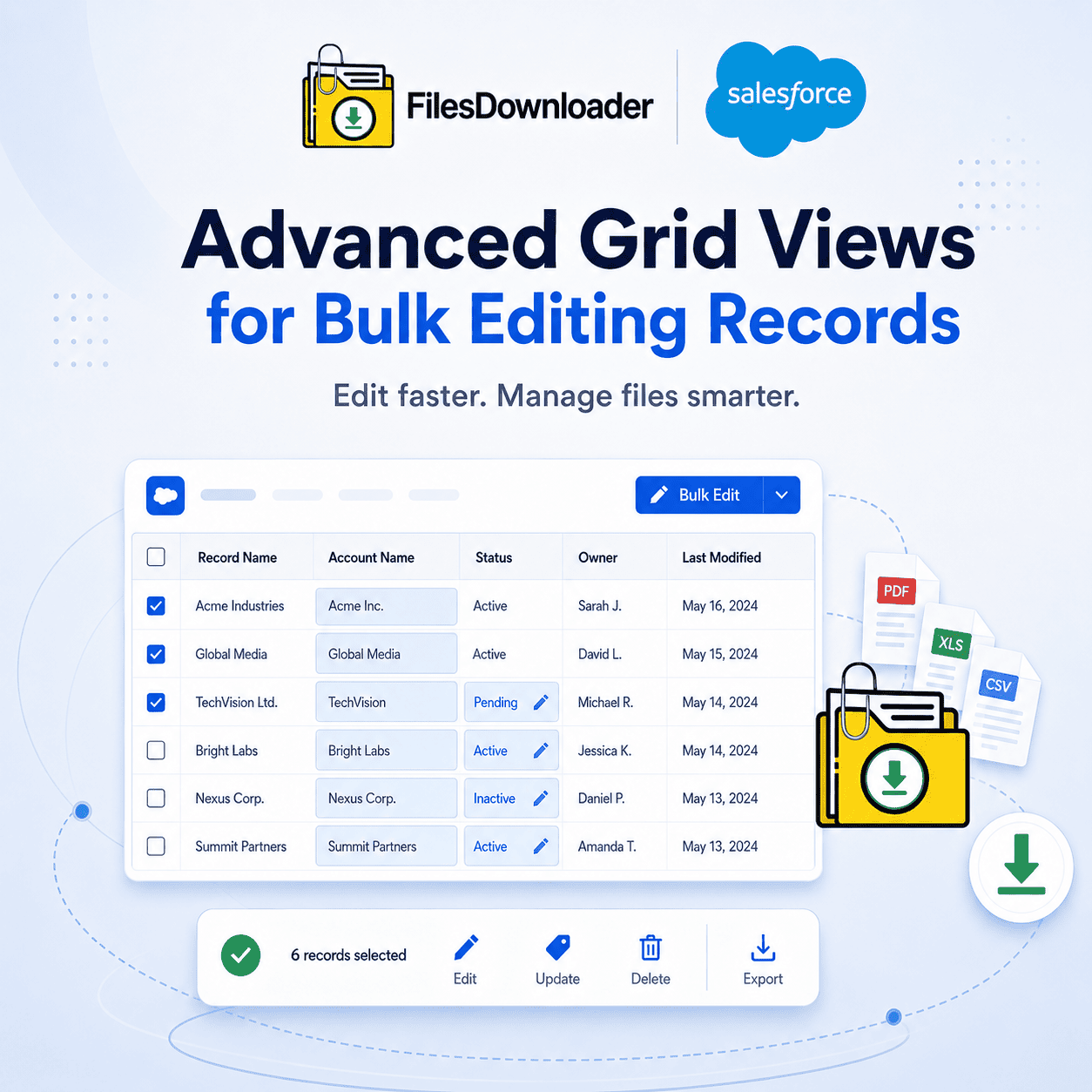


Advanced Grid Views to Bulk Edit Records in Salesforce
Advanced grid views allow you to edit multiple Salesforce records at once, from a list, rather than opening each record separately. This can be done through inline editing in Enhanced List Views, native mass-edit tools in Salesforce, or third-party grid apps that bring spreadsheet-like bulk editing across rows and columns. It’s a different job than exporting files, but the two are often part of the same admin workflow, so it’s worth knowing about both.
Thank you for reading this post, don't forget to subscribe!Bulk Editing in Salesforce: The True Story
Salesforce has a number of native and extended options for bulk editing records:
Inline Editing in Enhanced List Views – click on a cell in a list view and edit the value directly, without having to open the record. Good for small batches, but not something that can handle hundreds of records at a time.
Mass Update tools (Setup > Data Import Wizard or Data Loader)—update large numbers of records by uploading a CSV that matches on Record ID. Best for real bulk changes on thousands of rows.
Third-party grid apps (GridBuddy Connect, Inline Edit for Lists) add real spreadsheet-style grids across multiple related objects at once, allowing you to edit parent and child records side-by-side.
Flow-based mass actions (e.g., “reassign all open cases older than 30 days”) for repeatable, rules-based bulk updates, built once and reused.
Depends on scale. For a handful of records, inline list view edits. For large or repeatable updates, Data Loader or Flow.
Where File Management Belongs in the Same Workflow
Bulk-editing records is often accompanied by a related cleanup activity: dealing with the files and attachments associated with those records. If you’re editing hundreds of Opportunity or Case records in a grid view, there’s often a parallel need to review, export, or archive the documents attached to them—especially before an audit, a migration, or a storage cleanup.
Here the native Salesforce file tools are lacking in a different way than editing records. The default weekly export service dumps files into unstructured zip archives and strips original file names and replaces them with unreadable record IDs—so even after you’ve cleaned up your records, matching each file back to the record it belongs to becomes a manual task on top of the one you just finished.
Exporting Files as Part of Your Bulk-Edit Workflow
When your records have been updated, here is how to handle files associated with those records without having to manually sort them as extensively:
- Open the same list view that you edited. Files downloader works directly with standard and custom list views—filter to “Closed-Won Opportunities—Q4” or any segment that you just edited, and export every related file in one go.
- SOQL for anything more specific. Target specific ContentVersion records, custom objects, or date ranges. Also helps clear out heavy files before hitting a “File Storage Limit Exceeded” warning.
- Export with full context. Original file names, folder structure, owner, object type, and parent-record association are preserved—so files remain traceable to the records you just edited, without manual matching afterward.
- Proceed directly to downstream tools. Structured output loads easily into SQL Server, Excel, or a staging database for migrations or backup.
Files Downloader vs Native File Export
| Challenge | Native Salesforce Export | files downloader |
|---|---|---|
| Selective Filtering | All or nothing | Object, list view, or SOQL-based |
| File Naming | Replaced with record IDs | Original names intact |
| Record Relationships | Manual mapping needed | Auto-mapped to parent records |
| File Structure | Flat, randomized zip | Original folder structure maintained |
| Setup Time | Hours, CLI-dependent | One-click, instant |
The export is done natively inside Salesforce, respecting existing permission sets and sharing rules, so it doesn’t introduce a separate compliance risk on top of your record-editing workflow.