

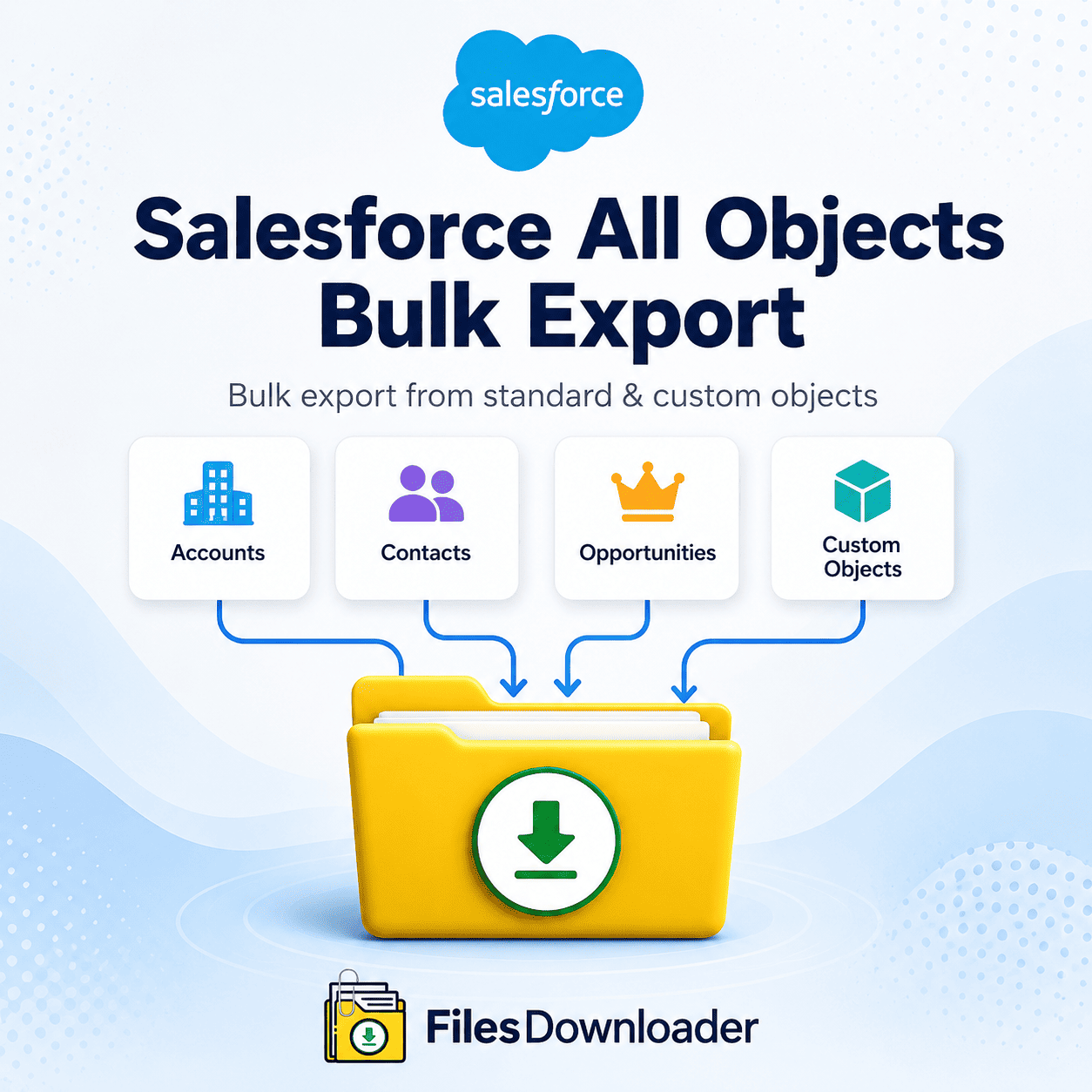


How to Run a Salesforce All Objects Bulk Export
To run a Salesforce all objects bulk export, you need a way to pull files and attachments across every standard and custom object in your org—Accounts, Contacts, Cases, and any custom architecture—without losing the record relationships that make those files useful afterward. Every admin eventually hits this wall: a native export limit right before a critical audit or migration, followed by hours waiting for a zip file that turns into a manual sorting project once it arrives.
Thank you for reading this post, don't forget to subscribe!Why Native Salesforce Exports Struggle with All Object Bulk Export
Salesforce’s native data export options weren’t built for organized, full-org file retrieval, and a few specific gaps make that clear:
- The “zip file scavenger hunt.” Native exports produce arbitrary, capped zip files. Finding a single contract attached to one Opportunity means downloading hundreds of gigabytes, unzipping dozens of folders, and manually cross-referencing 18-character Salesforce IDs against CSV manifest files.
- No selective filtering. Standard tools are all-or-nothing—there’s no easy way to pull only files changed in the last quarter or attachments tied to Closed Won deals. Admins end up exporting huge volumes of non-essential documents, consuming bandwidth and local storage for no reason.
- Lost relational context. Native export downloads and browser-based downloads routinely lose creation dates, owner assignments, and parent-record relationships—turning a bulk export into a manual data-cleansing project before the files are even usable in an external SQL database or Excel report.
How to Plan a Salesforce All Objects Bulk Export
A reliable all-objects bulk export strategy comes down to three core workflows:
1. Start from the list view. You don’t need every document — just the ones tied to active accounts or a specific segment. Files downloader lets admins extract files and attachments directly from standard and custom list views, with point-and-click control over filter criteria and a one-click bulk download.
2. Export with a custom SOQL query. Complex compliance requests need more precision. Run a custom SOQL query export against objects like ContentVersion or Attachment, filtering by file extension, upload date range, parent-object relationship, or custom field flags—turning what would be hours of export processing into minutes.
3. Run a full system backup across multiple objects. For a full platform migration or sandbox re-architecture, it’s critical to preserve relationships between standard objects (accounts, contacts, and cases) and custom objects. A full bulk export pulls all document assets while maintaining a clean folder structure mapped by object type and parent record.
Enterprise Capabilities for Salesforce All Objects Bulk Export
The files downloader is built for admins, data architects, and security officers who need to eliminate manual data extraction:
- Universal object support—pull a full Salesforce all objects bulk export across standard and custom objects, without complex mapping rules.
- List view and SOQL integration — retrieve exact files from list views, or run custom SOQL scripts for precise targeting.
- File hierarchies and metadata—original filename, extension, upload date, owner ID, and parent-record link are captured automatically on every export.
- Broad file format support — PDFs, high-resolution images (.jpg, .png), CAD files, spreadsheets, and custom legacy extensions.
- Storage optimization—quickly move large attachments to resolve File Storage Limit Exceeded warnings without discarding mission-critical historical assets.
Native Export vs. Files downloader
| Challenge | Native Salesforce Export | files downloader |
|---|---|---|
| Object Coverage | Manual, object-by-object | All standard and custom objects |
| Selective Filtering | All-or-nothing | List view or SOQL-based |
| Metadata Retention | Creation date, owner, relationships lost | Fully preserved on every export |
| File Structure | Arbitrary, capped zip files | Structured by object and record |
| Storage Management | No targeted cleanup path | Selective offload to resolve storage limits |
How to Run the Export, Step by Step
1. Pick your source. Go to your target object or custom list view directly from the AppExchange-installed tool.
2. Set filter parameters. Use list view filters, or paste your own ContentVersion SOQL query to isolate exactly the files you need.
3. Choose output options. Select your preferred folder structure (by object, record name, or file type) and the metadata attributes to include.
4. Run the export. Files are processed in the background, with original file names untouched and ready to load directly into SQL Server or Excel.
Because the export runs natively within Salesforce and respects existing permission sets and sharing rules, running a full all-objects bulk export doesn’t introduce a separate compliance risk into your migration or audit process.