

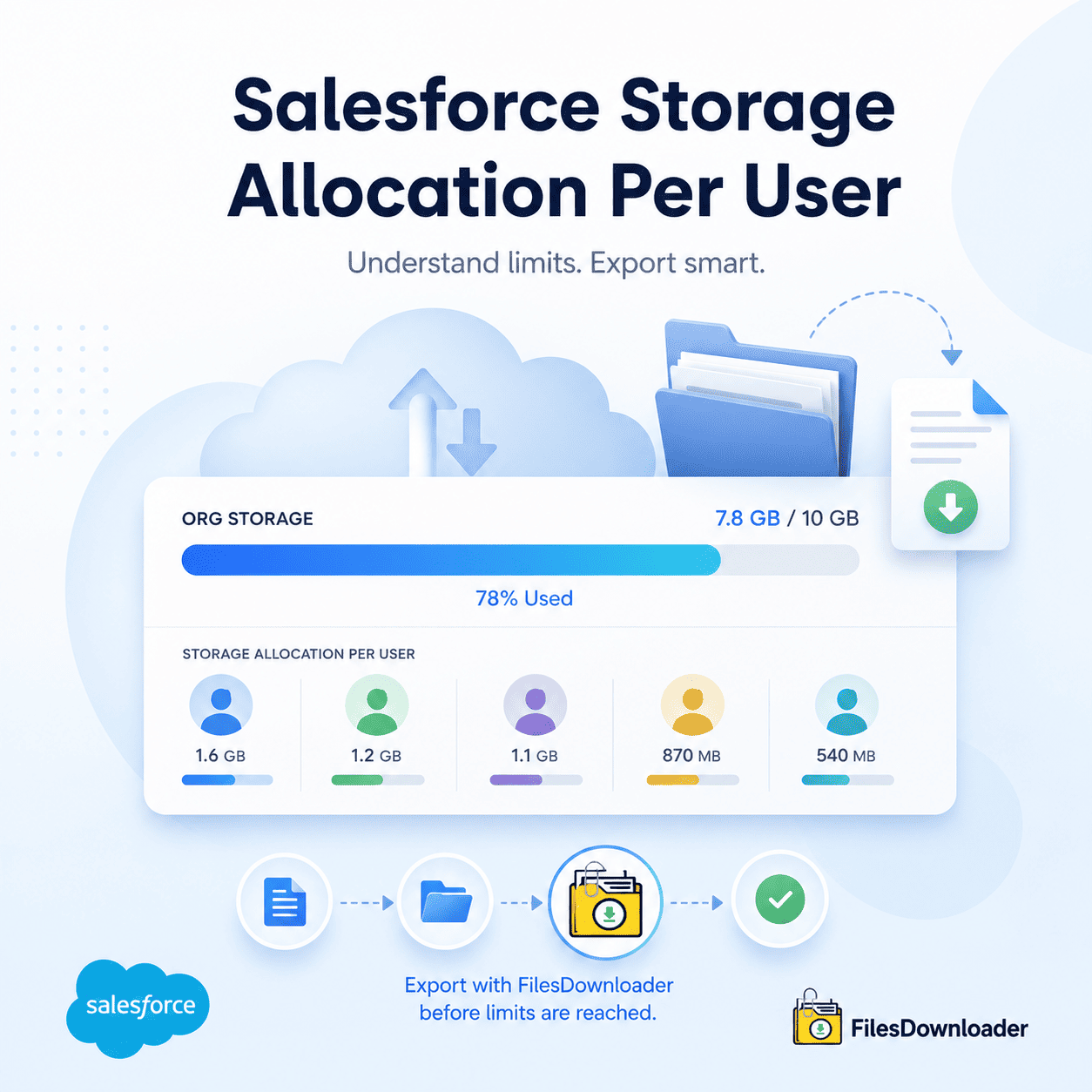


Salesforce Storage Allocation Per User What does it mean? How can Files Downloader help?
The first step to cost management before it becomes a recurring budget issue is understanding how Salesforce Storage Allocation Per User calculates storage allocation. With Salesforce, every org comes with a base storage allocation, plus an allocation per user license — and when that allocation is exhausted, you’ll need to purchase additional storage, which is a recurring cost. Admins can take the simplest action on Salesforce storage allocation per user data with Files Downloader, exporting and clearing out files before limits are reached. This guide outlines how Salesforce storage allocation per user works, what causes consumption beyond the included limit, and how Files Downloader keeps storage costs flat regardless of headcount.
Thank you for reading this post, don't forget to subscribe!How Salesforce Storage Allocation Per User Works
In Salesforce, the storage assigned to each user is separated into two pools: data storage and file storage. Data storage consists of structured records – accounts, contacts, opportunities, cases. File storage encompasses all files that are uploaded, such as ContentVersion records, legacy Attachments, Documents, and Chatter files.
Base Allocation
All Salesforce orgs receive a certain amount of file storage space, no matter how many users they have. And each user license adds a fixed amount to the org’s total file storage pool. The exact hike varies by edition. Essentials, Professional, Enterprise and Unlimited all have different per-user levels.
Why The Allocation Runs Out Sooner Than Expected
Salesforce storage per user grows with headcount but file upload volume usually grows faster. Teams upload contracts, proposals, images and email attachments every day – and none of those files are automatically cleaned up when records close. An org that’s been around three or more years almost always has ContentVersion records and legacy Attachments consuming way more than the math would indicate.
What happens if you exceed the allocation?
File Storage Limit Exceeded: When an org exceeds its per user combined total of Salesforce storage allocation, users see this warning. You can upload new files only after you purchase additional storage or delete/export existing files. Neither of these is a good outcome without a proactive management plan.
Why You Need More Than Just Salesforce Storage Allocation Per User
The allocation included is for normal use, not for years of accumulated files with no cleanup process. As orgs grow and add users, the incremental per-user helps but it rarely keeps pace with the actual file volume teams generate. The Files Downloader is precisely for this discrepancy between the allocated Salesforce storage per user and its real consumption.
No built-in clean up tool
Unfortunately Salesforce does not provide a way to only purge files that are associated with the storage limit. The native export generates a zip file with everything in it, there is no way to filter by object, date or file type. This makes it hard to take precise action on which files are consuming the most space.
Additional Storage Is an Ongoing Cost
Additional storage purchased above the included amount is a recurring annual charge. Teams who accept this as inevitable end up paying more with each renewal without addressing the root cause.
Files Downloader helps you manage the storage allocation per user on Salesforce
Files Downloader was designed to close the gap between the Salesforce storage limit per user and the real world file usage. It gives admins an accurate, bulk and repeatable way to export files before hitting storage limits — and stay within the included Salesforce storage allocation per user across the whole org.
Target files using the most space
Files Downloader now supports export of custom SOQL Query against ContentVersion, ContentDocumentLink and Attachment objects. Find and export the files taking up the most storage relative to the Salesforce storage allocation per user limit by filtering by file size, creation date, object type or record status. The fastest way to reduce consumption is to export the heaviest files first.
Bulk Export From Any List View
Files Downloader works with both standard and custom list views, letting admins target closed opportunities, resolved cases or inactive accounts and export all files related to them in one batch. Every export closes the difference between real consumption and the included file storage limit. Metadata and File Format should be retained.
Exporting to reduce consumption doesn’t mean you lose context. Files Downloader retains metadata such as owner, object type and record association during the export. The original file names and folder structures are preserved to the destination Google Drive, OneDrive, SharePoint, Dropbox or local storage as they were in Salesforce.
Single File for All Export Types
It supports PDF, images (.jpg, .png), Word docs, spreadsheets and most of the usual attachment formats Files Downloader can download any file type and keeps it in its original format, no conversion. whether legacy or ContentVersion records The export process covers both, the storage overage is driven by the attachments.
Standard and Custom Objects Included
Custom objects associated with business processes often have hidden file loads that are not immediately visible in storage reports. Files Downloader exports from standard and custom objects and any standard or custom list view – so no piece of the Salesforce storage allocation per user consumption picture is left untouched.
Per User Salesforce Storage Allocation Use Cases
Headcount Growth Planning: The Salesforce storage allocation per user increase is a nice help as new users are added, but proactive exports with Files Downloader ensure consumption stays within the included allocation, no matter how fast the team grows. Pre-Renewal Storage Reduction: Use Files Downloader to run a targeted export before contract renewal to reduce total consumption. Lower storage footprint versus per user limit of Salesforce storage allocation directly reduces the amount of additional storage purchased.
Closed Record Archiving: The safest export targets are files related to closed opportunities, closed cases or inactive accounts. By regularly archiving them, you can keep consumption within the Salesforce storage allocation per user pool without impacting any active files.
Recurring Storage Cadence: A quarterly or monthly export with Files Downloader keeps file consumption flat between renewals, ensuring the gap between real usage and Salesforce storage allocation per user doesn’t widen over time.
After Exportation
Once files are exported and verified at the destination, deleting the original ContentVersion or Attachment records from Salesforce reduces the billable consumption number against the Salesforce storage allocation per user total. Exported data can also be imported into SQL Server or Excel for audit and reporting. To see how Files Downloader can export large volumes of data for all object types, check out the full listing on the Want to stay within your Salesforce storage quota per user?
Files Downloader provides admins the fastest, most filtered, most repeatable way to manage consumption against the Salesforce storage allocation per user limit at any scale.
[Book a Free Demo] | [View Pricing] | [Install on AppExchange]