

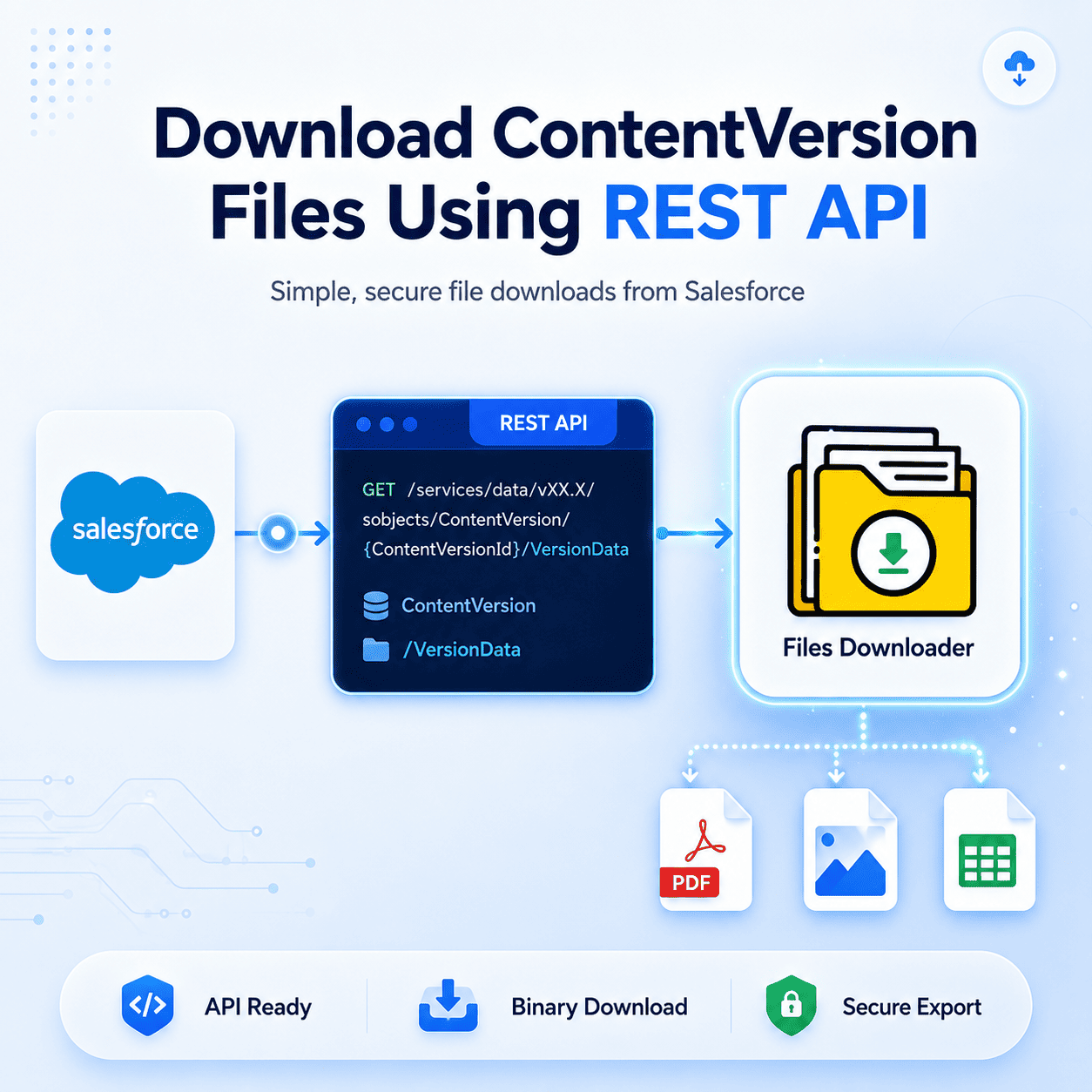


Salesforce File Download REST API: Downloading ContentVersion Files Programmatically
The Salesforce file download REST API is one of the most reliable ways to retrieve file content stored inside the ContentVersion object, and when it comes to downloading those files programmatically, the REST API is the most reliable and widely used approach. Whether you are building a file migration tool, a third-party integration, or a custom backup solution, knowing exactly how to use the Salesforce ContentVersion VersionData download REST endpoint is a skill every developer needs in their toolkit.
Thank you for reading this post, don't forget to subscribe!How to Use Salesforce File Download REST API for ContentVersion Files
While SOQL gives you access to file metadata, it is not designed for retrieving binary content at scale. The REST API fills this gap by providing a dedicated endpoint that returns the raw binary content of any ContentVersion record directly. This makes it the preferred method for downloading files from Salesforce in their original formats — PDFs, images, spreadsheets, and more.
The ContentVersion VersionData REST Endpoint
The core endpoint for downloading file content from Salesforce is:
GET /services/data/vX.X/sobjects/ContentVersion/{ContentVersionId}/VersionDataReplace {ContentVersionId} with the actual ID of the ContentVersion record you want to download. This endpoint returns the raw binary content of the file, which your application can then write directly to disk or pass to another system.
Step 1 — Authenticate Your Request
Before calling the REST endpoint, you need a valid OAuth access token. Use the Salesforce OAuth 2.0 flow to obtain one:
POST /services/oauth2/token

grant_type=password
client_id={ConsumerKey}
client_secret={ConsumerSecret}
username={Username}
password={Password+SecurityToken}
Once authenticated, include the access token in every subsequent request:
Authorization: Bearer {AccessToken}Step 2 — Query the ContentVersion ID
Before downloading, retrieve the correct ContentVersion ID using SOQL:
SELECT Id, Title, FileType, ContentSize, IsLatest
FROM ContentVersion
WHERE IsLatest = TRUE
AND Title = 'YourFileName'
LIMIT 1
Always filter with IsLatest = TRUE to ensure you are downloading the most recent version of the file rather than an older revision.
Step 3 — Call the VersionData Download Endpoint
With the ContentVersion ID in hand, make the authenticated GET request:
GET /services/data/v59.0/sobjects/ContentVersion/{Id}/VersionData
Authorization: Bearer {AccessToken}
The response body contains the raw binary file content. Save it with the correct file extension based on the FileType field retrieved in your SOQL query.
Step 4 — Handle the Binary Response
Here is a simple Python example that downloads a Salesforce ContentVersion file using the REST API:
import requests

headers = {
    "Authorization": "Bearer " + access_token
}

url = instance_url + "/services/data/v59.0/sobjects/ContentVersion/" + content_version_id + "/VersionData"

response = requests.get(url, headers=headers)

with open("downloaded_file.pdf", "wb") as f:
    f.write(response.content)
This writes the binary response directly to a local file, preserving the original format exactly as it was stored in Salesforce.
Common Issues to Avoid
Always request VersionData one record at a time — bulk retrieval of binary content is not supported and will cause errors. Ensure your connected app has the correct API and file access permissions. Also, verify that your access token has not expired before making the download request, as an invalid token will return a 401 Unauthorized error rather than the file content.
In Summary
The Salesforce file download REST API provides a simple and reliable method for downloading ContentVersion files directly from Salesforce. By combining a simple SOQL query with an authenticated REST API call, developers can download any file in its original binary format with minimal code. For teams that need to export hundreds or thousands of files without writing custom API code, tools like Files Downloader automate this entire process — handling authentication, endpoint calls, and file packaging entirely within your Salesforce org.
[Book a Free Demo] | [View Pricing] | [Install on AppExchange]