

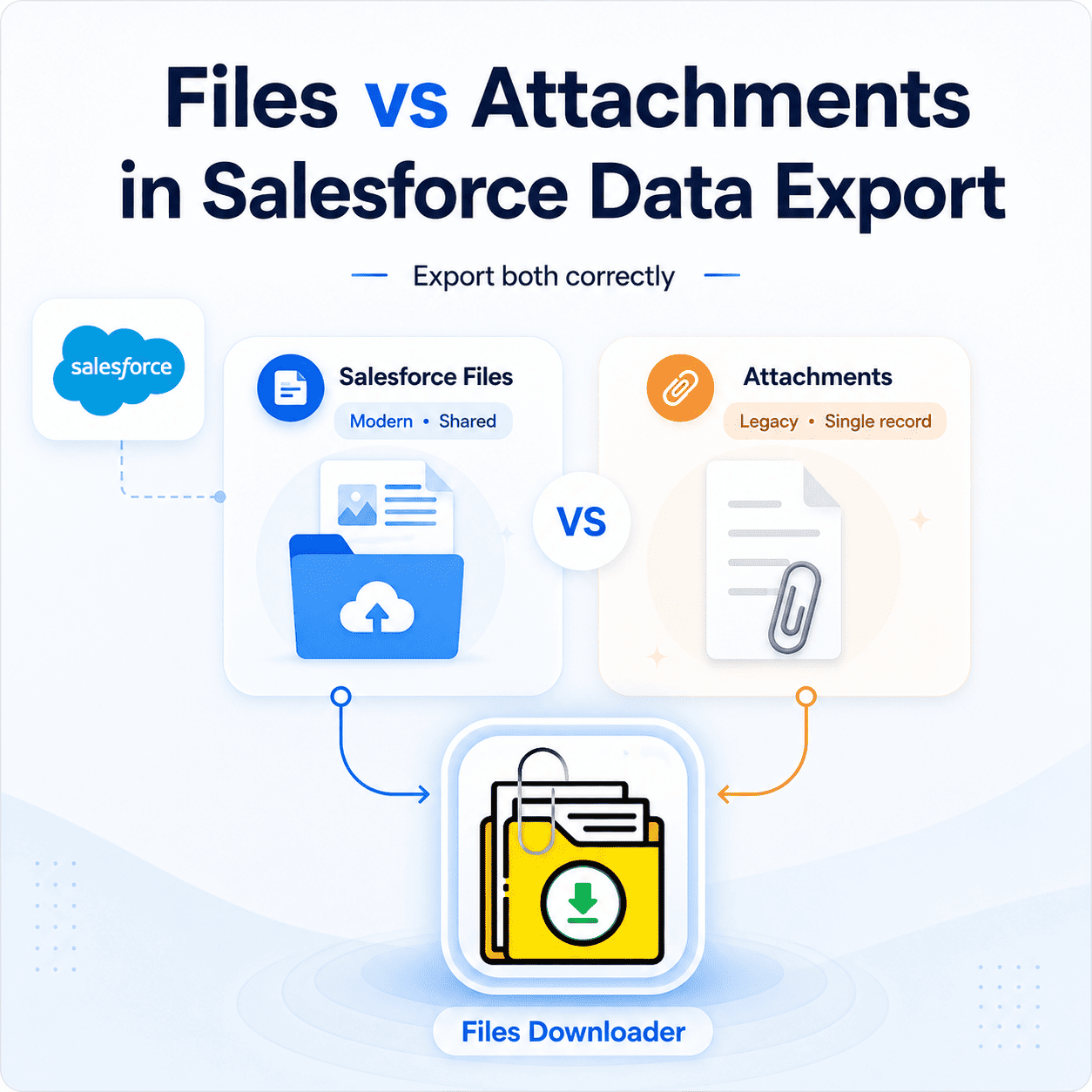


How to Export Salesforce Files and Attachments Correctly
When planning to Export Salesforce files and attachments, most teams assume it’s simple- export data, grab the files, done. But Files and Attachments are fundamentally different objects in Salesforce, stored differently, linked differently, and exported differently. Treating them the same leads to orphaned data, compliance gaps, and hours of cleanup.
Thank you for reading this post, don't forget to subscribe!Salesforce Files are the modern standard for binary data, stored on the ContentDocument and ContentVersion objects within a shared content library. A single file—a contract PDF, for example—can be linked to multiple records simultaneously via ContentDocumentLink: an Account, an Opportunity, and a Contact, all at once, with zero duplication.
This relationship model is what makes a Salesforce data export that includes files metadata-sensitive. Strip the ContentDocumentLink during export and you lose all relational context. What remains is an orphaned binary – a nameless file with no record of where it came from.
What Are Salesforce Attachments?
Attachments are the legacy equivalent, stored on the Attachment object and tied one-to-one with a single parent record. No library, no sharing, no cross-record linking.
By 2026, most well-maintained orgs have migrated away from Attachments – but thousands have not. If your org was built before 2017, you likely have tens of thousands of Attachments sitting on Cases, Accounts, or custom objects. They won’t appear in the Files tab or standard reports, making them very easy to miss during a full data export.
The Core Differences That Matter for Export
| Feature | Salesforce Files | Attachments |
|---|---|---|
| Object | ContentDocument / ContentVersion | Attachment |
| Relationship Model | Many-to-many (ContentDocumentLink) | One-to-one (single parent) |
| Shield Encryption | Natively supported | Limited support |
| API Export Query | Three separate objects required | Single SOQL query |
Why It’s Difficult to Export Salesforce Files and Attachments Correctly
Orphaned files from missing ContentDocumentLink – Most tools pull the binary from ContentVersion without capturing the link records. Files exist in your archive but can’t be traced back to any Salesforce record.
Forgotten Attachments – Because Attachments don’t appear in the Files tab, they’re routinely excluded from export scopes. A complete export must explicitly query the Attachment object — it won’t be pulled automatically.
External tools breaking your Trust Boundary – ETL tools and connected apps process data on external servers that haven’t been audited against your GDPR, HIPAA, or SOC2 commitments. For large exports of contract PDFs and case attachments, this is active compliance exposure, not theoretical risk.
Data Residency, Hyperforce & Spring ’26 Considerations
With Hyperforce now underpinning most Salesforce deployments, data residency is enforceable. If your org is on Hyperforce EU, your data must stay in the EU – but that guarantee only holds if your export tool also operates within that same boundary. Off-platform tools move your binaries to wherever the vendor’s servers happen to be, which can constitute a breach under current data sovereignty laws.
Salesforce’s Spring ’26 Release added native malware scanning for file uploads. External tools bypass this entirely by pulling directly from ContentVersion via API. A native tool integrates with these security hooks automatically – flagged files are excluded from bulk downloads without manual intervention.
Pre-Export Checklist
Before any large Salesforce data export include files attachments operation, complete these checks:
- Inventory both object types – SOQL count on ContentDocument and Attachment separately
- Check Shield settings – confirm your tool supports Platform Encryption natively
- Verify your Hyperforce region – ensure your export tool operates within that boundary
- Validate relational metadata post-export—spot-check that ContentDocumentLink mapping is fully preserved
The Right Approach
A complete, compliant export queries ContentDocument, ContentVersion, and ContentDocumentLink for Files – and the Attachment object separately for legacy data — packaging both with full relational metadata intact. A correct strategy to Export Salesforce files and attachments must include ContentDocumentLink, ContentVersion, and Attachment objects together.
Files Downloader is a 100% native Salesforce application that runs entirely within your Salesforce environment. No external server, no OAuth token exposure, no data leaving your Trust Boundary. Files, Attachments, and Notes exported in bulk with complete relational structure preserved.
Don’t compromise your compliance posture for the convenience of a connected solution. Keep your export native, keep your data inside the Trust Boundary, and keep your relational metadata intact.
[Book a Free Demo] | [View Pricing] | [Install on AppExchange]