

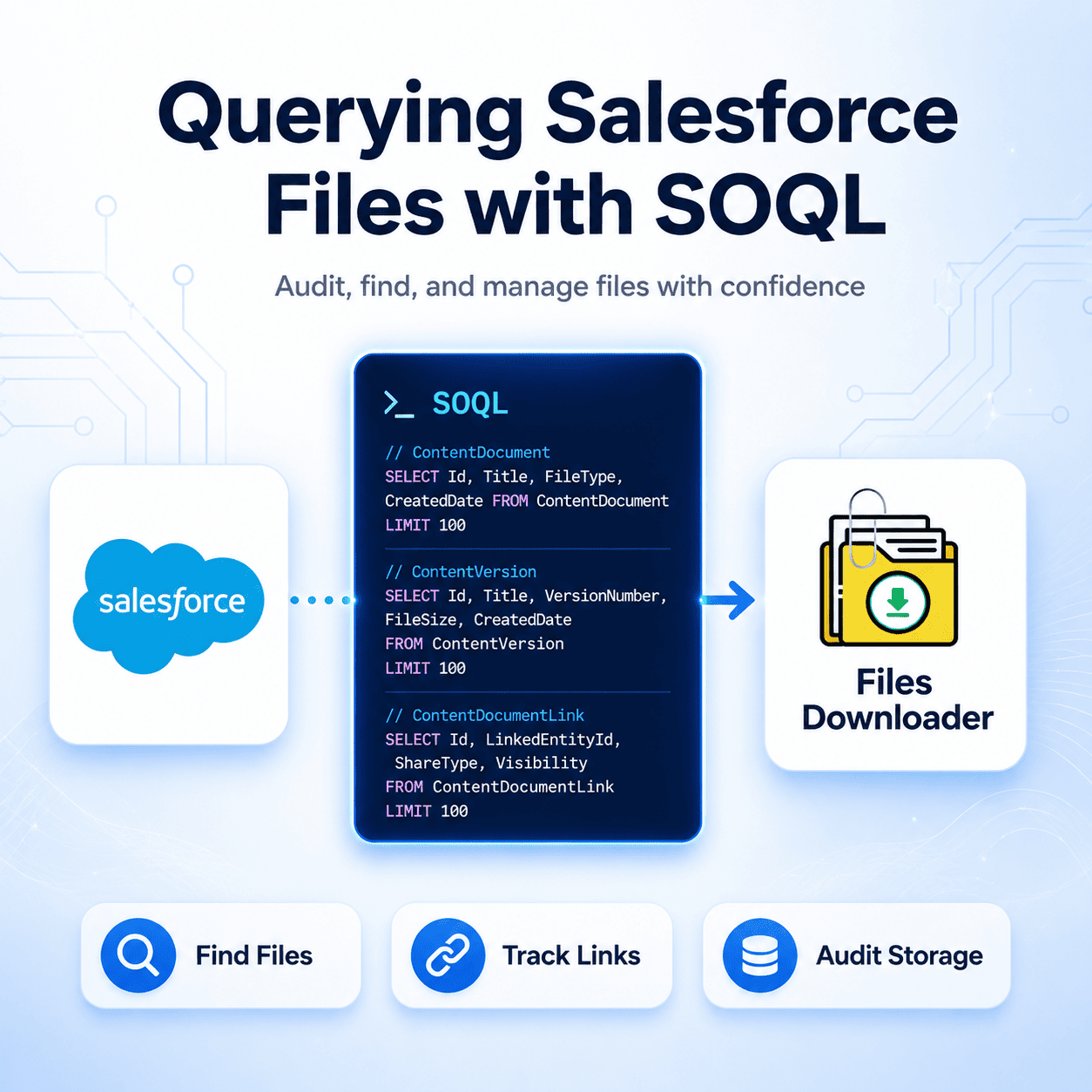


Salesforce File SOQL Query: A Complete Guide to Querying Files
Learning how to use a Salesforce file SOQL query is essential for managing and auditing files efficiently in Salesforce. Whether you are auditing file storage, identifying orphaned records, or building custom file management tools, mastering how to query Salesforce files with SOQL gives you complete visibility and control over your org’s content.
Thank you for reading this post, don't forget to subscribe!How Salesforce File SOQL Query Works
Before writing any SOQL query, it helps to understand how Salesforce stores file data. There are three core objects you will work with:
ContentDocument — the parent record that represents the file itself. It stores metadata like the file name, size, and owner.
ContentVersion—the child record that holds the actual file content and version history. Every time a file is uploaded or updated, a new ContentVersion is created.
ContentDocumentLink—the junction object that links a ContentDocument to a Salesforce record, such as an Account, Contact, or Opportunity.
Understanding these relationships is the foundation of any successful Salesforce file SOQL query.
Basic SOQL Query for Salesforce Files
To retrieve a list of all files in your org, start with a simple query on ContentDocument:
SELECT Id, Title, FileType, ContentSize, CreatedDate, OwnerId
FROM ContentDocument
ORDER BY CreatedDate DESC
LIMIT 100
This returns file names, types, sizes, and creation dates — useful for a quick storage audit.
Querying ContentVersion for File Details
If you need the actual file content or version-specific metadata, query ContentVersion directly:
SELECT Id, Title, FileType, ContentSize, VersionNumber,
       ContentDocumentId, CreatedDate
FROM ContentVersion
WHERE IsLatest = TRUE
ORDER BY CreatedDate DESC
The IsLatest = TRUE filter ensures you only retrieve the most recent version of each file, avoiding duplicate results across multiple versions.
Finding Files Linked to a Specific Record
To find all files attached to a particular Salesforce record — for example, an Account — query ContentDocumentLink:
SELECT ContentDocumentId, ContentDocument.Title,
       ContentDocument.FileType, ContentDocument.ContentSize
FROM ContentDocumentLink
WHERE LinkedEntityId = '001XXXXXXXXXXXXXXX'
Replace the LinkedEntityId value with the actual record ID. This is one of the most common Salesforce query file use cases for admins and developers.
Identifying Orphaned Files with SOQL
Orphaned files are ContentDocuments that are not linked to any record. These quietly consume storage without serving any purpose. Use this query to find them:
SELECT Id, Title, ContentSize, CreatedDate
FROM ContentDocument
WHERE Id NOT IN (
    SELECT ContentDocumentId FROM ContentDocumentLink
)
Running this audit regularly helps you reclaim storage and keep your org clean—one of the best practices for Salesforce file management.
Filtering Files by Type or Size
You can narrow your queries further by filtering on FileType or ContentSize:
SELECT Id, Title, FileType, ContentSize
FROM ContentVersion
WHERE FileType = 'PDF'
AND ContentSize > 5000000
AND IsLatest = TRUE
This example returns all PDF files larger than 5 MB—ideal for identifying large files that may be contributing to storage limits.
SOQL Limits to Keep in Mind
When querying Salesforce files at scale, be aware of governor limits. SOQL queries in Apex are limited to 50,000 rows per transaction. For bulk file audits, consider using Batch Apex or the Salesforce Data Loader to handle large datasets safely without hitting these limits.
Final Thoughts
Learning to use a Salesforce file SOQL query gives admins and developers a powerful way to manage content, audit storage, and maintain a healthy org. Whether you are tracking down orphaned files, filtering by file type, or linking content to specific records, these queries form the backbone of any solid Salesforce file management strategy.
For large-scale file exports, pairing your SOQL knowledge with a dedicated tool like Files Downloader makes the process even faster—pulling thousands of files in their original formats without ever leaving your Salesforce environment.
[Book a Free Demo] | [View Pricing] | [Install on AppExchange]