

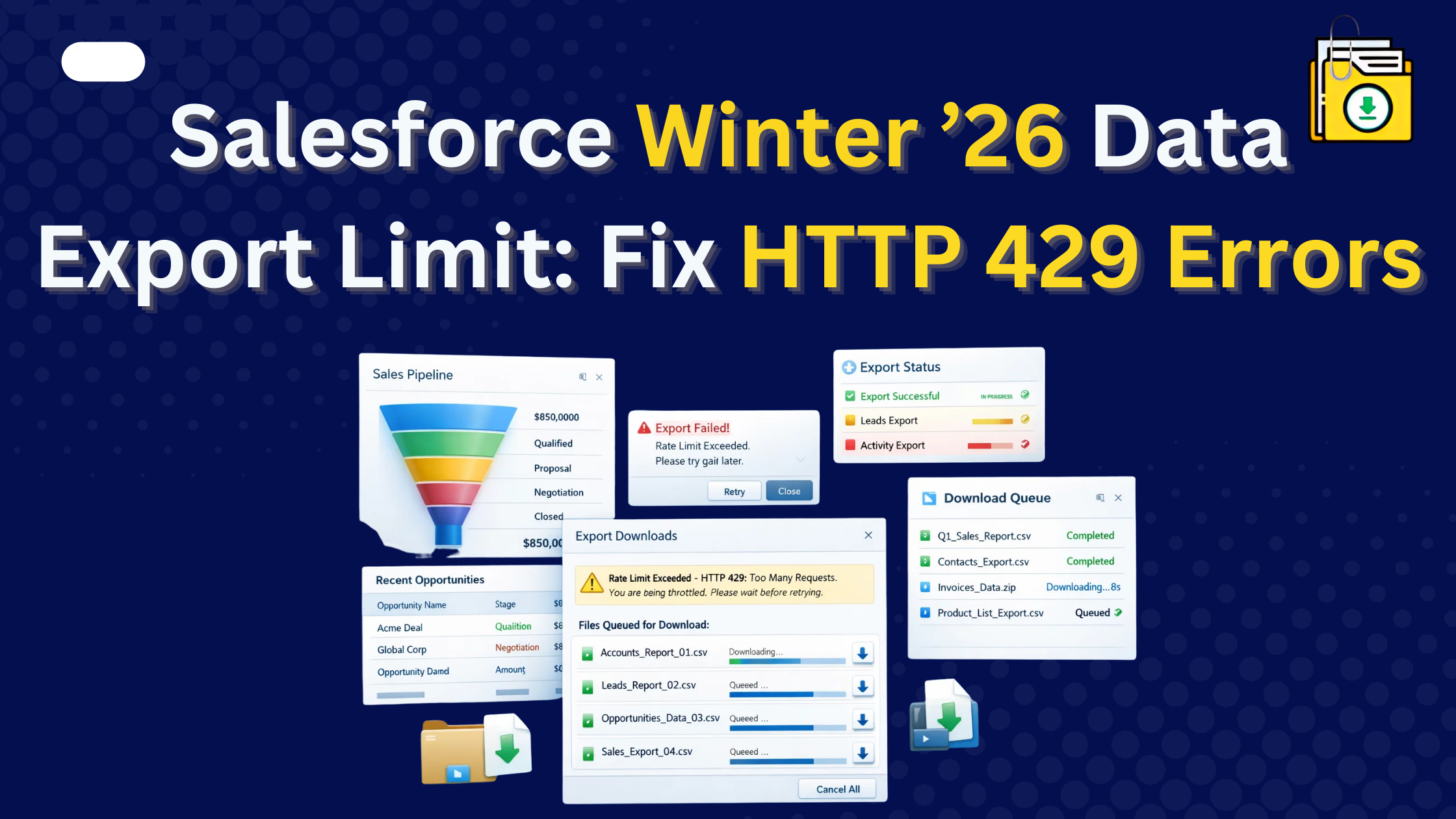


Salesforce Winter 26 data exports introduced a rate limit on manual Data Export downloads. Admins must now wait about 60 seconds between downloading export ZIP files. Admins must now wait about 60 seconds between downloading export ZIP files, and attempting faster triggers an HTTP 429 “Too Many Requests” error. This restriction applies to the Setup UI only. Files Downloader bypasses this UI limitation by automating mass file exports natively, saving admins hours of manual effort.
Thank you for reading this post, don't forget to subscribe!
For years, Salesforce Admins relied on the “Weekly Data Export” as their primary safety net. You’d get an email, head to Setup, and download your .zip files. It was clunky, but efficient.
With the Winter ’26 release, that efficiency has vanished. While exports still generate in the background, retrieving those files now requires significantly more time and manual effort. For large organizations, backup workflows that once took minutes can stretch into hours.
Let’s break down exactly what changed and how admins can adapt.
Salesforce Winter 26 Data Exports and the New 60-Second Limit
To protect platform stability, Salesforce now enforces a strict rate-limiting policy on manual data export downloads through the Setup UI.
- One at a Time: You can no longer initiate multiple downloads simultaneously.
- The Wait Timer: You must wait approximately 60 seconds after starting one download before you can click the next.
- The HTTP 429 Error: Clicking too fast triggers a “Too Many Requests” error, forcing you to refresh and restart your timer.
The “Admin Math”: The Real Cost of Waiting
Salesforce exports are split into roughly 512MB ZIP files. Large orgs produce dozens or hundreds of files.
| Export Size | Zip Files | Manual Wait Time |
|---|---|---|
| 5 GB | 10 | ~10 minutes |
| 25 GB | 50 | ~50 minutes |
| 100 GB | 200 | ~3.3 hours |
Under the new rules, an admin with a 100GB org must sit at their desk and manually trigger a download every minute for over three hours. This isn’t just a waste of time it’s a massive risk. Since export files are only available for 48 hours, any delay in this manual process could result in a permanent loss of your backup window.
How to Bypass the Salesforce 60-Second Limit?
This rate limit is a UI-only safeguard. It specifically targets the manual “Download” buttons in the Setup menu. It does not affect API-based tools or native AppExchange applications.
The Solution: Files Downloader
Files Downloader is a 100% native Salesforce files exporter that eliminates the “Friday Afternoon Headache.” Because it operates within your org’s native architecture, it bypasses the Setup UI limitations entirely.
- Preserve Data Integrity: Automatically organize downloads by Record Name or ID, keeping your files linked to their Salesforce data (something the standard export fails to do).
- Automate the Extraction: Mass download all files, attachments, and SNotes in one action without the 60-second penalty.
- Target Specific Clouds: Whether you are exporting patient records from Health Cloud or partner assets from Experience Cloud, you can filter and download only what you need.
- Flexibility: Export directly from List Views, Parent-Child objects, Reports, or even SOQL queries.
- External Integration: Need to move files to SharePoint? Files Downloader handles the transition seamlessly.
Conclusion
The Winter ’26 data export change didn’t break Salesforce backups but it exposed the inefficiency of manual retrieval at scale.
Admins must now reconsider their approach to:
- Backup reliability
- Operational efficiency
- Time management
- Data risk mitigation
Exporting all data from Salesforce remains essential. But modern environments demand scalable methods beyond sequential clicking.
Organizations that adapt will maintain resilience, protect data, and reduce administrative overhead while those relying solely on UI exports may find backups becoming increasingly impractical. The Salesforce Winter 26 data exports update didn’t remove backup functionality, but it significantly changed how administrators manage large-scale exports.