



Master Your Salesforce CSV Mapping File Export: The Ultimate Guide to Mass File Exporter
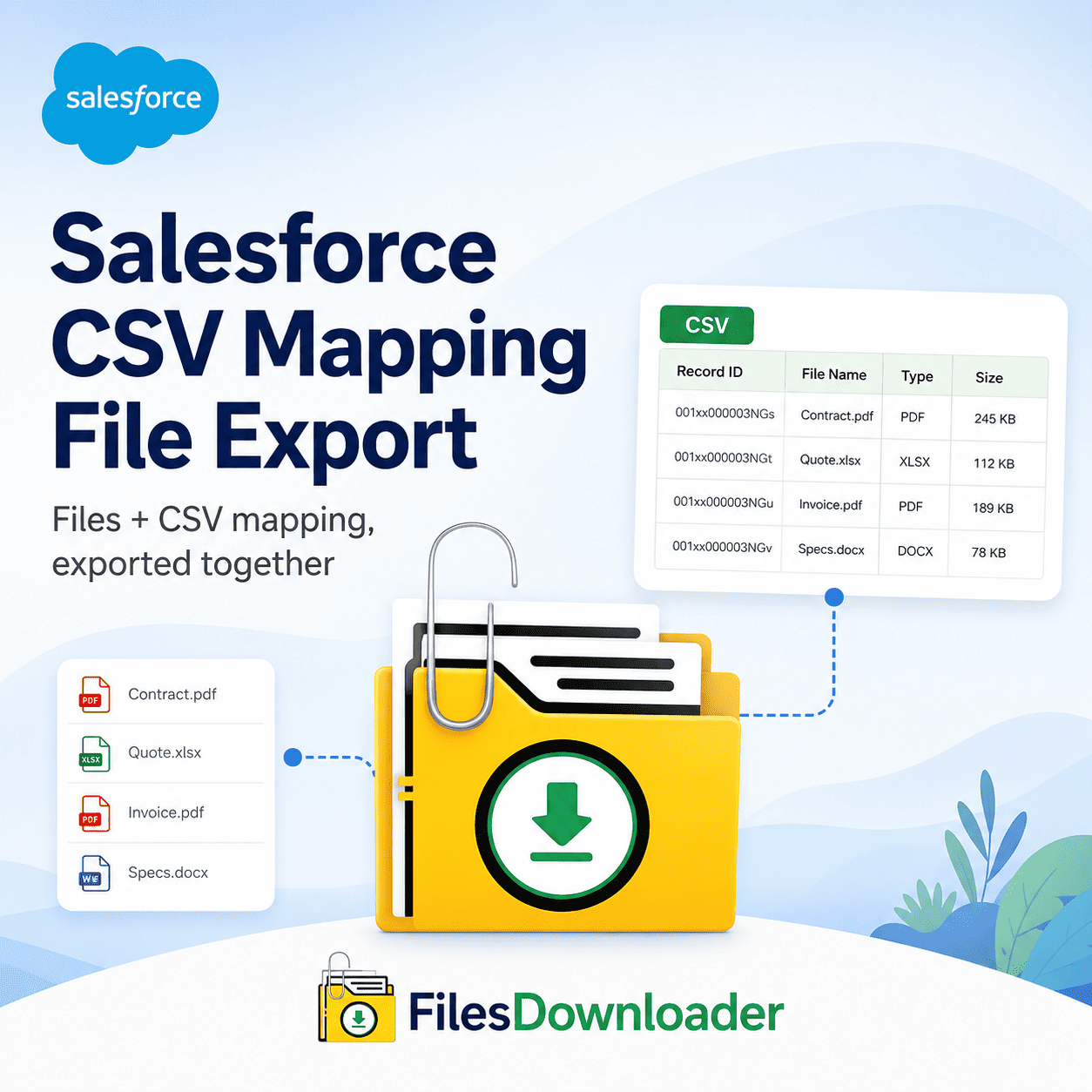
Salesforce admins and data teams have a chronic, excruciating challenge: how to get mass attachments and files without losing critical context. When you hit storage limits or audits, native tools send you on the infamous “Zip File Scavenger Hunt.” You download massive, disorganized archives and then spend hours trying to map unreadable record IDs to your CRM data. The workaround is to have a lean Salesforce CSV mapping file export strategy.
Thank you for reading this post, don't forget to subscribe!Native Export Options Don’t Work for Enterprise Teams
Standard Salesforce functionality doesn’t cut it for bulk file export. Why You Should Not Use Native Export Options for Enterprise Teams Files downloaded and linked directly to structured metadata don’t allow for manual sorting of data and retain record relationships.
When your organization gets a File Storage Limit Exceeded alert, your only native option is the weekly export service that comes bundled with the platform, and it isn’t great. The native bulk exports of the ‘Zip File Scavenger Hunt’ are full of cryptic file names, such as 0688c000008ZYx3AAG. Manually mapping these files back to record IDs turns a simple backup into multi-day data cleanup project.
Lack of Selective Filtering
Want files attached to just High-Value Accounts closed in Q3? There is no way to select what to extract with standard tools. You then have to bulk download your whole file repository, wasting bandwidth, storage space and admin hours.
Download Files Faster with a Direct Salesforce CSV Mapping File Export
Our files downloader application revolutionizes the file management process: file download + dynamic CSV mapping = one automated process.
Critical Metadata Preservation is Automated
Each of the files extracted when you utilize our tool to run a Salesforce CSV mapping file export keeps its original file name and folder structure. More importantly, it keeps essential metadata attached:
File Owner and Creator details
Parent Object Type (Account, Case, Opportunity, or Custom Objects)
Direct Record ID associations (ContentDocumentId and ContentVersion references)
Pro Tip: Maintaining exact record associations during extraction makes it easier to import Salesforce data into SQL Server or Excel post-export for deep reporting and compliance audits.
Extract Mass Files Directly from List Views
You no longer need complex data loader setups just to download daily attachments.
Works with both standard and custom list views: Filter your records directly in the Salesforce UI.
One-Click Bulk Action: Select your target records and export mass files and attachments from any list view instantly.
Universal File Support: Download files & attachments from Salesforce in the exact format they were uploaded—including PDFs, images (.jpg, .png), docs, spreadsheets, and CAD drawings.
Advanced Extraction: Using SOQL Query Export for Target Downloads
For complex data requirements, list view filters may not be enough. Advanced data teams want programmatic control of their exports.
Run Custom Queries for Instant Data Access
Customize and Run Your Own SOQL Query Export Access the latest data instantly. Only download what you need. That means you can filter out only the files that are relevant to your criteria , all in one step , so you don ‘t have to download a ton of unnecessary bulk .
Target Specific Objects & Fields
Easily download complex data targeting specific objects and fields. If you’re looking to Salesforce CSV Mapping File Export, or deeply nested custom objects, our tool is the file exporter you need as a Salesforce admin or data team.
How to Export Your Salesforce CSV Mapping File in 3 Steps
To Salesforce CSV Mapping File Export, you do not need any technical setup or external mapping scripts.
Step 1: Define Your Dataset
Select target records from standard and custom list views or paste a custom SOQL query into the app interface.
Step 2: Establish File Naming & Folder Rules
Determine how you want your files to be organized. Salesforce CSV Mapping File Export log creation to maintain record ownership and object links.
Step 3: Click Export
Download your files in bulk, as well as a CSV mapping file that is fully formatted.
Top Use Cases for Clean Migrations, Audits and System Backups
A reliable automated file exporter is a life saver for your team when it comes to doing vital data maintenance.
| Use Case | Native Salesforce Method | Mass File Exporter Engine |
| Org Migrations | Hours of manually reconstructing parent-child relationships. | Retains original file names, metadata and record mappings automatically. |
| Compliance audits | Weekly Export download all org file repositories | Filter in one go, get just the files that are good for you. |
| Storage Optimization | Manual deletion post generic zip downloads. | Bulk download and off-platform archive with matching CSV logs for SQL import |
Clean Migrations
Moving to a new Salesforce org or an external warehouse? Protects against data corruption during ContentVersion metadata migration.
System Backups & Storage Offload
Don’t pay the higher cost of higher storage tiers when you hit a File Storage Limit Exceeded threshold. Archive historical files locally and maintain full CSV mapping trails.
Start Using the Salesforce AppExchange
Our solution is the perfect choice for Salesforce data export & file management requirements, and the easiest way to Salesforce CSV Mapping File Export.
[Book a Free Demo] | [View Pricing] | [Install on AppExchange]