

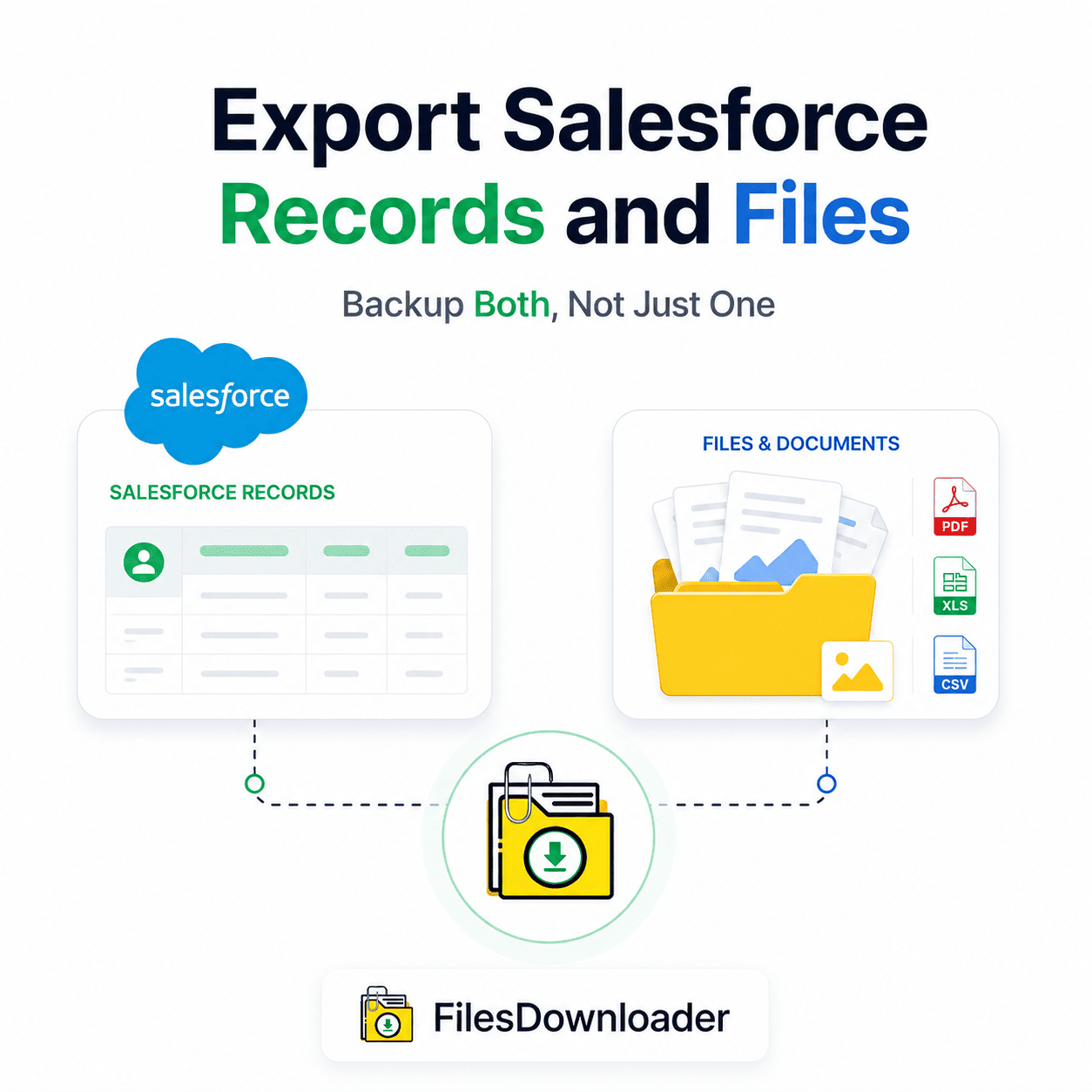


Export Salesforce Records and Files: The Only Way to Backup Both, Not Just One
Most teams can export Salesforce records and files they just don’t realize they’re only doing half the job. The records side is cleanly handled by Data Loader or a scheduled report. What about the files behind these records? The manual option is called the “Zip File Scavenger Hunt” by the admins, who click into record after record because no native tool exports both at once.
Thank you for reading this post, don't forget to subscribe!In this guide, we’ll go over why exporting records alone doesn’t make a complete backup, and how to properly export Salesforce records and files together in one connected process.
Exporting Records Alone Leaves Half the Job Undone
Most teams start with export Salesforce records and files, because that’s what the standard tools are built for. Good support for fields, objects, and relationships is available in Data Loader, Workbench, and native reports.
The problem appears later: a migration, audit, or backup that only captured records is missing every attachment associated with those records. A Case export without its resolution PDF, an Account export without its signed contract technically “exported” but missing in any way that matters.
How “File Storage Limit Exceeded” Errors Reveal the Gap
The difference between record export and file export will be obvious the first time you receive a File Storage Limit Exceeded warning. Record-based export tools have no visibility into file storage at all, so admins are left guessing at what is consuming space.
Teams either blindly delete attachments under pressure or leave the warning unresolved until it blocks new uploads without a way to export Salesforce records and files together. A complete export process solves both — full record data and full file backup, done at the same time.
One-Click Bulk Export for the File Side
Here is where a dedicated files downloader comes in. If your existing tool supports record exports, then you can export Salesforce records and files together by pulling every attachment from the same list view, either standard or custom.
Standard & Custom List View Support: Works with standard and custom list views — no need to rebuild views just to export.
One-Click Execution: Export attachments and mass files from any list view with one click.
Native Formats: Download files and attachments from Salesforce in the same format they were uploaded, with no conversion or loss of quality.
No Middleware Overhead: Easiest way to export Salesforce files without the headache of complex ETL tools or middleware.
Universal Format Support: Supports all file types: PDFs, images (.jpg, .png), docs, spreadsheets, and more.
This bridges the gap between “exported records” and a truly complete export for teams building a real backup or migration package.
Designed for ContentVersion Records, Not Just Surface Files
In modern Salesforce orgs, attachments are stored as ContentVersion records sitting on top of ContentDocument. If you export Salesforce records and files without taking this structure into account, files lose connection back to the record they belonged to. That link is retained by a ContentVersion-based downloader.
SOQL Query Export Precision Exports
You don’t have to export every file for every record. Sometimes you need to export Salesforce records and files for just a subset — one object, one date range, or one record type. This is where SOQL Query Export comes in.
Live Query Execution: Run your own SOQL query to get the latest data immediately.
One-Step Extraction: Filter and pull out just the files that meet your criteria in one go.
Targeted Downloads: Make complex data downloads simple by targeting specific objects and fields.
This is the same query-based precision teams already use for record exports, just applied to files.
Metadata, Names, and Folders Preserved
A file export that doesn’t keep context isn’t a great companion to your record export. If you strip out owner, object type, or naming details, the two exports aren’t going to line up cleanly.
Context Retention: Every file carries metadata such as owner, object type, and record association attached.
Directory Hierarchy: Export files without renaming or flattening, keeping original file names and folder structures intact.
Audit Ready: Great for clean migrations, audits, and system backups where traceability is important.
That’s the secret to why export Salesforce records and files can be truly exported as one connected dataset rather than two separate piles of data.
From Salesforce to SQL Server or Excel in Minutes
Once you export Salesforce records and files, the combined data rarely stays in the Salesforce format. A well-structured export makes it easier to import Salesforce data into SQL Server or Excel after the export, because file names, folders, and metadata already match your source records.
That means data teams save time by not having to spend time sorting data manually before analysis starts. Your combined export arrives ready for the next system, without having to re-map fields or re-label files by hand.
Who Can Export Salesforce Records and Files in One Go?
This isn’t a one-time need — it has become a must-have file exporter for Salesforce admins and data teams who already export salesforce records and files but need the file side handled just as thoroughly. It fits in nicely with existing Salesforce data export and file management processes.
Typical Use Cases
IT Teams: Preparing for a complete system migration.
Compliance Teams: Scheduled audits across custom objects.
Data Teams: Building reporting pipelines outside of Salesforce.
System Administrators: Responding to storage limit alerts on tight schedules.
Visit the tool on the Salesforce AppExchange for setup prerequisites and reviews from other admins who export Salesforce records and files.