



How to Quickly Export and Import Salesforce Metadata in Bulk
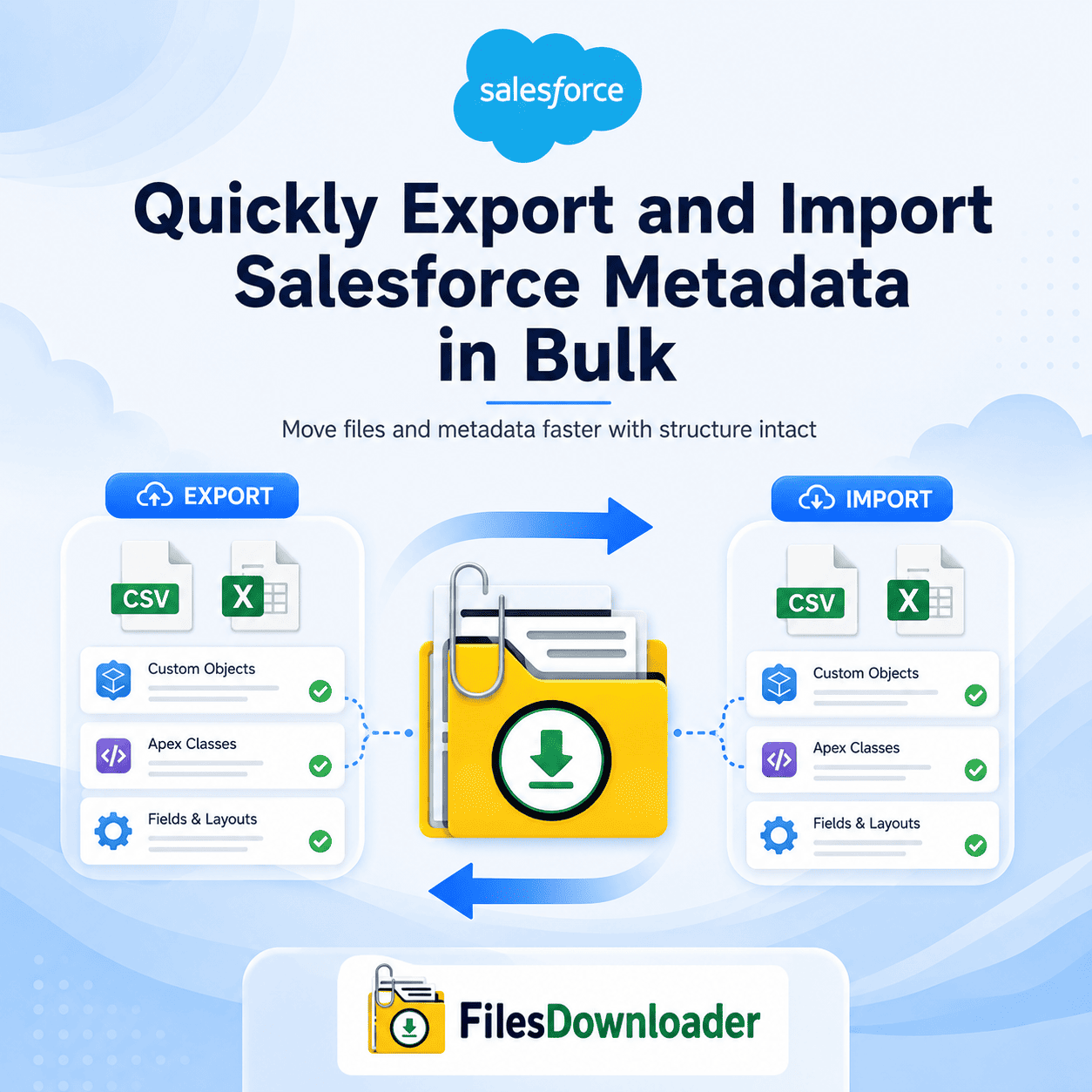
To quickly export and import Salesforce metadata in bulk, you’re actually looking at two separate jobs that use two different tools. Bulk metadata import—moving Apex classes, flows, permission sets, and object definitions between orgs—is handled by change sets, the Metadata API, or Salesforce CLI deployments. Bulk file export — pulling attachments, documents, and their record relationships out of Salesforce quickly, in bulk, with full context intact — is a completely different workflow, and it’s where most admins actually lose time. Knowing which one you need before you start saves hours of chasing the wrong tool.
Thank you for reading this post, don't forget to subscribe!How to Bulk Import Salesforce Metadata
If your goal is genuinely to move configuration metadata into or between orgs quickly and in bulk, native and CLI-based options include:
- Change Sets — good for moving metadata between connected orgs (like sandbox to production), but limited to same-org-family deployments and no bulk file handling.
- Salesforce CLI—the fastest way to bulk-import metadata from a local project into any org, ideal for CI/CD pipelines and repeatable deployments.
- Ant Migration Tool — an older but still-used option for scripted bulk metadata deployment, common in orgs with legacy DevOps pipelines.
- Third-party DevOps platforms (Gearset, Copado)—add visual deployment planning and rollback safety on top of bulk metadata import, useful for larger teams.
None of these tools handle file attachments—which is the other half of most “bulk metadata” projects admins actually run into.
Why Native File Exports Slow You Down
Once the schema side is sorted, the real bottleneck for most admins is exporting the files and attachments tied to their records quickly, in bulk, without losing context. This is where Salesforce’s native Weekly Export Service creates friction: it breaks large file archives into unorganized zip chunks, strips original file names, and replaces them with cryptic alphanumeric IDs. Binary file data in the ContentVersion object gets disassociated from the relational data on parent objects like Opportunities, Cases, or custom objects — so reconciling files back to their parent records afterward takes dozens of manual hours.
Native exports also force an all-or-nothing approach. You can’t pull only the attachments linked to Closed Won Opportunities from Q3 without downloading the entire file repository, and letting legacy attachments pile up unchecked eventually triggers a File Storage Limit Exceeded warning and unexpected storage cost increases.
How to Quickly Export Salesforce Files in Bulk with Full Context
Here’s the practical workflow for the export side once metadata import is handled separately:
1. Start from a list view. Files Downloader works directly with standard and custom list views across Accounts, Opportunities, Cases, Work Orders, and custom objects—filter to exactly the records you need before exporting anything.
2. Run SOQL for precision. For more targeted extractions, run a native SOQL query export against ContentVersion to pull only the files relevant to a specific object, date range, or custom criteria—instead of a full org backup.
3. Export with metadata preserved. Files retain their original names, folder hierarchy, owner, object type, and record association—delivered by account name, opportunity ID, or custom taxonomy instead of random ID strings.
4. Move straight into downstream tools. Because files export alongside clean relational mapping data, they load into SQL Server, Excel, or an enterprise data warehouse without transformation errors—in their native format, whether PDF, image, document, or spreadsheet.
This is how admins and data teams quickly export Salesforce metadata and file context in bulk without writing Apex code or maintaining fragile ETL scripts.
Native Export vs. files downloader
| Extraction Challenge | Native Salesforce Export | files downloader |
|---|---|---|
| File Naming | Alphanumeric IDs (e.g., 068xx000000…) | Original names kept with metadata |
| List View Integration | Not supported | Standard and custom list views |
| Filter Flexibility | All-or-nothing backup | Filtered by list view or SOQL |
| Downstream Usability | Hours of manual remapping | Ready for import into SQL Server or Excel |
The export runs natively within Salesforce, respecting existing permission sets and sharing rules, so bulk file exports don’t introduce a separate compliance risk into your data pipeline.