

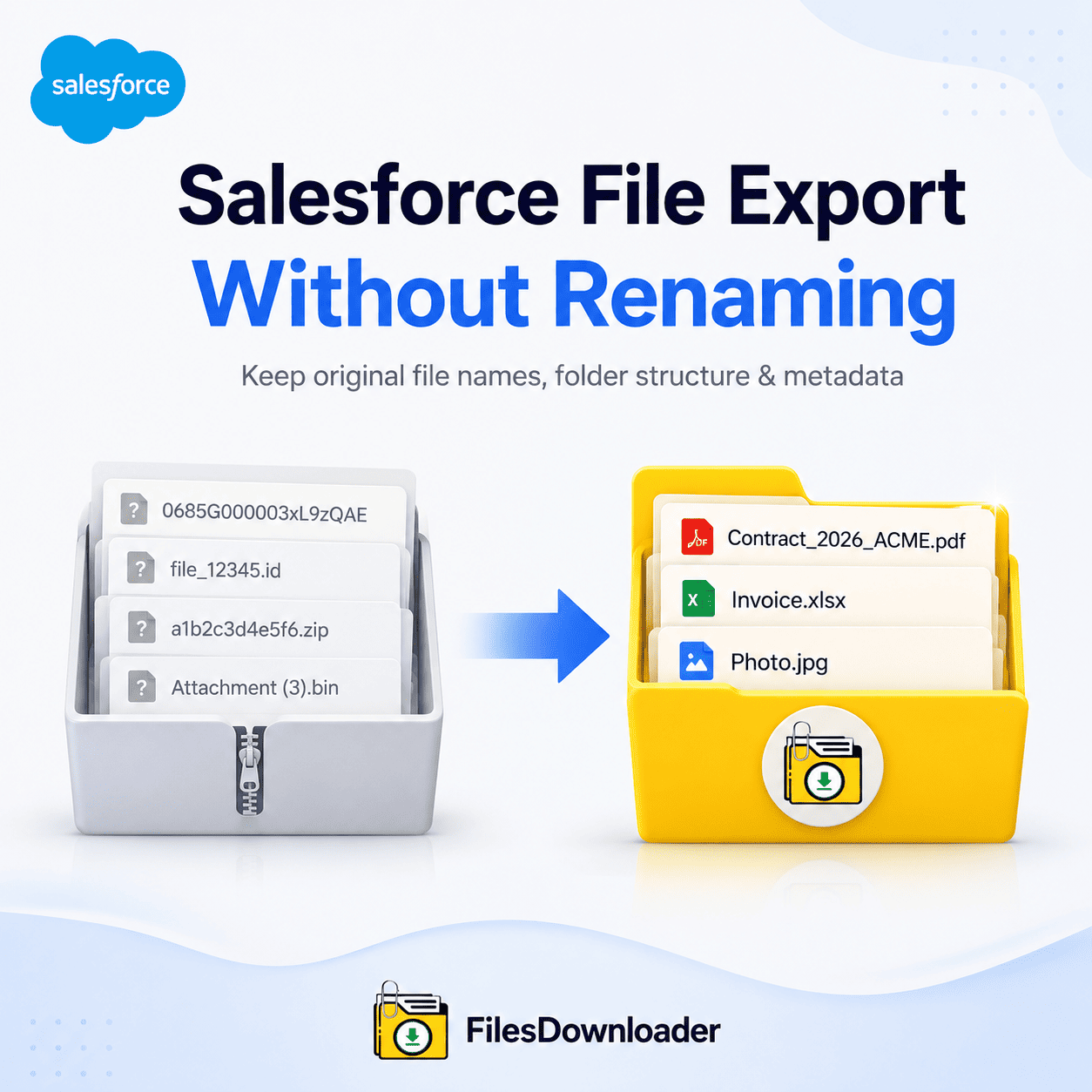


Salesforce File Export Without Renaming
Every Salesforce admin and data architect knows the same frustration: native file exports strip away the original file names and replace them with cryptic alphanumeric IDs. A “File Storage Limit Exceeded” warning or a compliance audit request often means downloading a large zip file that turns Contract_2026_ACME.pdf into one. If you want to reliably export files from Salesforce without renaming them, you need a tool that can retain your file names, folder structure, and metadata together—not at the expense of one or the other.
Why Native Salesforce Exports Rename Your Files
Salesforce’s native Data Export Wizard and Data Loader tools aren’t designed for smart file structuring—they’re designed for raw database backup, and that shows in two specific ways:
Corrupt file names and the “zip file scavenger hunt.” The native export method renames each file to its ContentVersion or Attachment ID under the hood. Pull 5,000 customer contracts, and you have 5,000 files with no way to tell them apart without complex CSV mapping or custom scripting—eating away at admin time that should be spent elsewhere.
Limits of native storage and data bloat. As your Salesforce instance grows, unmanaged files quickly rack up storage overage fees and generate a File Storage Limit Exceeded notice. But since native exports strip file names and record associations, admins often won’t delete old attachments because they don’t know what they’d be losing.
Why You Need a Tool that perform Salesforce File Export Without Renaming
The export process needs to preserve human-readable file names to keep your data clean, but at the same time it needs to keep the back-end links that tie a file to its parent account, opportunity, or custom object. This is what it looks like in practice:
Original file names and folder structure remain intact—files download exactly the way your users uploaded them.
Owner, object type, and record association metadata are retained—never lose track of who uploaded a file or which record it belongs to.
All file types in their original format — PDFs, images (.jpg, .png), .docx, .xlsx, and CAD files.
No manual sorting afterward — no VLOOKUPs or manual file renaming after export.
How to Export a File from Salesforce without Renaming It
Method 1: Export from Standard and Custom List Views
You should not have to download your whole database if you want files from a particular set of records:
Take your pick. Open a standard or custom list view in Salesforce (e.g., “Closed Won Opportunities – This Quarter”).
Tighten up your criteria. Filter and extract the files that meet your criteria, all in one step.
Export with a click. Start a mass action to export bulk files and attachments from any list view with original file names—it works seamlessly with standard objects (Accounts, Contacts, Cases) and custom objects, with no admin setup required.
Method 2: Advanced Filtering Using SOQL Query Export
If you have technical requirements or enterprise-scale datasets, a SOQL query export allows you to be very targeted with your ContentVersion records—build your own SOQL query to grab the latest data at a moment’s notice, selecting specific objects and fields to make complex data downloads easier.
Salesforce File Export Without Renaming: Best Practices
Pre-export audit. First, locate duplicate or orphaned ContentDocument files so you can clear local storage space before the full export.
Metadata check. Make sure your target destination supports record ownership and creation timestamps so nothing is lost downstream.
Export in small batches. Do a small export (50-100 files) first to confirm folder structures are correct before doing a full-org export.
Files Downloader vs. Native Export
| Challenge | Native Salesforce Export | files downloader |
|---|---|---|
| File Naming | Renamed to cryptic IDs | Kept the original file names |
| Folder Structure | Flat, disorganized | Original structure intact |
| Metadata | Owner and record links removed | Owner, object type, record link retained |
| Manual Sorting | Needed (VLOOKUPs, CSV mapping) | None needed |
Built for Admins, Data Teams & System Migration
When 100% naming accuracy matters, Files Downloader is the file exporter Salesforce admins and data teams turn to:
System backups and migrations made easy. If you’re migrating to another CRM or archiving legacy records to cold storage, maintaining original file names avoids the compliance and operational failures that come with losing naming context halfway through a migration.
Simpler data pipelines after export. Data analysts who want to bring Salesforce attachments into their analytics pipelines don’t need to build custom ETL transformations—files load directly into SQL Server or Excel with the name and structure intact, so teams can easily map files to records in a relational database without any additional work.
The export runs natively in Salesforce and honors existing permission sets and sharing rules, so exporting files without renaming doesn’t create a separate compliance risk in your audit or migration process.