

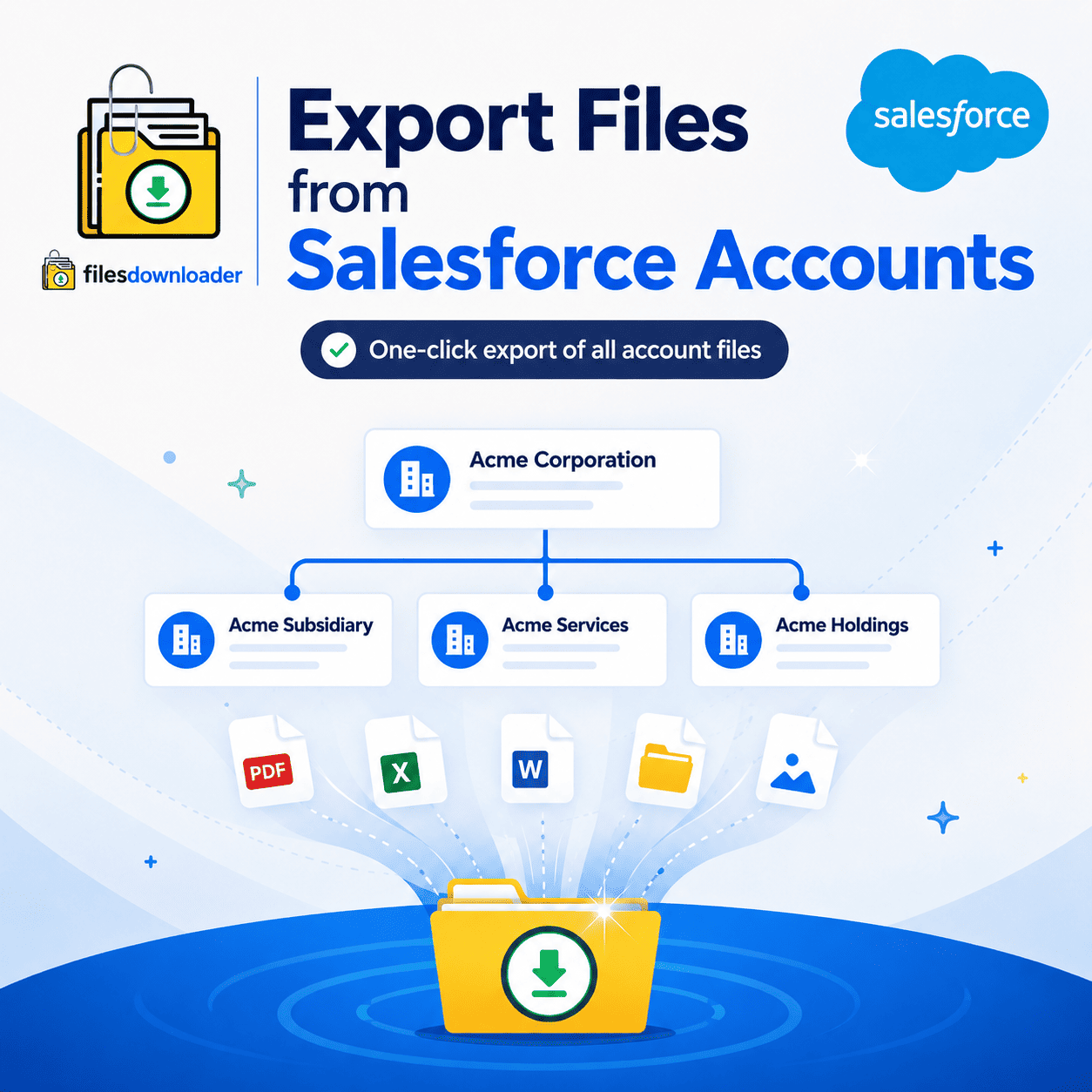


Export Files of Salesforce Accounts in a Single Click
Account records often have more files than any other object contracts, MSAs, renewal docs, account plans and they scatter across parent and child records the moment your hierarchy gets complex. If you’ve ever needed to grab every file associated with an Account before a renewal, an audit, or a migration, you already know that native Salesforce tools weren’t built for that. This guide covers why manual Account file export files from salesforce accounts fall apart, and how to do it in one pass instead of clicking through dozens of records.
Thank you for reading this post, don't forget to subscribe!Why Manual Account File Exports Go Wrong
The “Zip File Scavenger Hunt” Across Account Hierarchies
Open an Account and download its files, then repeat for each child Account underneath it. In a multi-tiered structure, it turns a five-minute task into an afternoon of clicking as is the case for teams using out-of-the-box tools for Account-level file management.
Files Become Orphaned When Ownership Changes
When an Account changes hands — a rep leaves, territories get shuffled the files attached to it often go unnoticed until someone needs a contract no one can find. Regular export files from salesforce accounts makes a recoverable copy, no matter who owns the record today.
File Storage Limit Exceeded
Files pile up quickly on accounts: SOWs, renewal paperwork, support documentation, audit trails. One of the most common ways orgs hit a File Storage Limit Exceeded warning is through Growing Account libraries if left unchecked. With regular export files from salesforce accounts you can archive on your own time instead of scrambling later.
How to Properly Export Files from Salesforce Accounts
The quickest way to export Salesforce files is to run it directly from a list view, in the exact original format — no mapping, no setup calls.
Export Files from Salesforce Accounts Starting From Any List View
It doesn’t matter if it’s a standard export files from salesforce Account list view or a custom one filtered by region, tier, or owner, the export treats it the same way. Build the view just like you usually segment Accounts and then pull all files related to those records in one go.
Run a Custom SOQL Query Export for Accuracy
Need more control than you get with a list view? A SOQL Query Export enables you to target specific fields, record types or date ranges. Get only the ContentVersion records associated with Accounts in a certain segment or owned by a certain team no custom integration required.
Designed for Salesforce Admins and Data Teams
This is a purpose-built solution for the teams who manage enterprise data daily.
One-click mass action: Export mass files and attachments from any list view, standard or custom, without manual configuration.
All supported file types: PDFs, Images (
.jpg,.png), Word Docs, and more, downloaded in their native format.More than Accounts: Download Salesforce files in bulk from any standard or custom object, not just Accounts.
Metadata is still intact: Owner, object type and record association travel with each file.
Structure stays the same: When you export, the original file names and folder structures are preserved.
Zero learning curve: Get rid of the mapping and ETL configuration completely.
Keeping the structure and meta-data intact makes exporting the data to SQL Server or Excel so much easier later no more guessing which Account a contract belongs to.
Where Time Is Saved Most
Account Transfers and Renewals
Before a renewal cycle or handoff between reps, export everything related to the Account so nothing is lost in transition. The deal comes with a full file set, not with whoever it was last owned by.
Audits, Backups & System Migrations
Whether you want to back up before a major release, prepare for a compliance audit, or migrate to a new CRM, filter and extract only the files that meet your criteria in a single pass no manual sorting.
Why Teams Choose This Instead of Manual Export
Generic data tools need mapping and configuration before they can be used on files. Salesforce admins and data teams need results today, not after onboarding. This is a must-have file exporter. It also integrates seamlessly with broader Salesforce data export and file management needs – Accounts, Leads, Cases and custom objects, all of them.
[Book a Free Demo] | [View Pricing] | [Install on AppExchange]