

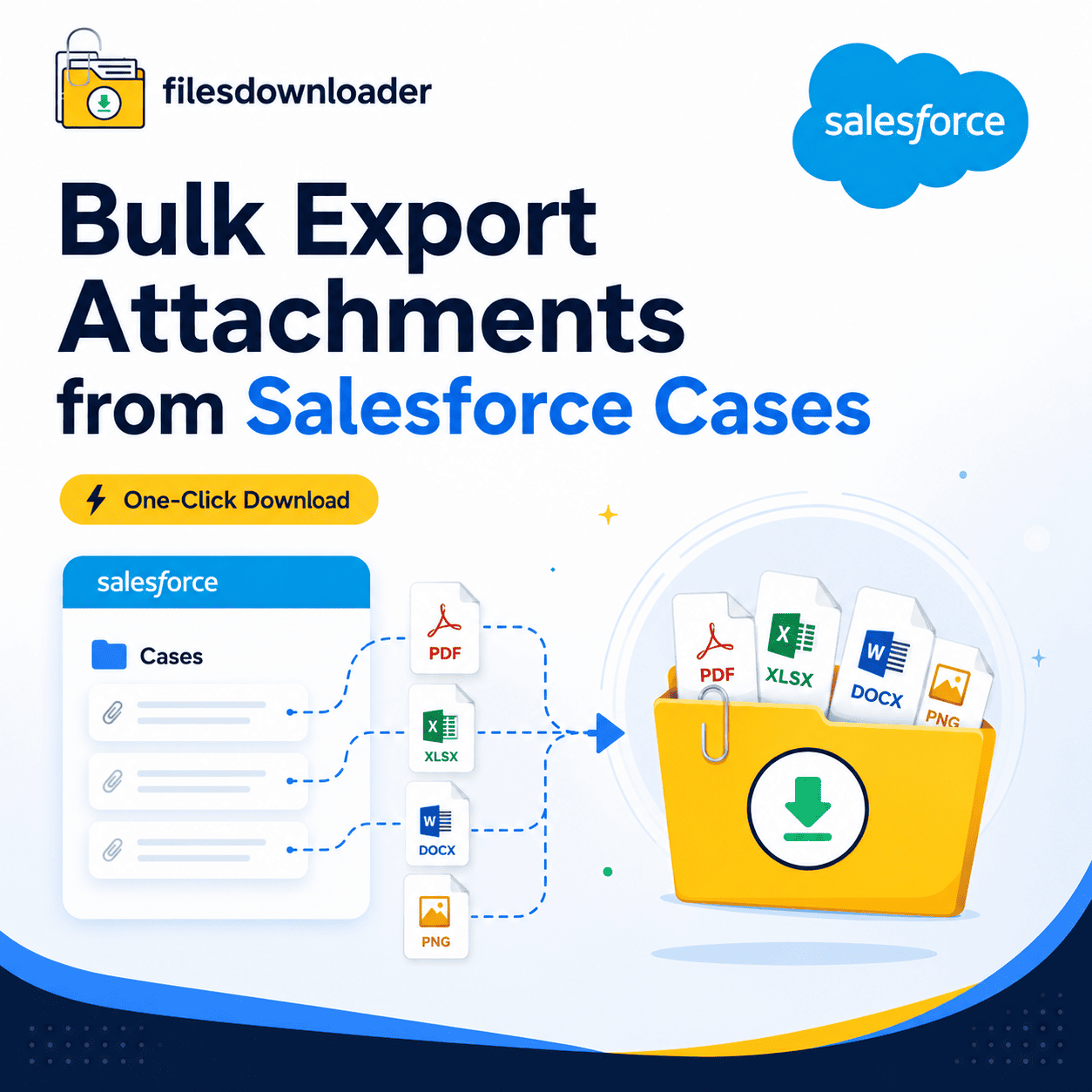


Bulk Export Attachments From Salesforce Cases
This isn’t a strategy of grabbing records out of Salesforce one by one. It’s a part-time job. If you’ve had to bulk export attachments from Salesforce Cases for an audit, migration, or client handoff, you already know the pain. Native Salesforce tools were built to work with data inside the platform, not to get it out quickly.
Thank you for reading this post, don't forget to subscribe!This guide will show you why manual exports don’t work and how the right filesdownloader will allow you to export Case attachments in bulk – in minutes, not days.
The Real Problem: Salesforce Was Not Built for Bulk File Retrieval
The “Zip File Scavenger Hunt”
Open ten Case files. Download ten zip files. Unzip each one and get the PDF you really need. Multiply th at by 500 Cases and a five-minute task becomes a multi-day project. This is what teams attempting to bulk-export attachments from salesforce Case with out-of-the-box tools face every day.
Poor Selective Filtering
All or nothing native export tools give you all of it. You can’t just pull the invoices from Q3 or just the PDFs associated with closed Cases. Without selective filtering, you download gigabytes of irrelevant data to find a handful of files.
File Storage Limit Crossed
There is a limit to org storage. Eventually, teams get a warning that the File Storage Limit has been exceeded as attachments build up and no one exports and archives them in the correct way usually at the worst possible time. Proactive storage management is not reactively exporting on a regular basis in bulk.
How to Bulk Export Attachments from Salesforce Cases the Right Way
The fastest way to get your Salesforce files out is to avoid the manual downloads and export directly from a list view, in the original file format, without the headache of complicated tools.
Export Attachments from Salesforce Cases in Bulk from Any List View
Whether you are working with a standard Case list view or a custom view based on certain filters, the export treats them the same. Build your list view in Salesforce the same way you filter bulk export attachments from salesforce Cases and export all attached to those records in one hit.
Run a Custom SOQL Query Export to Confirm Accuracy
If you’re a team who needs more control, a SOQL Query Export will give you the ability to target specific objects, fields, and record relationships. Export only the ContentVersion records for a specific Case status, owner, or date range, instead of exporting an entire object. This is how data teams get the latest data instantly without needing to write a custom integration.
Built for Salesforce Admins and Data Teams
This is not a hack; this is a file exporter for people that actually work with Salesforce data day in and day out.
One-click bulk action: Export bulk files and attachments from any list view, standard or custom, without any manual configuration.
Supported all file types: PDFs, images (
.jpg,.png), Word docs, etc. are downloaded as is.More than just cases: Export Salesforce files in bulk from any standard or custom object.
Metadata is retained: Owner, object type, and record association go with each file.
The structure is the same: On export, the file names and folder structures are the same so you don’t have to re-tag anything.
No steep learning curve: No complex mapping or ETL setup to get started.
Exports maintain the same structure and metadata, so you can easily import Salesforce data into SQL Server or Excel – no more wondering which file a record is in.
Where Time is Saved the Most
Migrations, System Backups and Audits
Every attachment has to be accounted for whether you are moving to a new system, getting ready for a compliance audit, or doing a regular backup. This is slow and error-prone as Case records are manually checked to make sure nothing is missed. You get a complete, verifiable set of records in a single bulk export attachments from salesforce cases, with metadata preserved.
Filtering by Source
Filter and extract only the files that are relevant to your criteria in one step, instead of exporting everything and then sorting. Identify individual objects and fields from the beginning and forget about manual data sorting. That’s the difference between a download tool and a real file management strategy.
Want a full technical rundown on supported objects and file types before you roll this out org-wide?
if you’re managing Salesforce on top of other backup or archiving systems worth a look if you want to see how it fits into your existing stack.
Why Teams Opt For This Over Manual Export
Generic data tools need mapping, configuration, and a learning curve to be useful. Not this way. This is the file exporter you need if you’re a Salesforce admin or part of a data team that just wants results today, not after a setup call.
It works well for broader Salesforce data export and file management needs not just Cases. And, with one export, admins can see how much time they’re saving and typically that’s part of their data hygiene routine monthly.
[Book a Free Demo] | [View Pricing] | [Install on AppExchange]